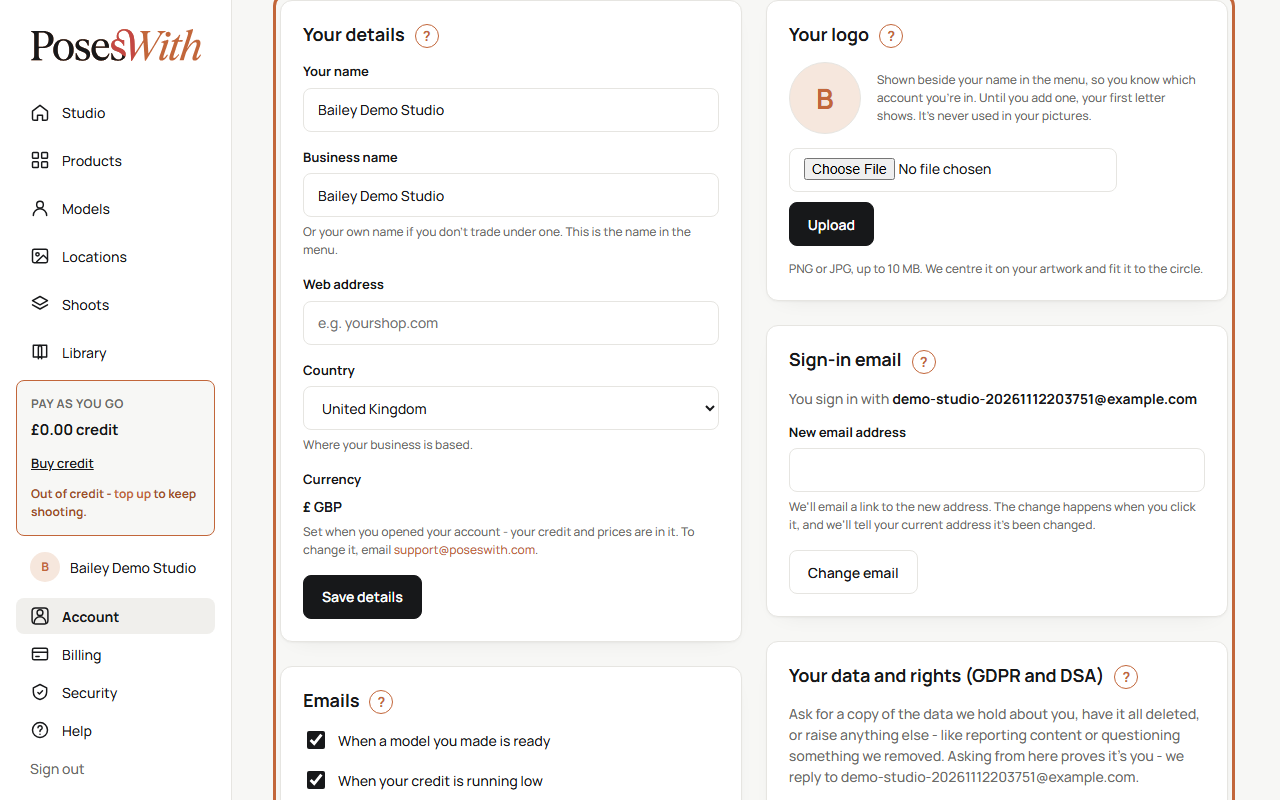
This guide covers your Account page: your details, your logo, the email address you sign in with, which emails we send you, a copy of your data, and closing your account (and getting it back). The part to click in each picture is outlined in orange.
Find your Account page
Click Account in the menu under your studio's name, at the bottom of the menu on the left. On a phone, the menu is at the top of the page.
Your password, two-step sign-in and passkeys aren't here - they're on your Security page. See Security.
Your details
The Your details box holds who you are and where your business is.
Change any of these:
- Your name - your own name.
- Business name - or your own name if you don't trade under one. This is the name shown in the menu.
- Web address - your shop or website, if you have one, for example yourshop.com. You can leave it blank.
- Country - where your business is based.
Click Save details. You'll see Your details are saved.
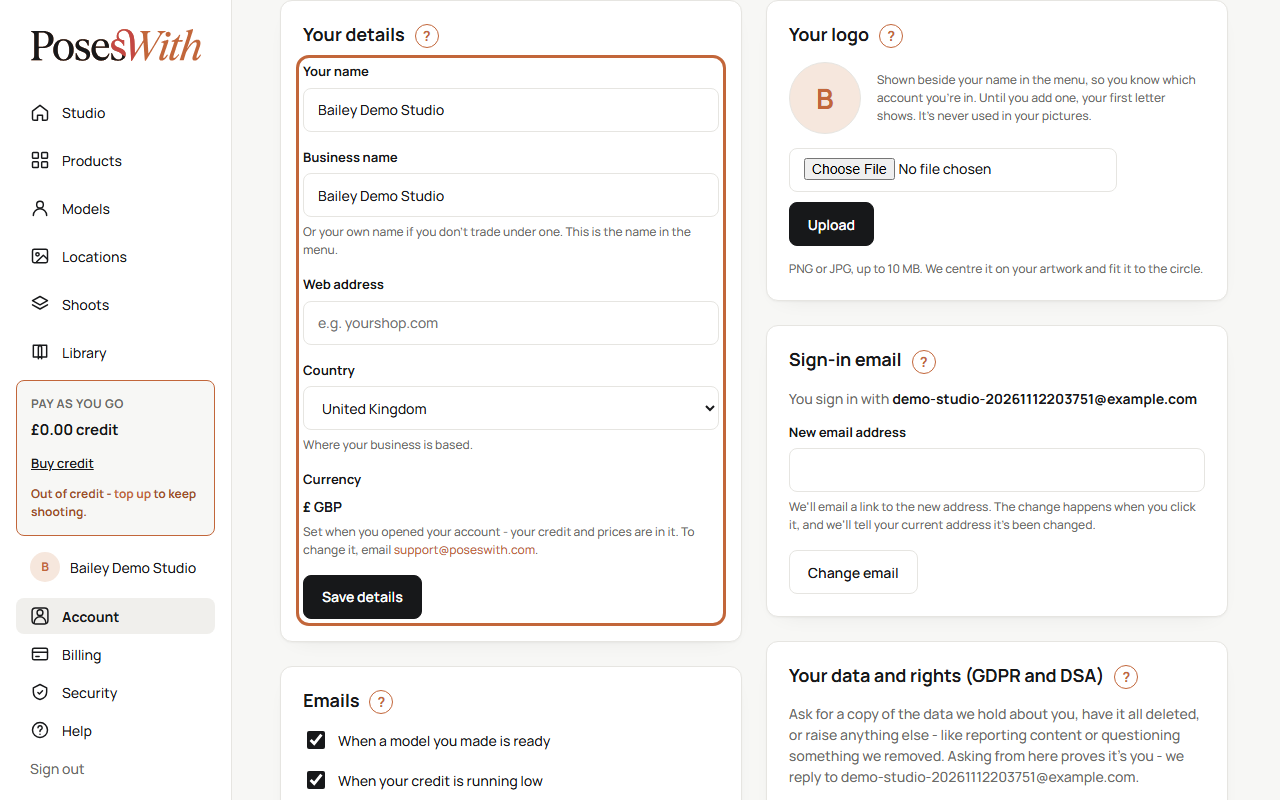
If something needs fixing, a message appears under the box, for example Give your name., Give your business name, or your own name., Choose your country. or That doesn't look like a web address. Correct it and click Save details again.
Currency is shown here too, but you can't change it yourself. It was set when you opened your account, and your credit and prices are in it. To change it, email support@poseswith.com - see Changing your currency.
Tip: The company name, address and VAT number on your invoices are kept separately, in Invoice details on your Billing page. See VAT and invoice details.
Your logo
Your logo shows beside your name in the menu, so you can see at a glance which account you're in. Until you add one, the first letter of your business name shows instead. Your logo is never used in your pictures.
In the Your logo box, click the file box and choose your logo from your computer or phone. It must be a PNG or JPG, up to 10 MB.
Click Upload.
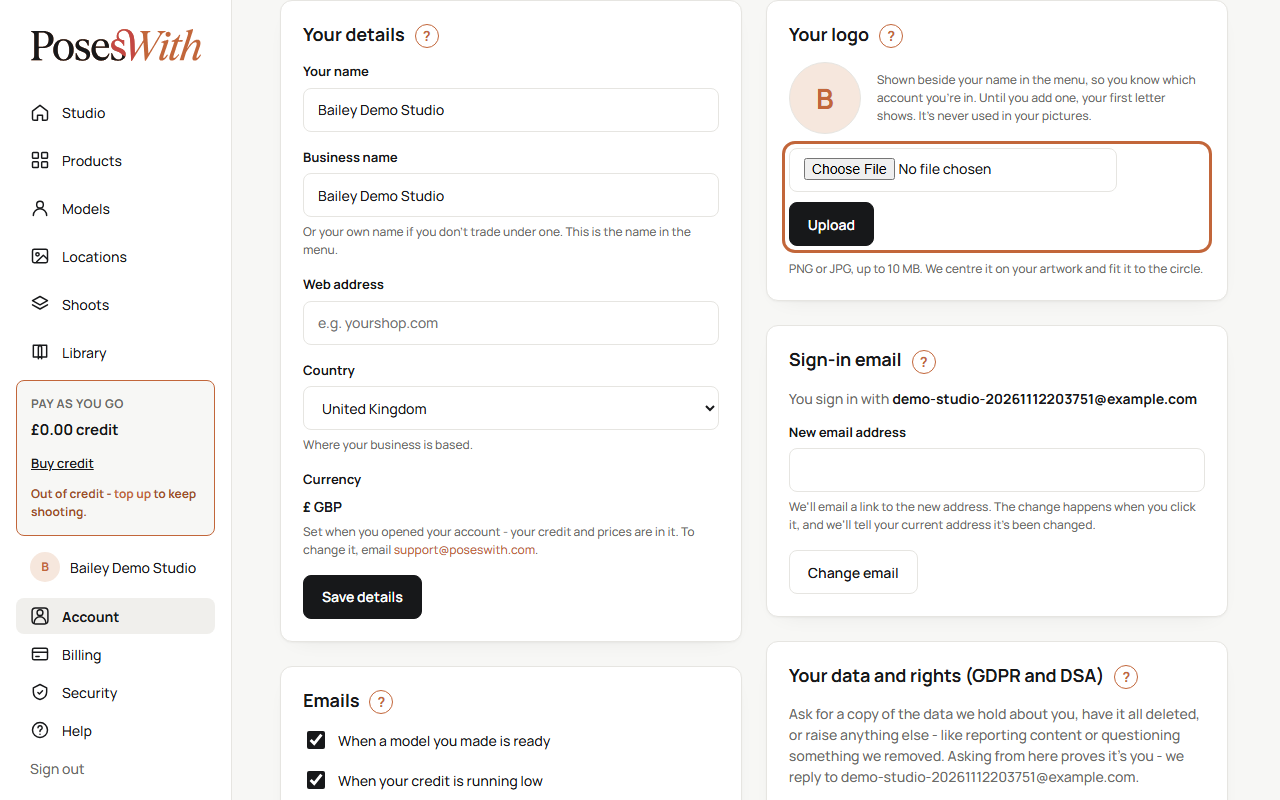
You'll see Your logo is up - it shows beside your name in the menu. We centre it on your artwork and fit it to the circle.
To take it off, click Remove logo. Your first letter shows again.
If it doesn't work, the box tells you why:
- Choose a picture first. - click the file box and pick your logo before clicking Upload.
- That picture is over 10 MB - try a smaller one.
- That isn't a PNG or JPG picture. - save your logo as a PNG or JPG and try again.
- That picture couldn't be read - try saving it again as a PNG.
Tip: A logo with a see-through background keeps its see-through background.
Change your sign-in email
You sign in with your email address, and it's where we send your sign-in codes and account emails. To change it:
In the Sign-in email box, type your new address in New email address.
Click Change email.
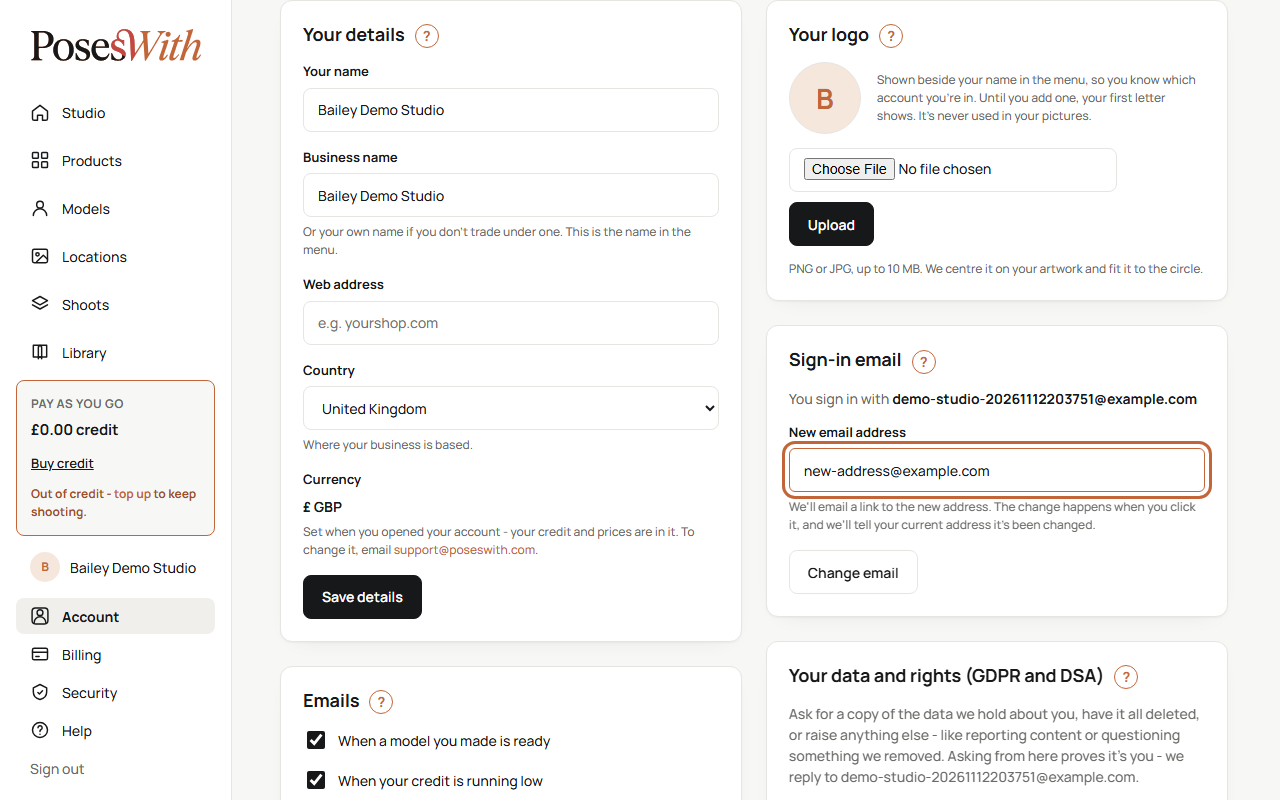
We email a link to the new address, in an email called Confirm your new PosesWith email address. Until you click it, keep signing in with your current address.
Open that email and click Confirm my new email address. The link lasts one hour.
A page opens to say Your sign-in email is changed. From now on you sign in with the new address. Click Go to your studio to carry on.
We also email your old address to say the change has been made, with the date and time. If you get that email and didn't make the change, email support@poseswith.com straight away.
If the page says That link didn't work, the link has run out or has already been used. Sign in and change your email again on your Account page.
Messages you might see when you click Change email:
- That doesn't look like an email address. - check for a typing mistake.
- That's the address you sign in with now. - type the new address, not the current one.
- Another account already uses that address. - each email address can only sign in to one PosesWith account.
- We couldn't send the email just now - try again in a few minutes.
Watch out: The link goes to the new address, so make sure you can open emails there before you start. If you can't, nothing changes and your current address keeps working.
Emails we send
The Emails box on your Account page is where you choose which optional emails you get.
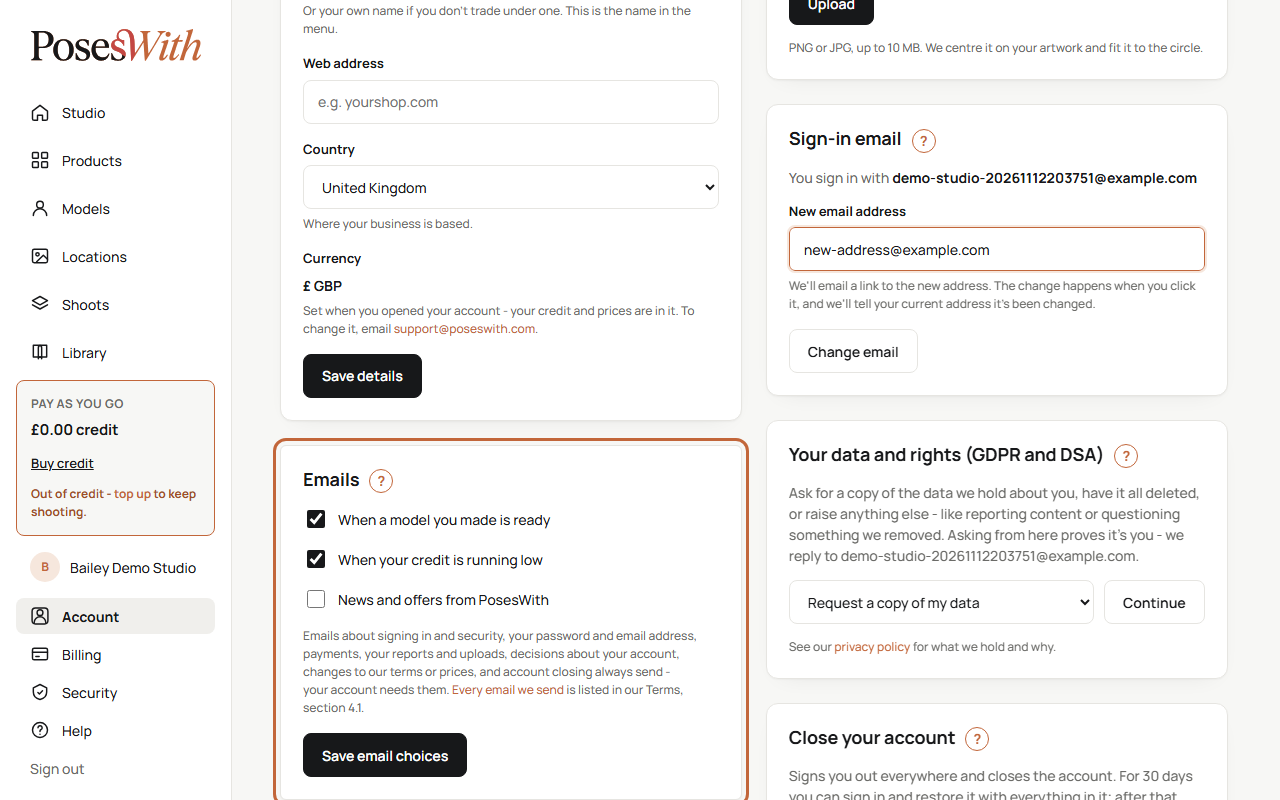
- Tick or untick:
- When a model you made is ready - starts on.
- When your credit is running low - starts on. We send it when spending takes your credit under £5, or the same amount in your currency.
- News and offers from PosesWith - starts off. We only send these if you tick it, and you can untick it at any time.
- Click Save email choices. You'll see Your email choices are saved.
Some emails always send, because your account needs them. You can't turn these off: signing in and security, your password and email address, payments, receipts and refunds, your reports and uploads, decisions about your account, changes to our terms or prices, warnings before an unused account is closed, and confirmation when you close your account.
When payments open
If you asked us to email you when we can take payments from your country, it's listed under When payments open in the same box, with the date you asked. It's one email only.
To stop it, click Remove beside the country. You'll see a message to say we won't email you about it. See Get an email when payments open.
A copy of your data
You can ask us for a copy of the data we hold about you from the Your data and rights (GDPR and DSA) box. Asking from here proves it's you, so we don't need any other proof.
In the drop-down, choose Request a copy of my data.
Click Continue.
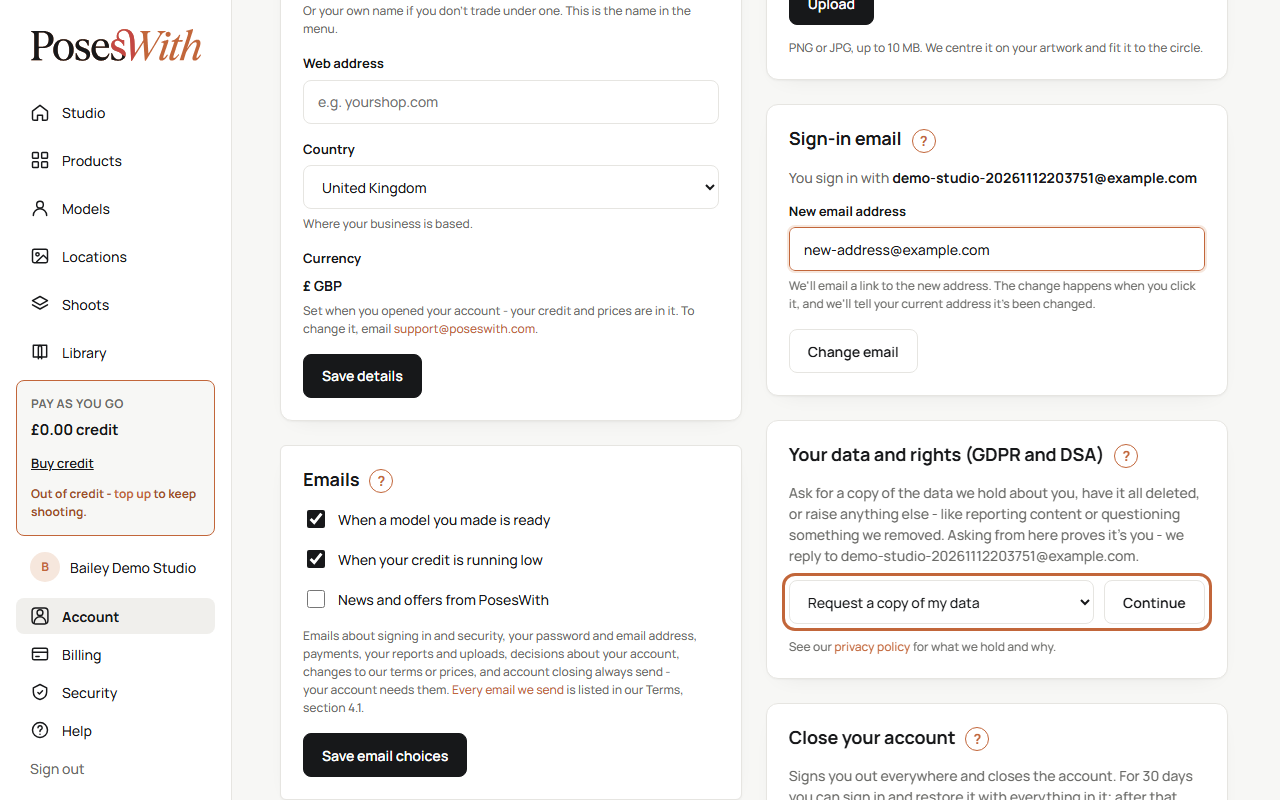
You'll see Your request is with us. We email you a receipt called We've got your data request, and we email a copy of your data to your sign-in address within one month.
If you click it again within a day, you'll see that we already have your request - you don't need to ask twice.
Tip: This is a copy of the information we hold about you. To download your pictures and videos, use your Library.
Something else about your data
The same box is where you can raise anything else - object to how we use your information, complain about it, correct your details, report content you think is illegal, or question something we removed.
In the Your data and rights (GDPR and DSA) box, choose Something else - object, complain, correct my details, report content or question a removal.
Click Continue. A window called Something else opens.
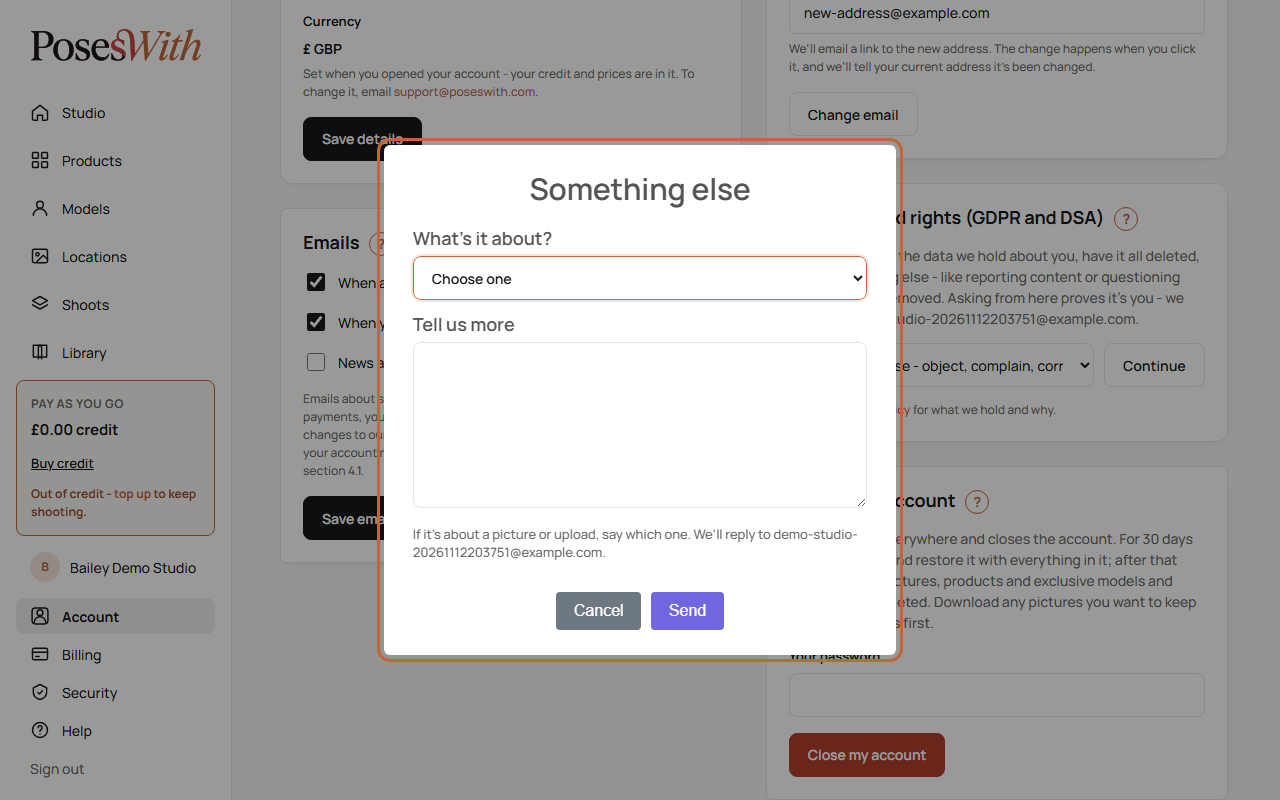
Under What's it about?, choose one.
Under Tell us more, write what it's about - at least 10 characters. If it's about a picture or upload, say which one.
Click Send. Or click Cancel to close it without sending.
We email you a copy, called We've got your message, and reply to your sign-in email. You can send up to 5 messages a day this way. For anything urgent, email support@poseswith.com from your account's email address.
For what we hold and why, see our Privacy policy.
Close your account
You can close your account at any time. Closing it is also how all your data is deleted.
Before you start: download any pictures and videos you want to keep - see Library. Think about any credit you have left too: it's lost when your account is closed, unless you restore the account within 30 days.
Go to the Close your account box at the bottom of your Account page. If you have credit left, the box tells you how much.
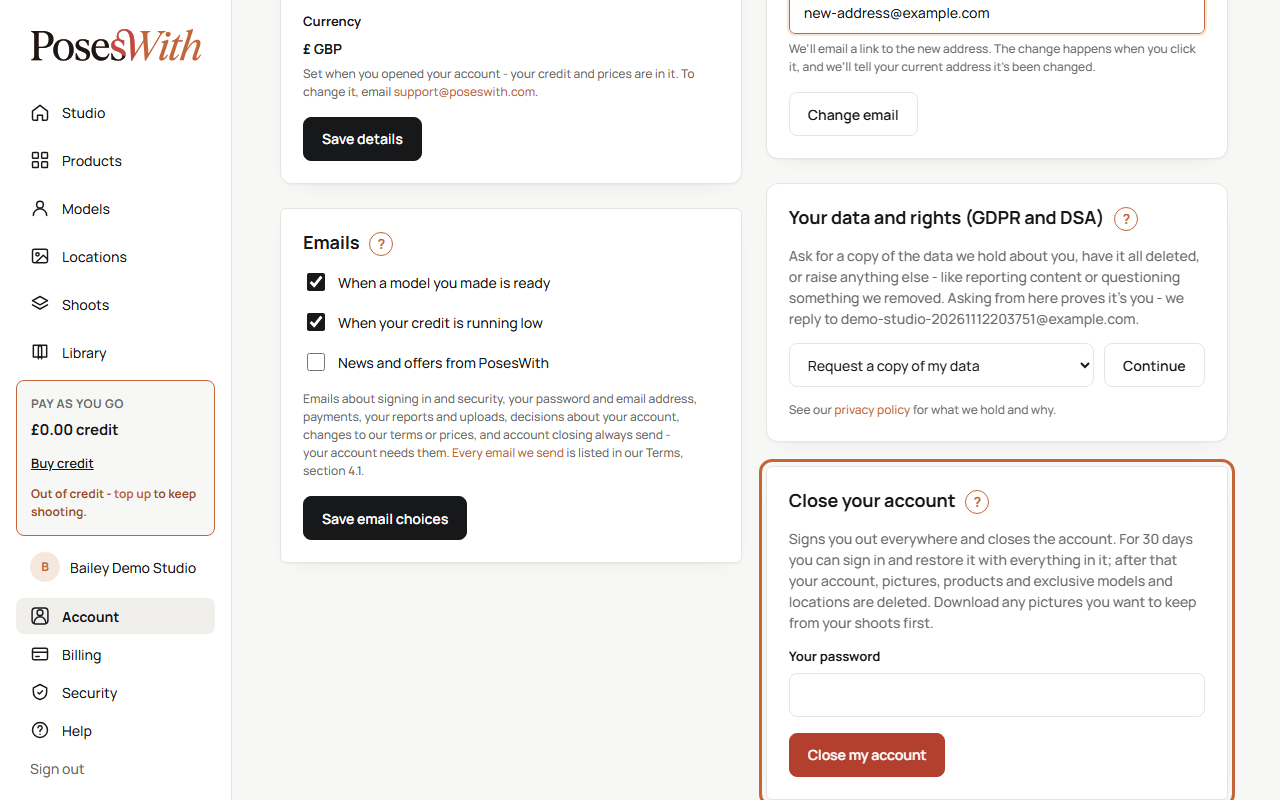
Type your password in Your password.
Click Close my account.
A window asks you to check. It reminds you that you'll be signed out, that you can restore your account within 30 days by signing in, and that any credit left is lost unless you do. Click Close my account to go ahead.
You're signed out on every device straight away and taken to the PosesWith home page. We email you to confirm, in an email called Your PosesWith account is closed. It gives the date your account will be deleted for good, and how much credit was left.
If the password is wrong, you'll see That password isn't right. Nothing is closed - try again.
Tip: Choosing Delete all my data in the Your data and rights (GDPR and DSA) box does the same thing. A window explains what it means - click Continue and it takes you to the Close your account box.
What happens after closing
- For 30 days, you can sign in and restore your account, with everything in it - see Restore your account.
- After 30 days, your account, shoots, pictures, products, and any exclusive models and locations are deleted for good. Once the 30 days have passed, it can't be restored.
- We keep your billing records (top-ups, charges and refunds) for 10 years, because the law says we must. Copies of your invoices are kept with them.
- Any shared model or location you made stays on PosesWith for others to use, with your name taken off it.
Can't sign in to close your account? Email support@poseswith.com from your account's email address and we'll close it for you.
Restore your account
If your account is closed and you're still within the 30 days, you can get it back exactly as it was.
Go to poseswith.com and sign in as usual, with your password and code.
A page called Your account is closed shows the date it was closed and the last day you can restore it.
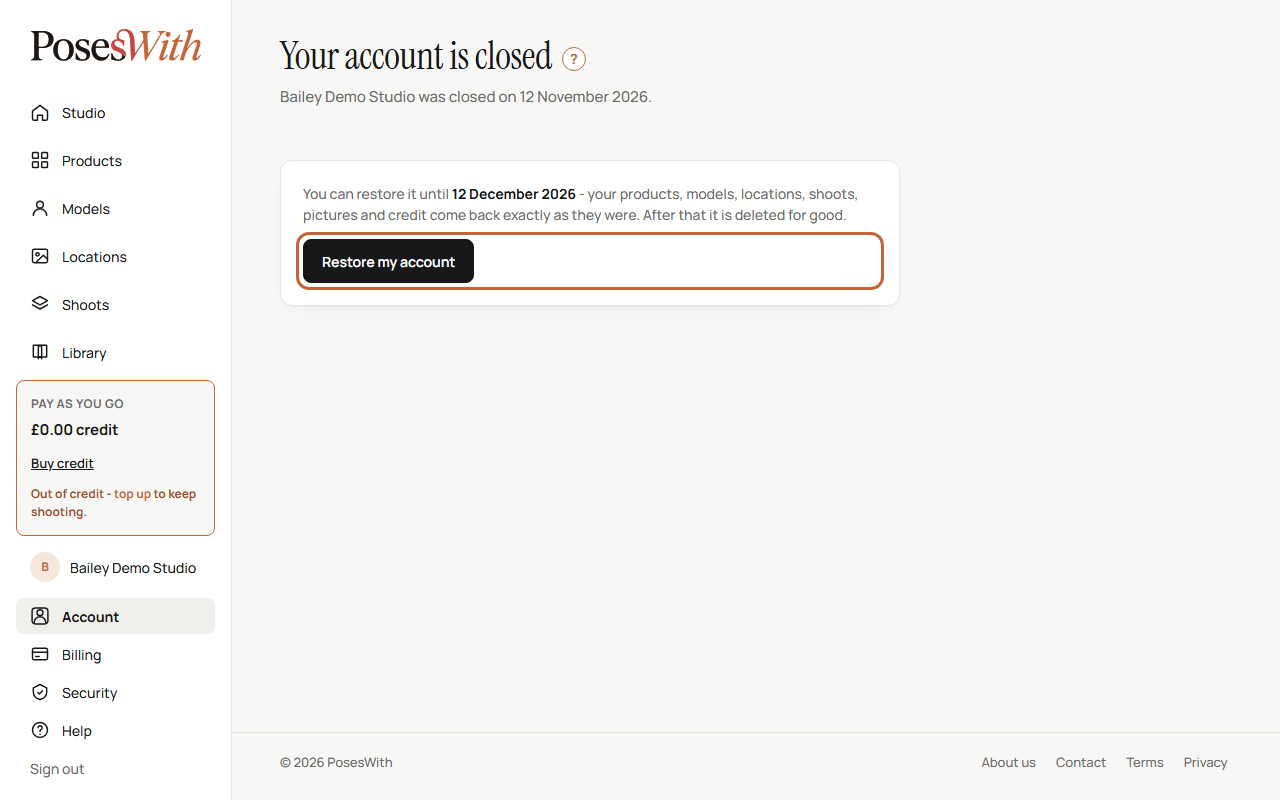
Click Restore my account. Your products, models, locations, shoots, pictures and credit come back exactly as they were, and your studio opens.
If the 30 days have passed, the page says so, and the account is being deleted. If you have a question, email support@poseswith.com.
Accounts that aren't used
If you don't use your account for 2 years, we close it - unless it has enough credit left for at least the cheapest thing on our price list. An account with that much credit stays open, however long you're away.
- Using your account means visiting it while signed in.
- We email you 2 months and 1 month before we close it. Signing in at any point before then stops the closure.
- If we do close it, you have 30 days to restore it, the same as if you'd closed it yourself. When you sign in, the Your account is closed page says it was closed because it hadn't been used for two years - click Restore my account.
See Credit you don't use.
What next
Keep your account safe with a strong password, two-step sign-in and recovery codes: Security.