This guide covers what happens after you click Generate: waiting for your picture, what it costs, checking it, trying again, the versions of each shot, downloading, and reporting a picture that isn't right.
While your picture is made
Your new shot appears at the top of Shots on the shoot page. While it's being made, the box says Generating… about a minute. You don't need to stay and watch - carry on setting up your next shot, or leave the page and come back.
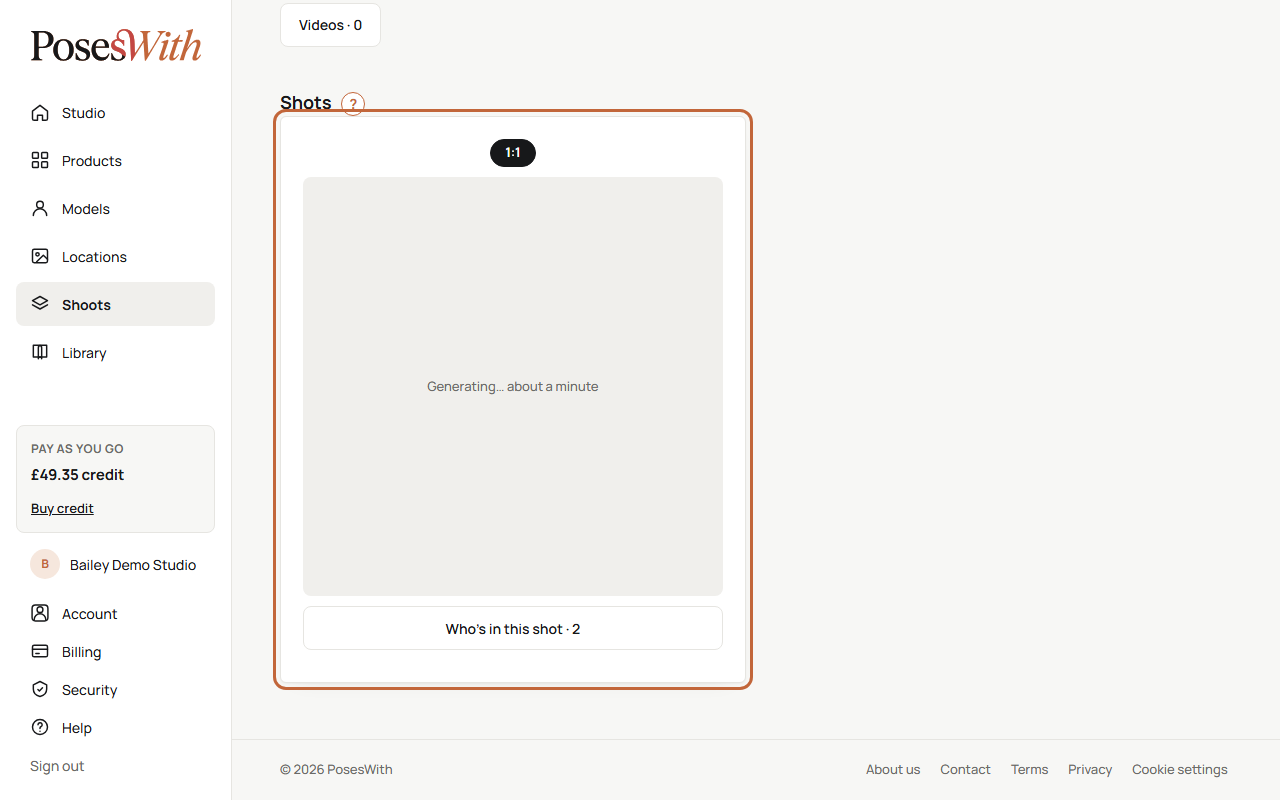
The page updates by itself when the picture arrives. Your credit box in the menu updates too.
The first shot on a shoot may take a little longer while all its products are prepared. Later shots go at the normal pace.
You can have up to five pictures being made at once. If you ask for more, the extra ones say Waiting… starts when one of your other pictures finishes, and start on their own as soon as there's room.
What a picture costs
The bar above the Generate button shows the price of one picture before you click. 4K pictures cost more than Standard ones - the prices for both are shown under 3 · How it is taken. Prices are set in your currency and can change, so always check the page.
- The price comes off your credit when you click Generate.
- Each picture includes a regeneration - another go at the same shot - at no extra cost. See Try again or regenerate.
- If you don't have enough credit, a box called Not enough credit shows the price and your balance. Click Buy credit to top up, or Not now.
Every charge and every refund is listed on your Billing page. See Credit and billing.
When a picture isn't made
Sometimes a picture doesn't come back, or we decide not to deliver it. When that happens, you get the credit back straight away, and the box says one of these:
- Picture not made. Please try again. You have not been charged.
- This picture didn't pass our quality check, so we haven't delivered it. You have not been charged.
Click Try again on the card to have another go.
If you asked for 4K and the 4K step doesn't finish, you still get your picture at standard size, and the difference in price goes back on your credit.
Check your picture
When the picture is ready, it shows on the shot card.
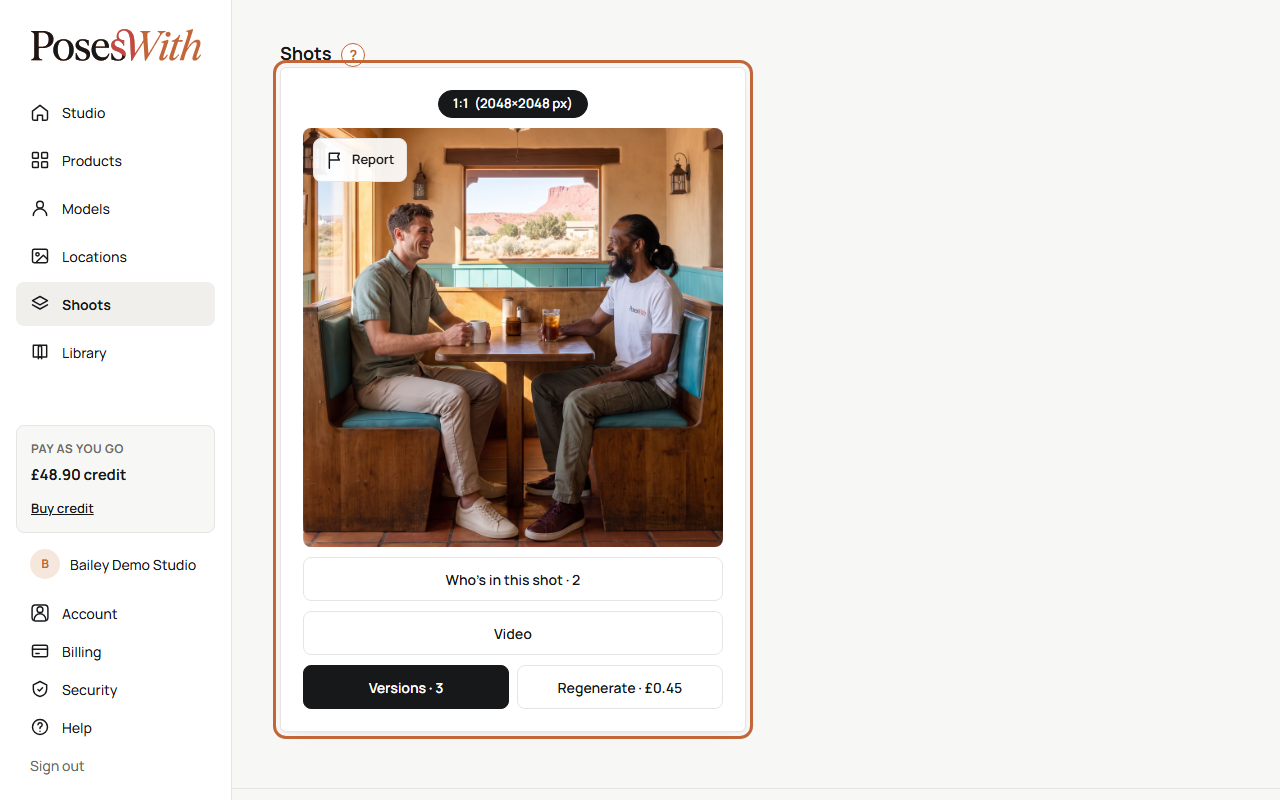
Click the picture to open it full size in a new tab.
The label at the top shows the size, and 4K if you chose it, with the exact size in pixels. A product shot also says Product Shot.
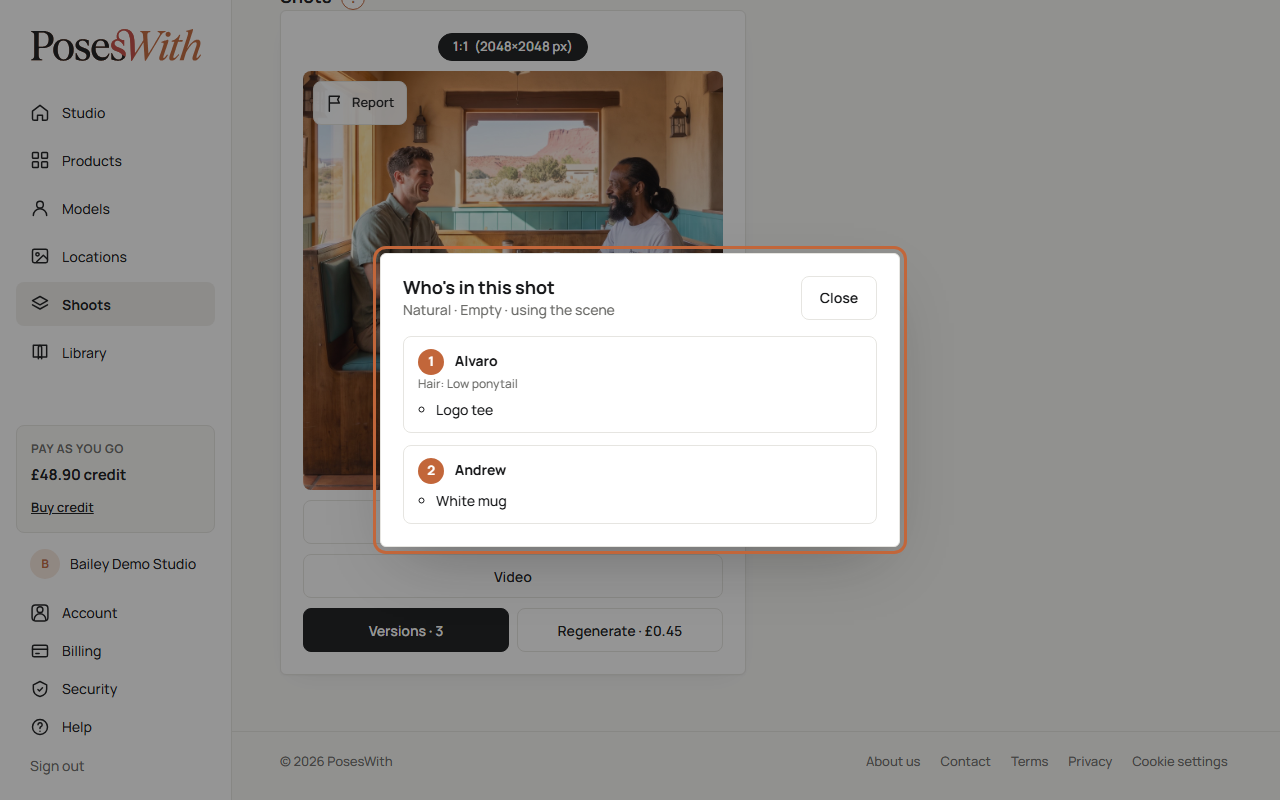
Who's in this shot opens a list of everyone in the picture, where they were placed, their hairstyle and what each one wears or holds. It also shows the choices you made, such as Natural and Empty. Click Close to shut it.
Approving a picture
There's nothing to approve. Every picture that comes back is yours to keep and download, and every version of a shot is kept. You don't have to choose a favourite.
The one thing to know: downloading a picture accepts it. Once you've downloaded a picture, you can no longer report a problem with it. So look at it full size first - see Report a problem with a picture.
Try again or regenerate
Not quite right? You can make the same shot again - same models, products, positions and size - and keep the one you already have.
On the shot card, click the button under the picture. What it says depends on the shot:
- Regenerate · 1 included - your included regeneration. It's free. (The number is how many free ones you have left on this shot.)
- Regenerate with a price - you've used the included one, so this one is charged.
- Try again with a price - the first picture wasn't made, so this is still your first picture.
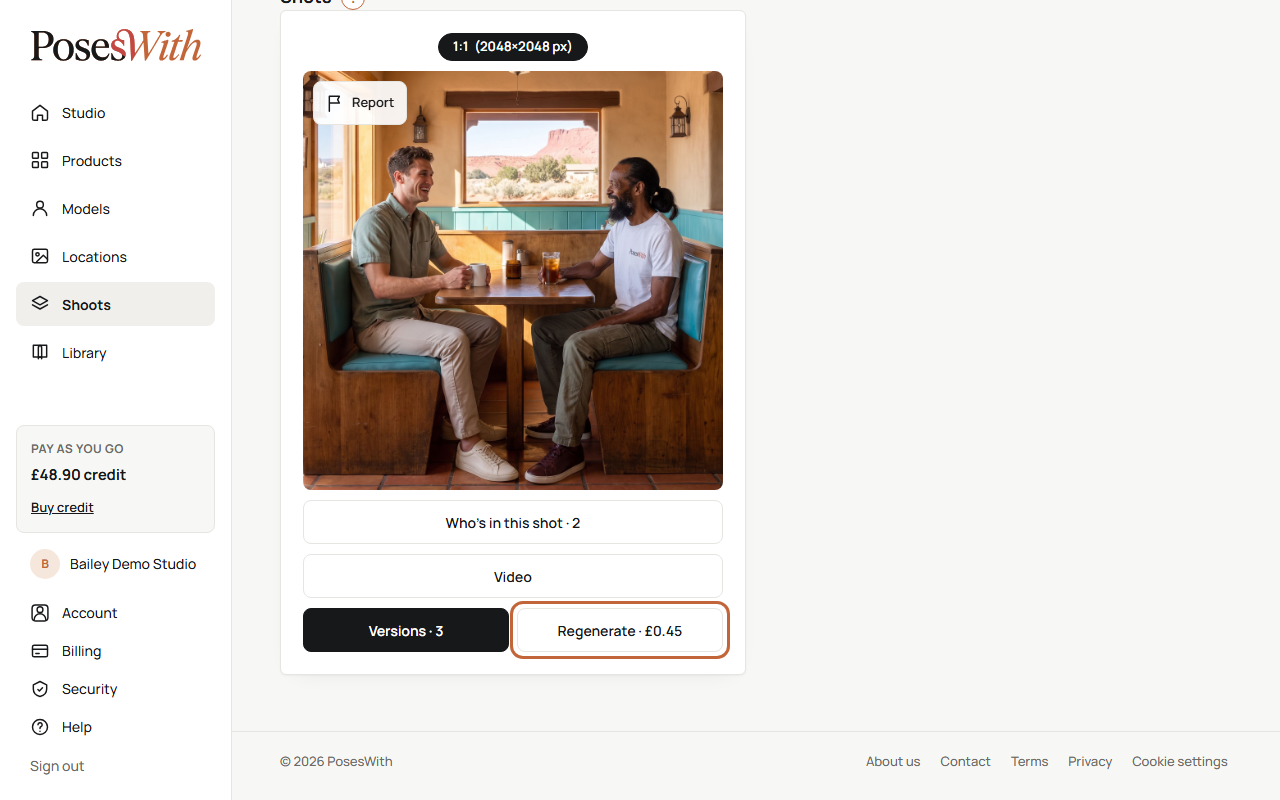
The new picture is made in the background, just like the first one. When it's ready, it shows on the card, and the earlier picture is kept in Versions.
Pictures that weren't made don't count against your included regeneration.
Tip: Want to change something - a different model, product, look or size? That's a new shot, not a regeneration. Set it up at the top of the page and click Generate.
If Regenerate is greyed out, the location has changed since that shot was taken, so it can't be made again as it was. Set it up again and click Generate.
If a box says This shot can't be regenerated yet, one of its product photos has been changed and is still being checked. Wait for the check to finish.
Versions
Every picture a shot has had is a version. To see them all:
On the shot card, click Versions. The number shows how many there are.
The Versions page shows every one large, newest first. The newest says latest.
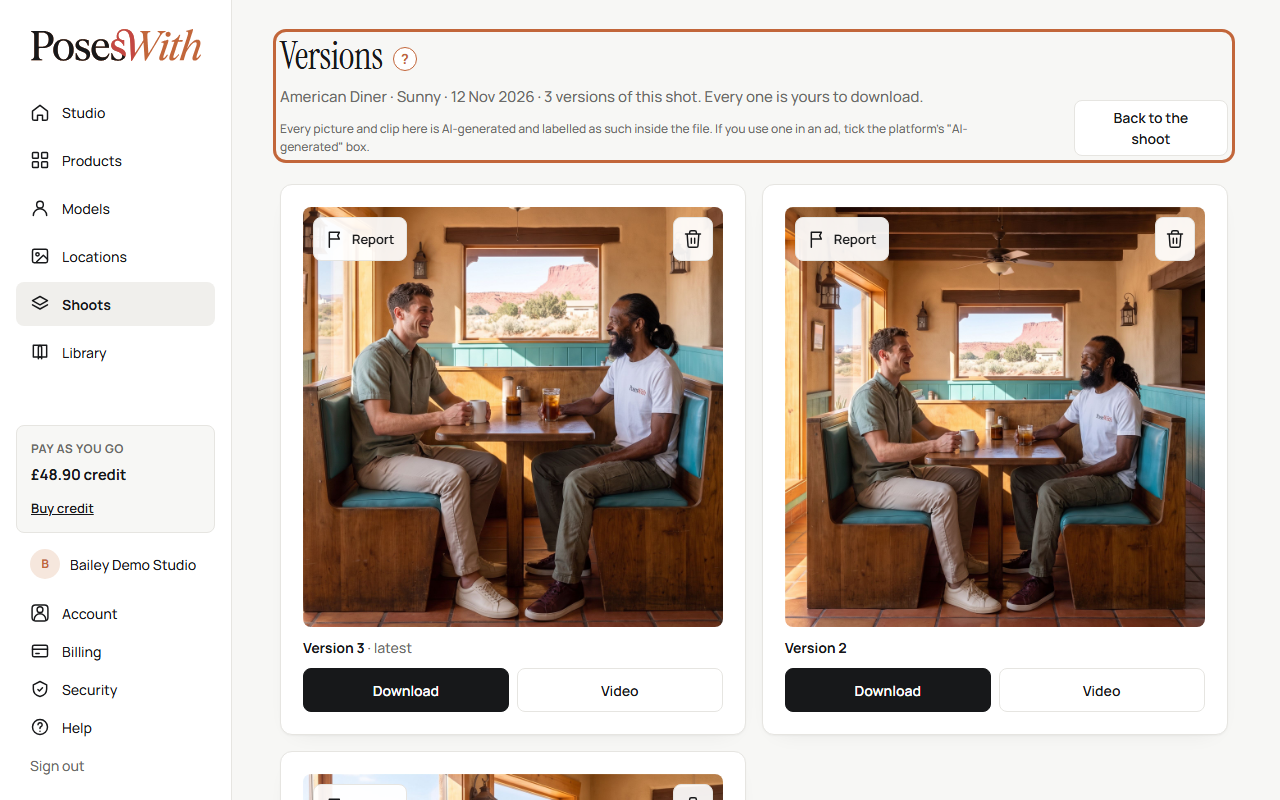
Click Back to the shoot to go back.
Each version has its own Download and Video buttons. Every picture and clip here is AI-generated and labelled as such inside the file. If you use one in an ad, tick the platform's "AI-generated" box.
Delete a version
To tidy up a shot, you can delete versions you don't want.
- On the Versions page, click the bin at the top right of the version.
- Click Delete to confirm.
Things to know:
- A deleted version can't be recovered, and there's no refund.
- Any video clips made from it are deleted too.
- A deleted version still counts towards your included regeneration.
- You can't delete the last version - a shot always keeps one picture. And you can't delete one while it's being reviewed after a report.
Download a picture
Open the shot's Versions page.
Click Download under the version you want.
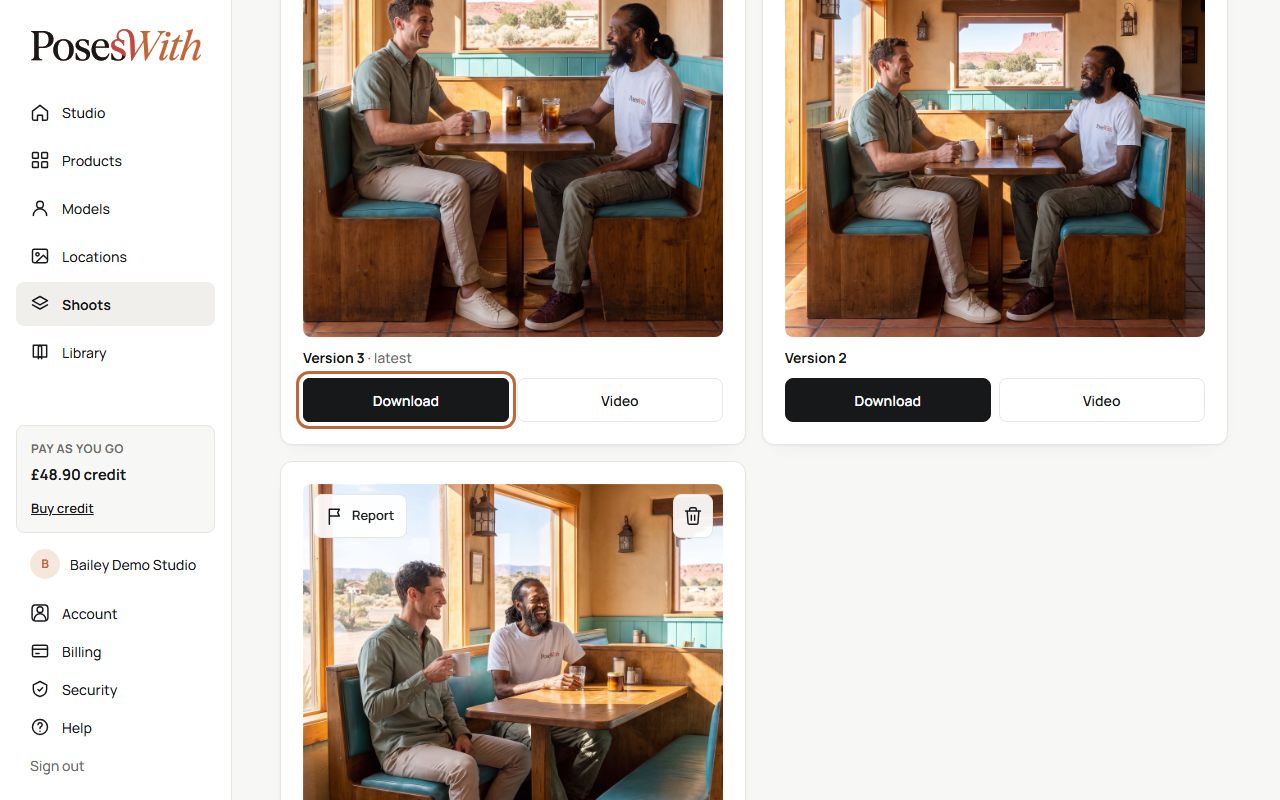
You get the full-size picture as a JPG file. It's saved wherever your browser saves downloads, with a name that starts with "poseswith" and the shoot's name.
Sizes: each picture is made in the one shape you chose before you clicked Generate - 4:5, 1:1, 2:3, 9:16 or 16:9 - in Standard or 4K. The download is that picture, full size. If you want the same shot in another shape, take another shot in that size - see Choose your size.
Watch out: Downloading a picture accepts it, so you can't report it afterwards. Check it full size first.
Report a problem with a picture
If a picture has gone wrong - the product looks wrong, it's not the model you picked, someone is floating - you can report it, as long as it's within 48 hours of the picture being made and before you download it.
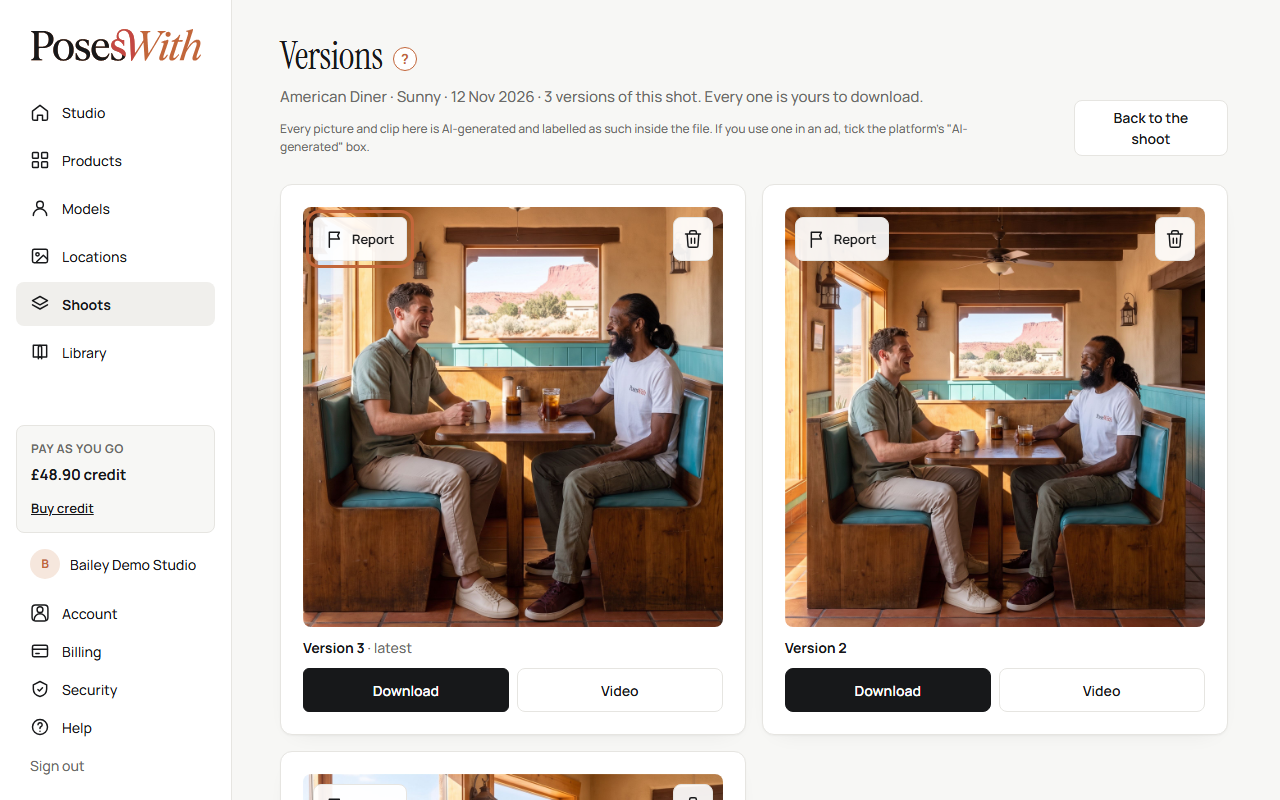
Click Report at the top left of the picture. It's on the shot card and on the Versions page.
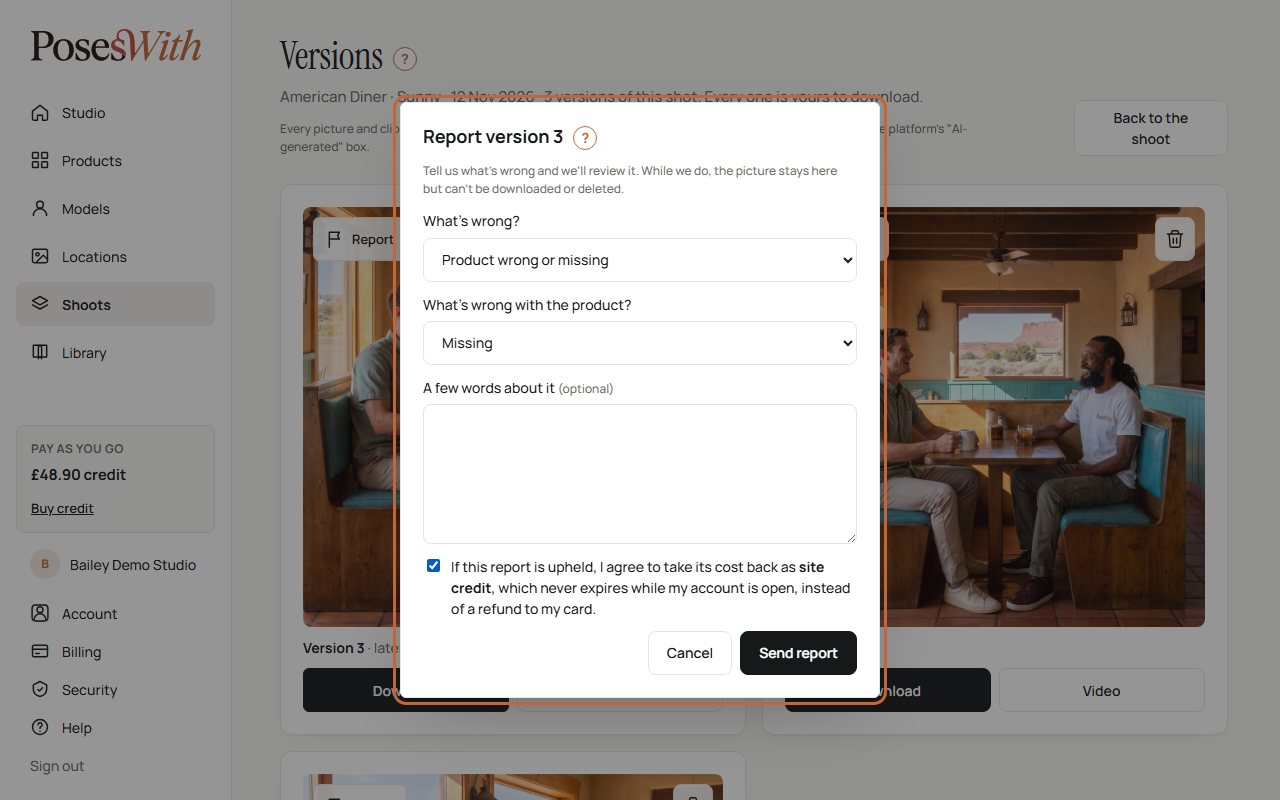
Under What's wrong?, choose one:
- Product wrong or missing - you'll then be asked What's wrong with the product?: Missing, Wrong colour, Wrong logo or print or Wrong shape.
- Wrong person - not the model I picked, or the wrong height or build
- Wrong position - floating, in the road, squeezed in
- Location changed
- Other
Add A few words about it if you like.
Tick the box to agree that, if the report is upheld, you take its cost back as site credit rather than a refund to your card. Site credit never expires while your account is open. Send report stays greyed out until you tick it.
Click Send report, or Cancel to close the form.
Clothes that aren't your product are chosen by us, so they can't be reported on their own.
If the Report button isn't there, the picture can no longer be reported - either it's more than 48 hours old or it's been downloaded.
After you report a picture
We look at every report within 2 working days and email you what we've done. Until then, the picture stays on the page, but it can't be downloaded or deleted. It says Reported - under review.
When we've looked at it, you'll see one of these:
- Reported - we've made you a new version free of charge. The new version appears on the shot, and you keep the old one. It doesn't use up your included regeneration.
- The picture's cost goes back on your credit as site credit, and the picture is taken off the shot. Any included regeneration it used comes back too.
- Reported - reviewed, with a short reply from us, if we didn't find a fault. The picture is unlocked again.
What next
Turn one of your pictures into a short moving clip: Video.