This guide explains how you pay for what you make on PosesWith: how credit works, how to buy it, VAT, your invoices, your credit history and how to cancel a top-up. The part to click in each picture is outlined in orange.
How credit works
PosesWith is pay as you go. There's no subscription and nothing to sign up to each month.
- You buy credit in advance. Each payment is called a top-up.
- When you make something - a picture, a video clip, a draft of your own model or location, an optimised product photo - its price is taken from your credit.
- Your credit is in the currency you chose when you opened your account. 1 of credit takes 1 off our prices, so £20 of credit buys £20 of pictures.
- The price of each thing is on our Pricing page, and the studio shows you the price before you spend any credit.
- New accounts start with no credit.
Some things cost nothing: uploading your product photos, and booking a model from the roster. The Pricing page lists everything that does cost credit.
Tip: Credit is used oldest top-up first. A new top-up isn't touched until the credit you had before it has run out.
When something fails
If a picture, clip or draft doesn't come back to you - because it failed on our side, or didn't pass our quality check - it costs nothing. The credit goes back on your balance automatically. You don't need to tell us or report it.
You'll see this in your billing log as a line starting Credit back. See Your billing log.
A regeneration (making the same picture again because you'd like a different result) is your choice, so it isn't given back. If a picture has something wrong with it, report it instead - see Pictures.
Your credit balance
Your balance is always in the box under the menu on the left of the studio, with a Buy credit link that takes you to the top-up page.
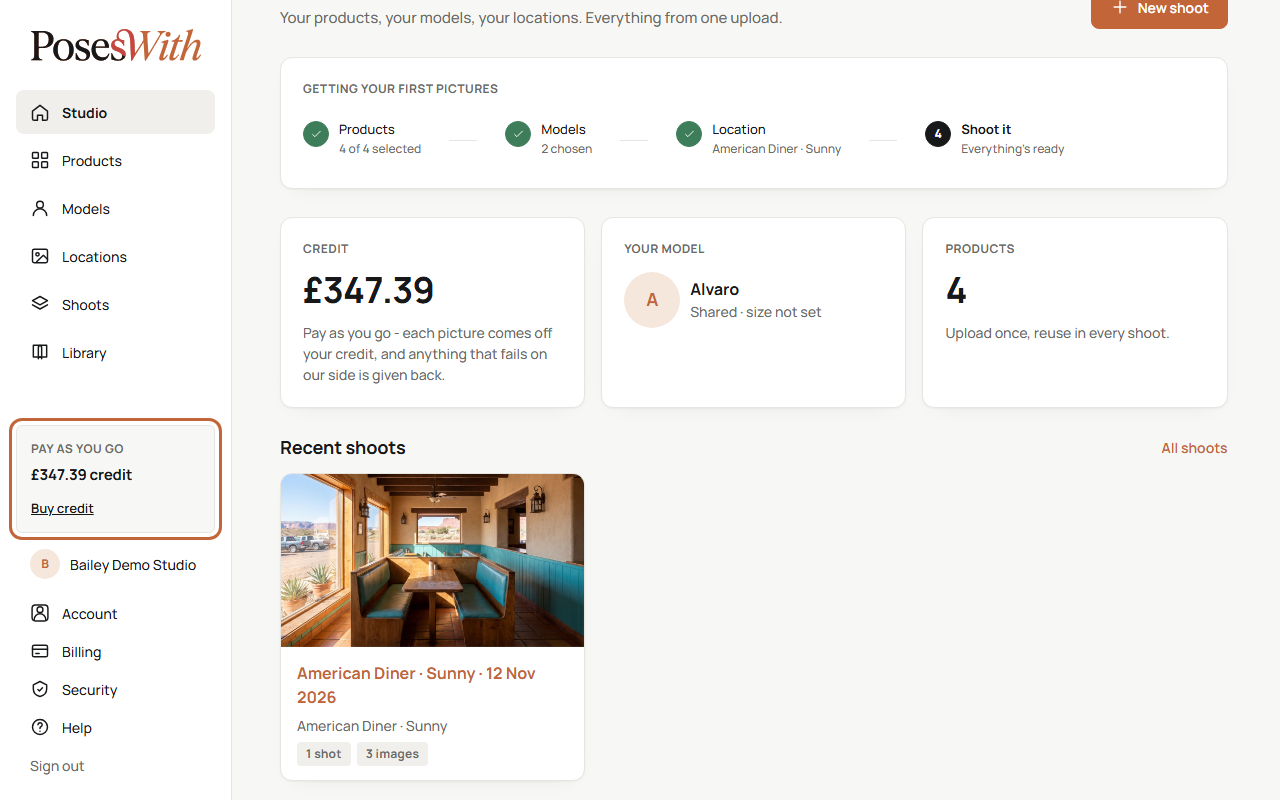
- When your credit is getting low, the box says Low credit - top up soon.
- When it has run out, it says Out of credit - top up to keep shooting.
- If you try to make something you don't have enough credit for, a pop-up called Not enough credit shows your balance. Click Buy credit to top up, or Not now to close it. Nothing is charged.
You can also see your balance at the top of the Billing page, which you'll find in the menu under your studio's name.
We can also email you when your credit runs low - see Emails we send.
Buy credit
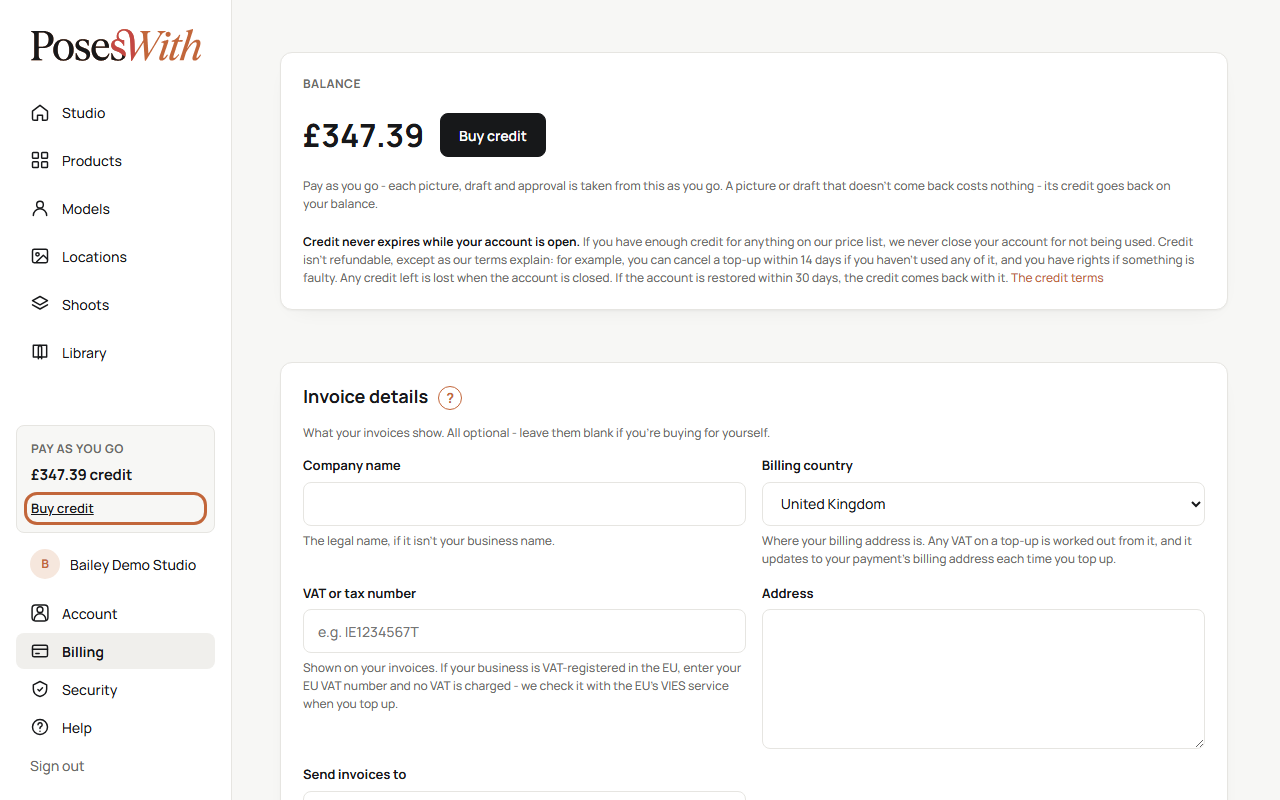
Click Buy credit in the credit box on the left, or on your Billing page.
Under How much?, click one of the amounts: 5, 10, 15, 20, 25 or 50 in your currency. 20 is picked for you to start with.
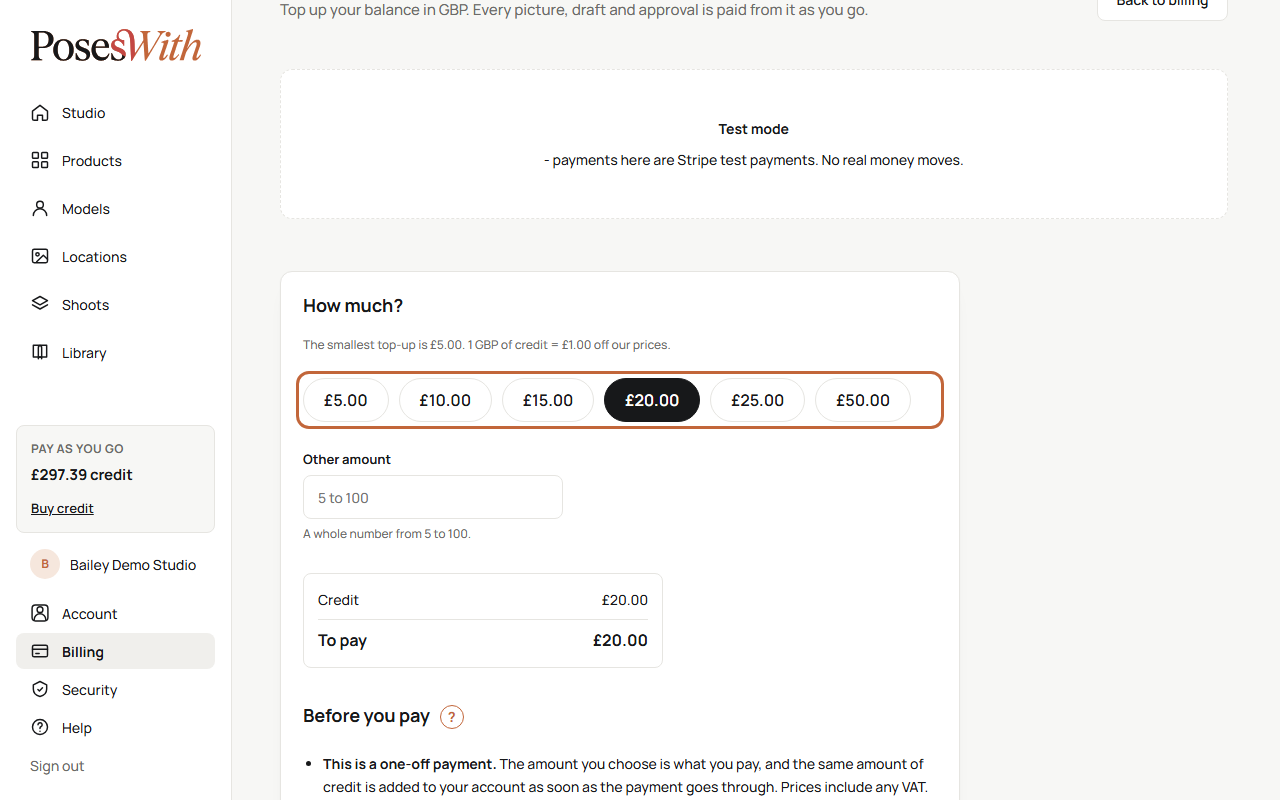
Want a different amount? Type it in Other amount instead. It must be a whole number from 5 to 100. Typing here clears the amount buttons, and clicking a button clears this box - only one amount is ever used.
Check the box under the amounts. It shows the Credit you'll get, any VAT, and the total To pay. This is the total you'll be charged.
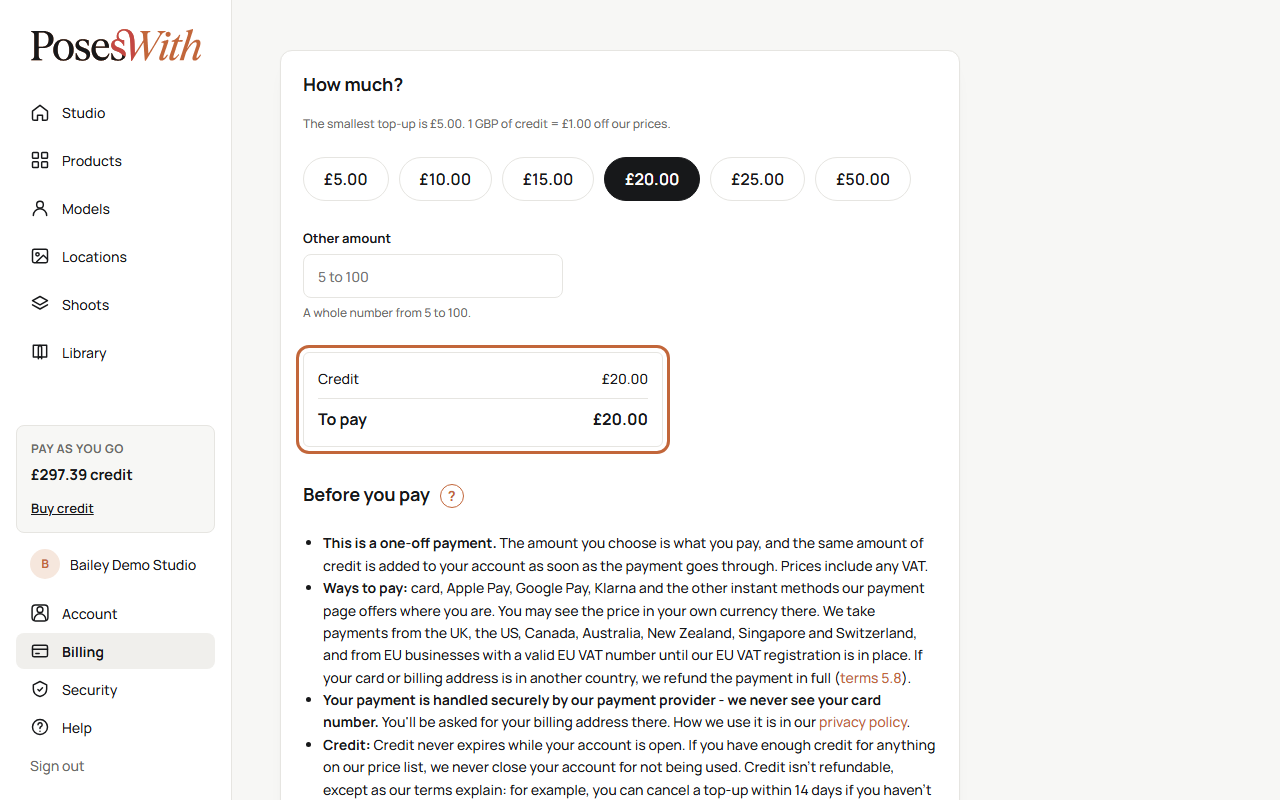
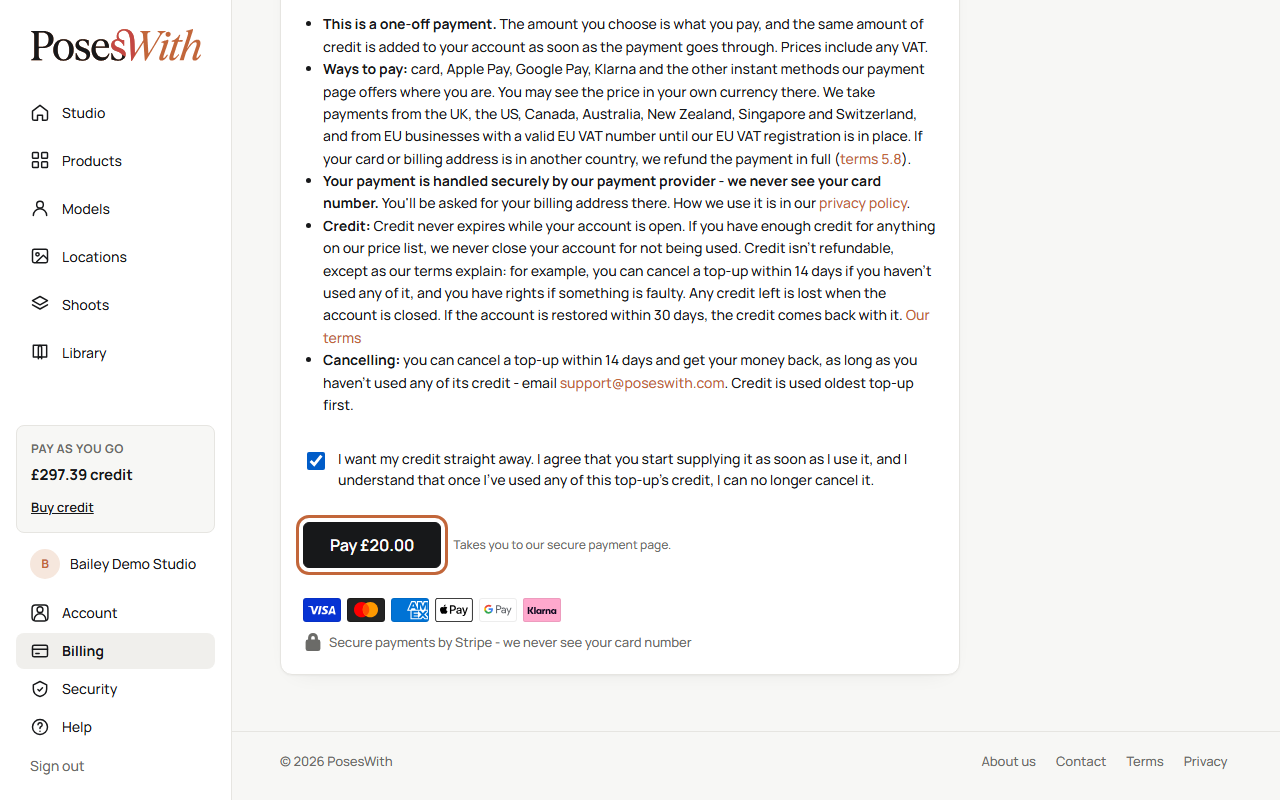
Read Before you pay. It tells you the ways you can pay, the credit rules and how to cancel.
Tick the box that starts I want my credit straight away. You must tick it before you can pay - see Cancel a top-up for what it means.
Click the pay button. It shows the total, for example Pay £20.00.
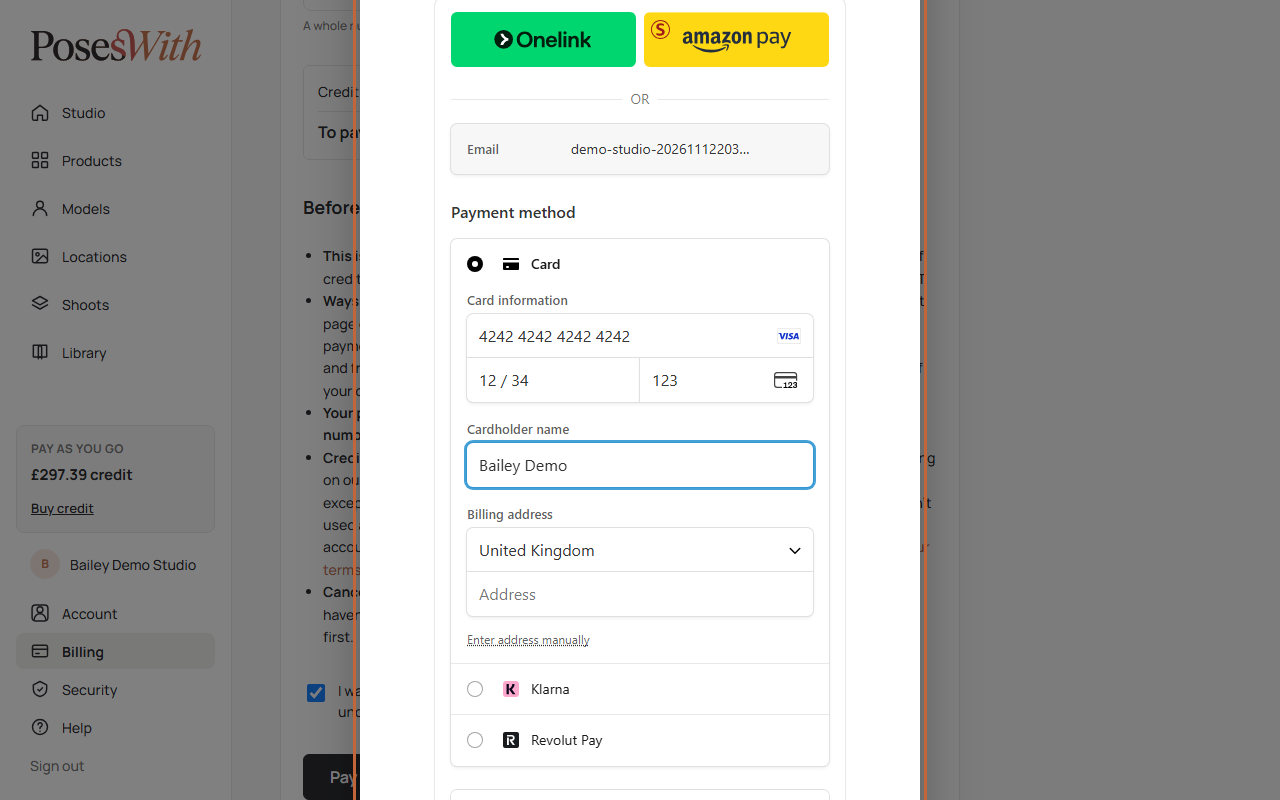
A Payment window opens over the page with our secure payment form. Fill in your card details and your billing address, and pay. On some devices you go to the payment page instead of a window - it works the same way.
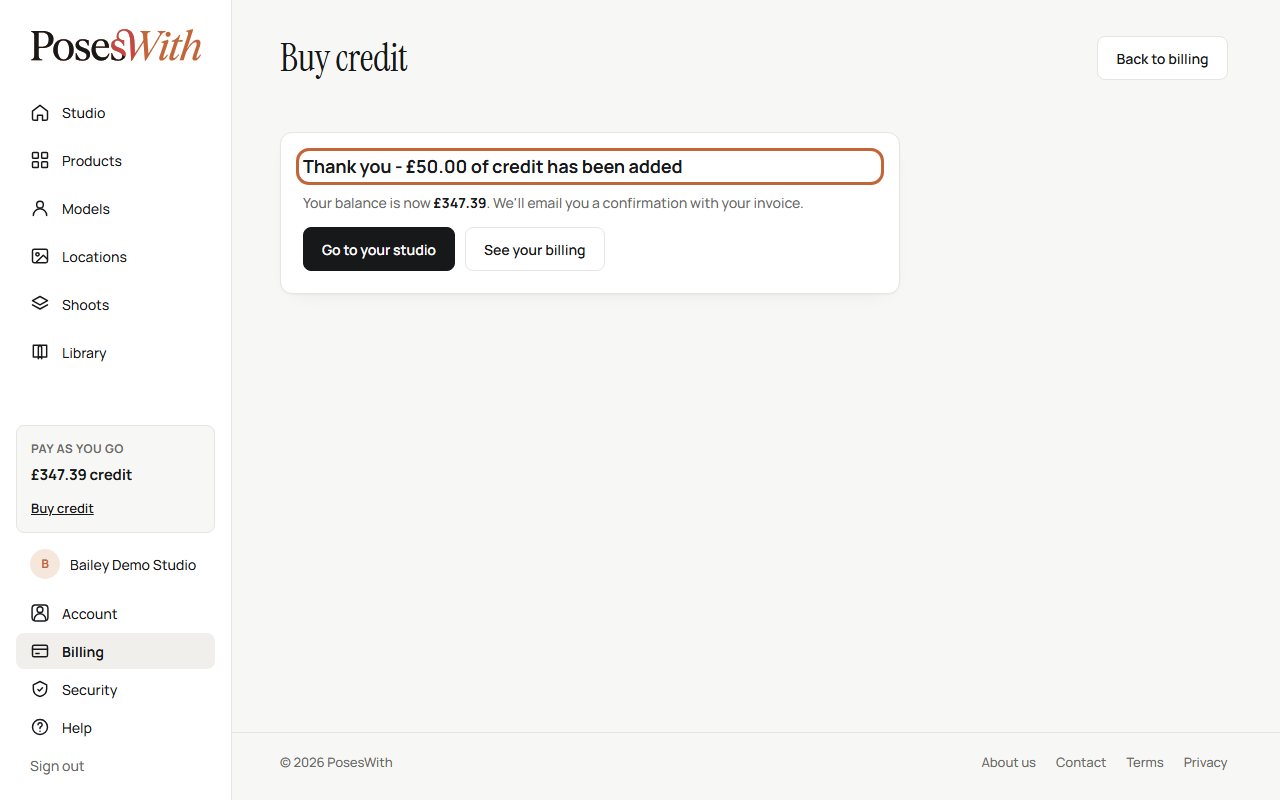
When the payment goes through, you see Thank you and the credit you've added, with your new balance. Click Go to your studio to carry on, or See your billing to see the top-up in your billing log.
We email you a confirmation with your invoice attached. Payments show on your bank statement as POSESWITH.COM.
Ways to pay: card (Visa, Mastercard and American Express), Apple Pay, Google Pay, Klarna and the other instant methods the payment form offers where you are. Klarna is for personal payments only, so it isn't offered once your account has a VAT number. You may see the price in your own currency there.
Tip: Your payment is handled securely by Stripe, our payment provider. We never see your card number.
Changed your mind before paying? Click Cancel at the top of the payment window, or go back from the payment page. Nothing is charged, and you can start again whenever you like.
If something goes wrong
- Please choose an amount, or enter a whole number from 5 to 100. - the amount is missing, too small, too big or not a whole number.
- Please tick the box to confirm you agree before paying. - tick the box above the pay button.
- Please choose your billing country first - your account doesn't have a billing country yet. Click the link to set it in Invoice details on your Billing page, then come back. See VAT and invoice details.
- We couldn't open the payment page just now. Nothing was charged - please try again in a minute. - wait a moment and try again.
- Payment cancelled. Nothing was charged. - you left the payment page without paying.
- That payment page timed out - the payment page was left open too long. Nothing was charged. Click Start again.
- We're confirming your payment - some ways to pay take a moment to confirm. Your credit is added as soon as they do. Refresh the page in a minute, or check your Billing page.
- Payments aren't switched on yet. - we aren't taking payments at the moment. Please try again later.
VAT and invoice details
Before you pay, the top-up page shows you the full price, including any VAT, so there are no surprises. The total on the payment form is the same.
Any VAT is worked out from your billing country. You set this, and the other details your invoices show, in the Invoice details box on your Billing page.
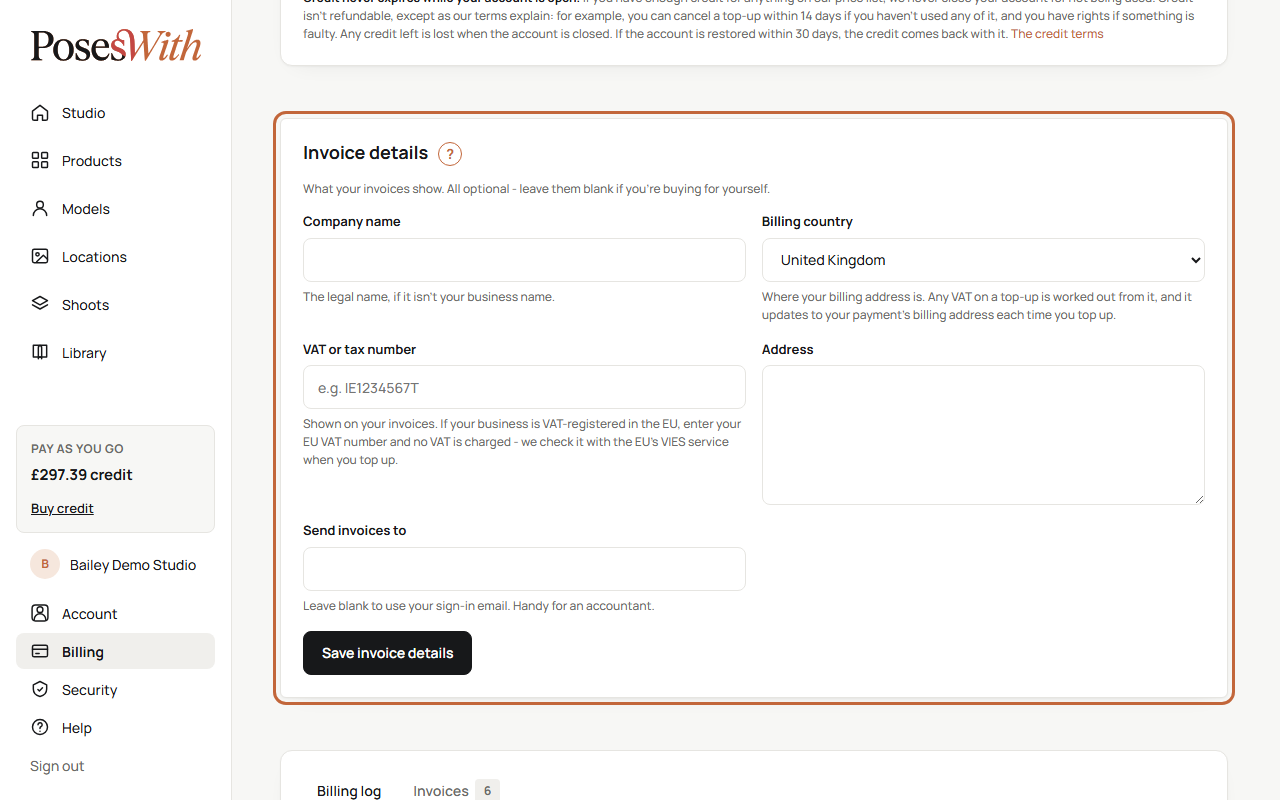
- Go to Billing in the menu under your studio's name.
- In Invoice details, fill in what you'd like your invoices to show. Everything here is optional - leave it blank if you're buying for yourself.
- Company name - the legal name, if it isn't your business name.
- Billing country - where your billing address is. Any VAT on a top-up is worked out from it. It also updates to the billing address you give on the payment form each time you top up.
- VAT or tax number - shown on your invoices. If your business is VAT-registered in the EU, enter your EU VAT number and no VAT is charged. We check the number with the EU's VIES service when you top up.
- Address - your billing address.
- Send invoices to - leave this blank to use your sign-in email. Handy if your accountant should get your invoices.
- Click Save invoice details. You'll see Your invoice details are saved.
If the Send invoices to address isn't a proper email address, you'll see The invoice email doesn't look like an email address - nothing was saved. Correct it and save again.
Watch out: The billing address you give on the payment form must be in the same country as your billing country. If it's in a different country, the VAT we showed you would be wrong, so we refund the payment in full and add no credit. You'll see Your billing address is in a different country - please top up again. We update your billing country for you - click Top up again to see the right price.
Where we can take payments from
We can only take top-ups from some countries for now, because many countries ask a business based abroad to register for their sales tax first. We're opening country by country. The Before you pay list on the top-up page always shows the countries we take payments from today.
We check the country of your account, your billing address, your card and where you're connecting from. If any of them is in a country we can't take payments from yet, the top-up page says so politely instead of showing the amounts:
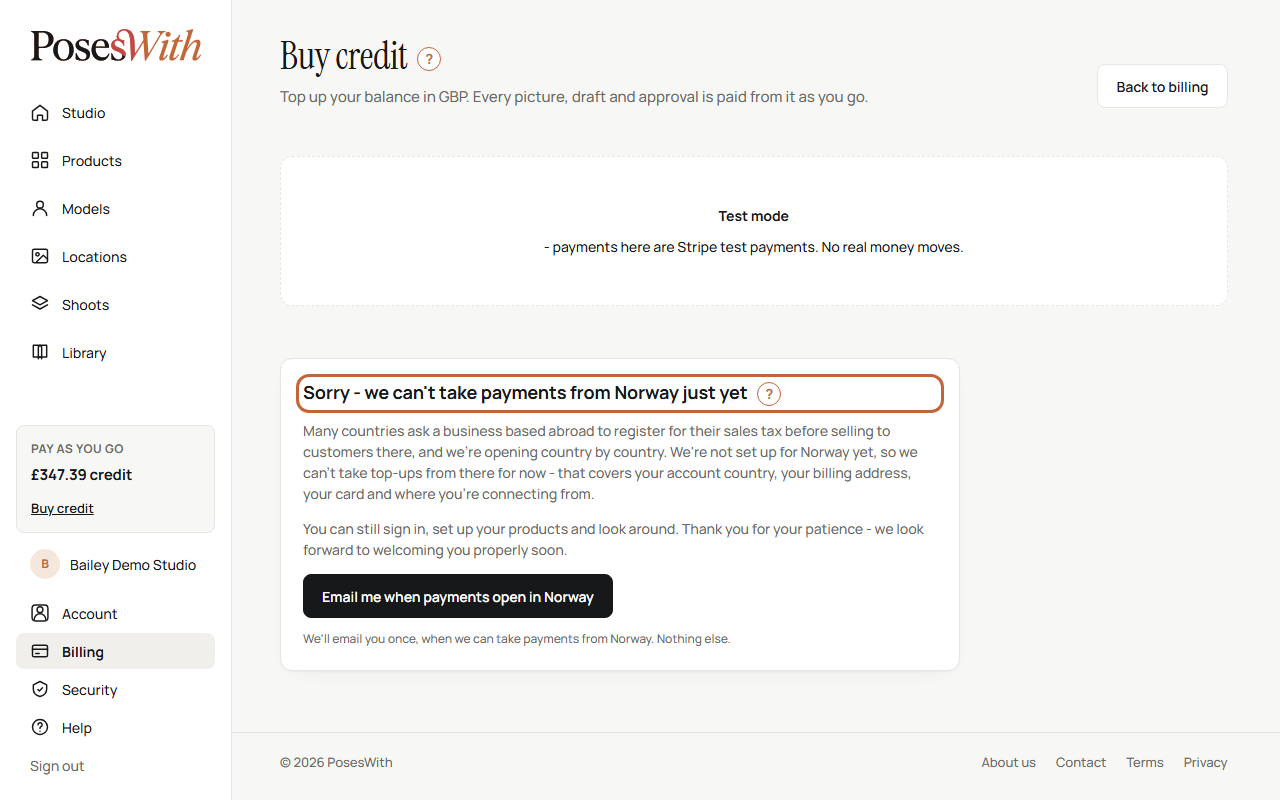
- In the EU, it says Sorry - we can't take payments from customers in the EU just yet. If you're an EU business, add your EU VAT number under Invoice details on your Billing page and try again.
- Anywhere else, it says Sorry - we can't take payments from and the name of the country.
You can still sign in, set up your products and look around.
If a payment has already gone through when we find a country we can't take payments from - for example, your card is from there - we refund the whole payment and add no credit. The page tells you. The refund can take a few days to show, depending on your bank.
Tip: Credit you already have stays yours to spend, even if we later have to stop taking payments from your country.
Get an email when payments open
If we can't take payments from your country yet, we can email you once, on the day we can.
On the top-up page, click Email me when payments open in (your country's name).
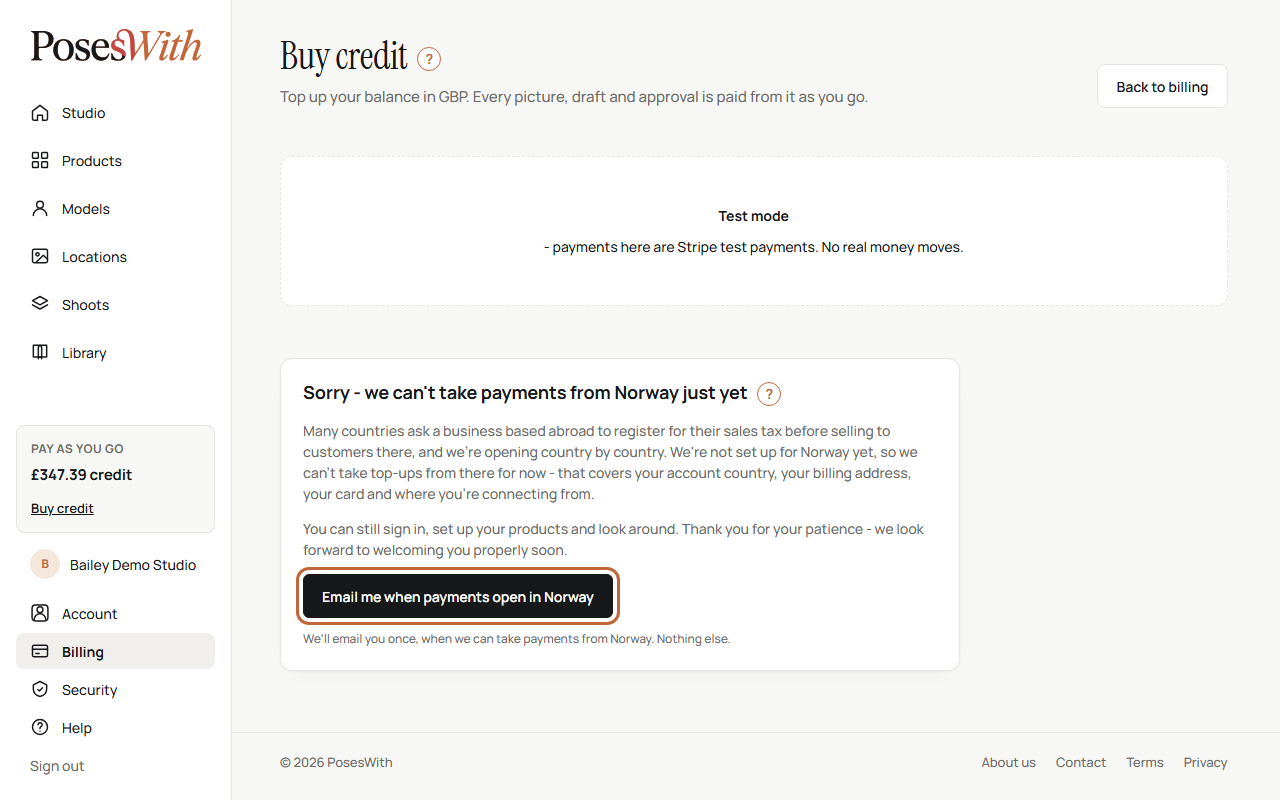
The page now says You're on the list. We'll email your sign-in address once, when we can take payments from your country. Nothing else.
You can also ask for this email when you open your account (there's a tick box on the sign-up form), or from our Pricing page before you have an account.
When payments open, the email is called PosesWith can now take payments from (your country). It's the one email you asked for - after we send it, your address is taken off the list.
Changed your mind? Go to your Account page, find When payments open in the Emails box, and click Remove. See Emails we send.
Invoices and receipts
Every time you buy credit, you get an invoice. Spending credit doesn't make an invoice - only buying it does.
- We email it straight away, with the PDF attached, in an email called Your PosesWith top-up - invoice and its number. It goes to the Send invoices to address in your invoice details, or your sign-in email if that's blank.
- The email also confirms your new balance, the credit rules and how to cancel the top-up.
- Every invoice is kept on your Billing page to download again.
To download an invoice again:
Go to Billing in the menu under your studio's name.
Click the Invoices tab. The number beside it shows how many you have.
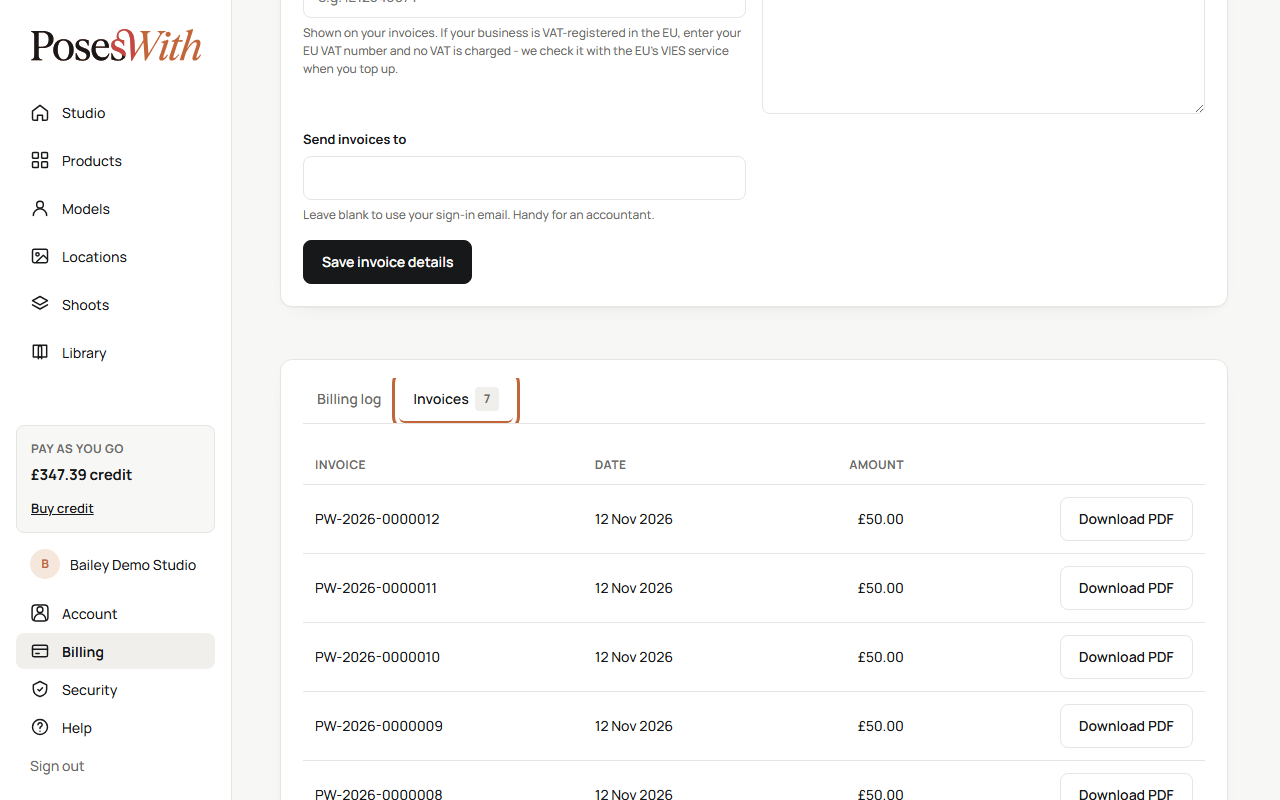
Find the invoice by its number, date or amount, and click Download PDF.
If we refund a top-up, you get a credit note too. It's emailed to you and listed under Invoices with a Credit note label, and you can download it the same way.
No invoices yet? The tab says Each time you buy credit you get an invoice by email, and it's kept here to download again.
Tip: Your invoices show the details in Invoice details on the Billing page. Fill them in before you top up - each invoice is kept exactly as it was issued.
Your billing log
The Billing log on your Billing page lists everything that has happened to your credit - every charge, every credit back and every top-up - newest first.
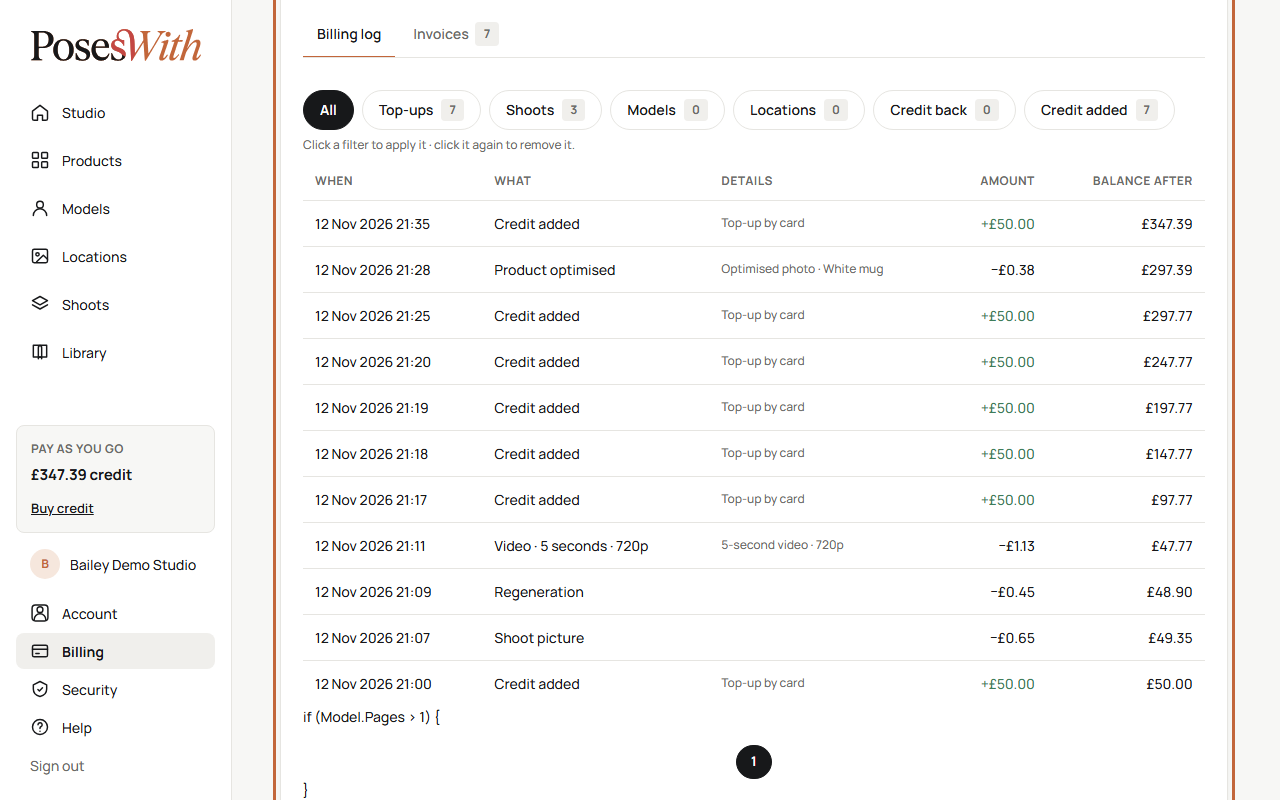
Each line shows:
- When - the date and time.
- What - what it was for, for example Shoot picture, Model draft, Video · 5 seconds · 720p or Credit added.
- Details - more about it, where there is any.
- Amount - taken off (−) or added (+). Additions are in green.
- Balance after - your balance once that line had happened.
To see just one kind of line, click a filter above the list: Top-ups, Shoots, Models, Locations, Credit back or Credit added. The number beside each one is how many lines it has. Click the filter again, or click All, to see everything.
The log shows 50 lines a page. If there are more, use the page numbers, ‹ Previous and Next › under the list.
Some lines you might see:
- Credit back - credit returned to you, for example for a picture that didn't come back.
- Refund pending and then Refunded to your card - money we're sending, or have sent, back to your card.
- Refund didn't go through - credit back - a refund to your card didn't work, so the credit is back on your balance.
- Credit on hold - payment disputed - a payment was questioned with your bank, so its credit is held. Credit back - dispute closed means it's been released.
A new account says Nothing here yet. until you buy credit or make something.
Cancel a top-up
You can cancel a top-up within 14 days of buying it and get your money back, as long as you haven't used any of that top-up's credit.
- Email support@poseswith.com, ideally from your account's email address.
- Use the subject Cancellation Refund Request, and include your invoice number.
We refund the top-up, including any VAT you paid, within 14 days of you telling us. It goes back to the way you paid, and there's no charge for it. You'll get a credit note by email, and it's listed under Invoices on your Billing page.
Watch out: When you buy credit, you tick a box to say you want it straight away and understand that once you've used any of a top-up's credit, you can no longer cancel it. Credit is used oldest top-up first, so a new top-up isn't touched until the credit you had before it has run out.
Other refunds
Credit isn't refundable as money, except in these cases:
- A faulty picture or clip - report it. If the report is upheld, its cost goes back as credit. See Pictures.
- You can't get into your account - email support@poseswith.com and tell us what has happened. We'll try to get you back in first. If we can't, we'll consider refunding your unused credit.
- We put prices up, make an important change to our terms, or stop a main feature - we email you at least 7 days before. A box on your Billing page says what's changing, with a Request a refund button. It stays there until 30 days after the change, so you have time even if you miss the email. Click it to ask for your unspent credit back, and we refund it to the card you paid with. For a feature that's stopping, the button is for people who used that feature, or bought credit in the 7 days before our email or after it.
Credit can only be spent on PosesWith. It can't be exchanged for cash or moved to another account. Credit we gave you free of charge is never refunded as money.
Credit you don't use
Credit never expires while your account is open.
- If you don't use your account for 2 years, we close it only if it has no credit left, or less than the price of the cheapest thing on our price list. If you have enough credit for anything we sell, your account stays open, with its credit, however long you're away.
- Using your account means visiting it while signed in.
- Before we close an unused account, we email you 2 months and 1 month before. Each email tells you how much credit you have. Signing in at any point before then stops the closure.
- A small balance is never wasted while your account is open: when you top up, it's added to your new credit.
Watch out: Any credit left is lost when an account is closed - whether you close it or we close it for not being used. If the account is restored within 30 days, the credit comes back with it. See Close your account.
Changing your currency
Your credit and prices are in the currency you chose when you opened your account. You can't change it yourself - you'll see it on your Account page.
If you need to change it, email support@poseswith.com. We can change it once your credit is used up, or once what's left isn't enough to buy anything on our price list. If there's a little left, we change it into your new currency and add it to your account.
What next
Your account details, the emails we send you and your data are in Your account.