Any picture you've made can be turned into a short moving clip - your models move, the scene comes to life. This guide shows you how to make a clip, where to find it, how to download it and what to do if it goes wrong.
Make a video clip
You can make a clip from the latest picture on a shot card, or from any version on the shot's Versions page - the latest isn't always your favourite.
Click Video under the picture. A small menu opens.
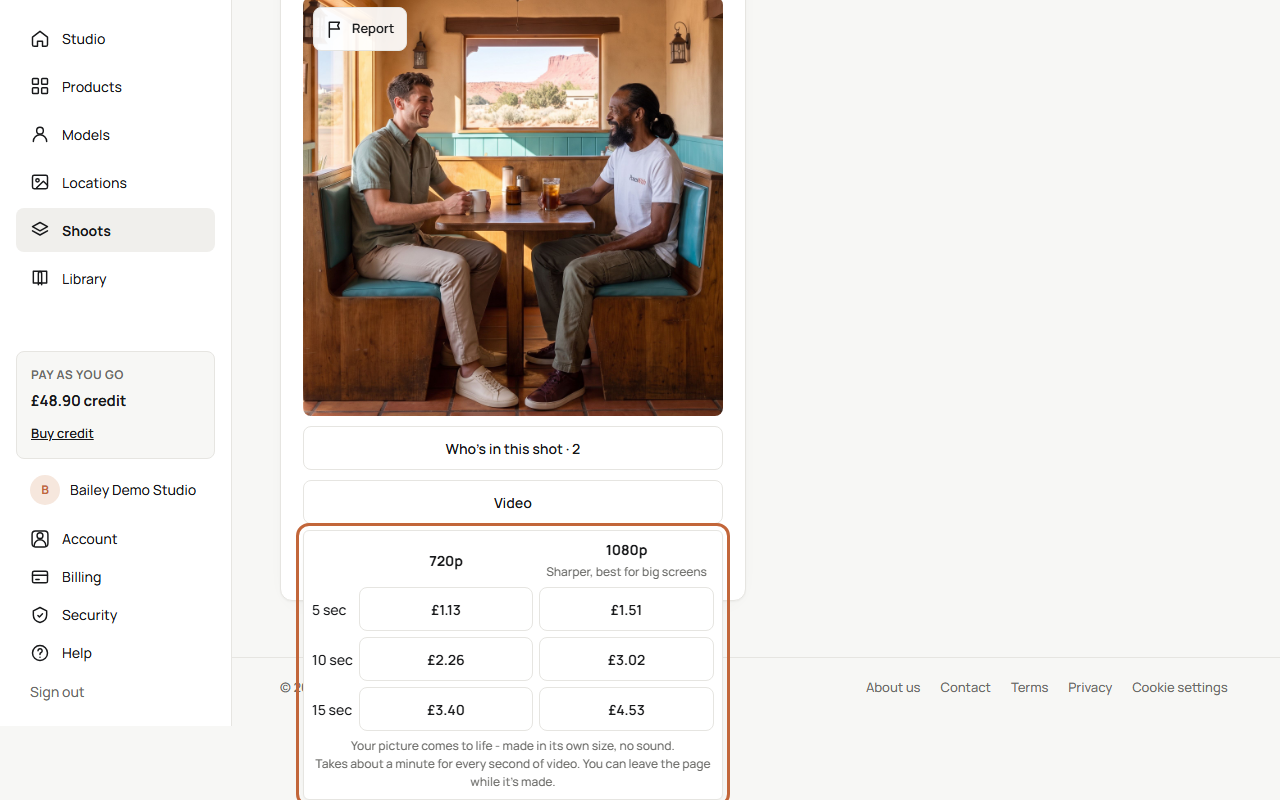
Choose the length and the quality in one click. Each row is a length - 5 sec, 10 sec or 15 sec - and each has two buttons with their price:
- 720p - the left-hand column.
- 1080p - the right-hand column. Sharper, best for big screens.
Click the price you want. The clip starts straight away, and its price comes off your credit.
The clip is made in the same shape as its picture, with no sound.
The Video button only shows on a finished picture. It isn't there while a picture is still being made, or if the picture wasn't made.
Tip: Prices are shown on the buttons, in your currency. If you don't have enough credit, a box tells you how much the clip costs and your balance. Click Buy credit to top up, or Not now.
How long a clip takes
A clip takes about a minute for every second of video - so a 10-second clip takes about 10 minutes. While it's being made, you'll see Making your 10-second video… about 10 minutes. You can leave this page.
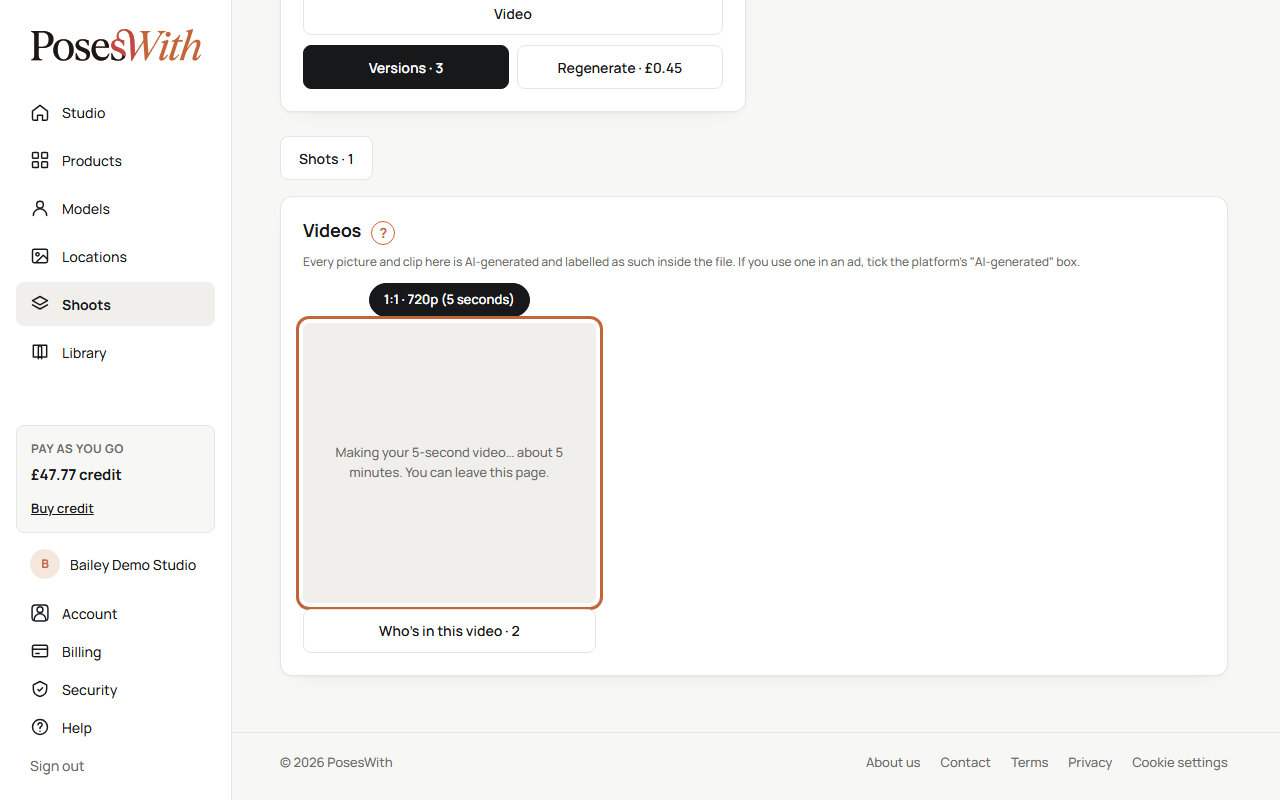
You really can leave - go and set up more shots, or close the page. The clip carries on and will be there when you come back.
Find your clips
Every clip in a shoot is in the Videos section of the shoot page, newest first. To get there:
Open the shoot.
Click Videos under the shoot's title. The number shows how many clips the shoot has.
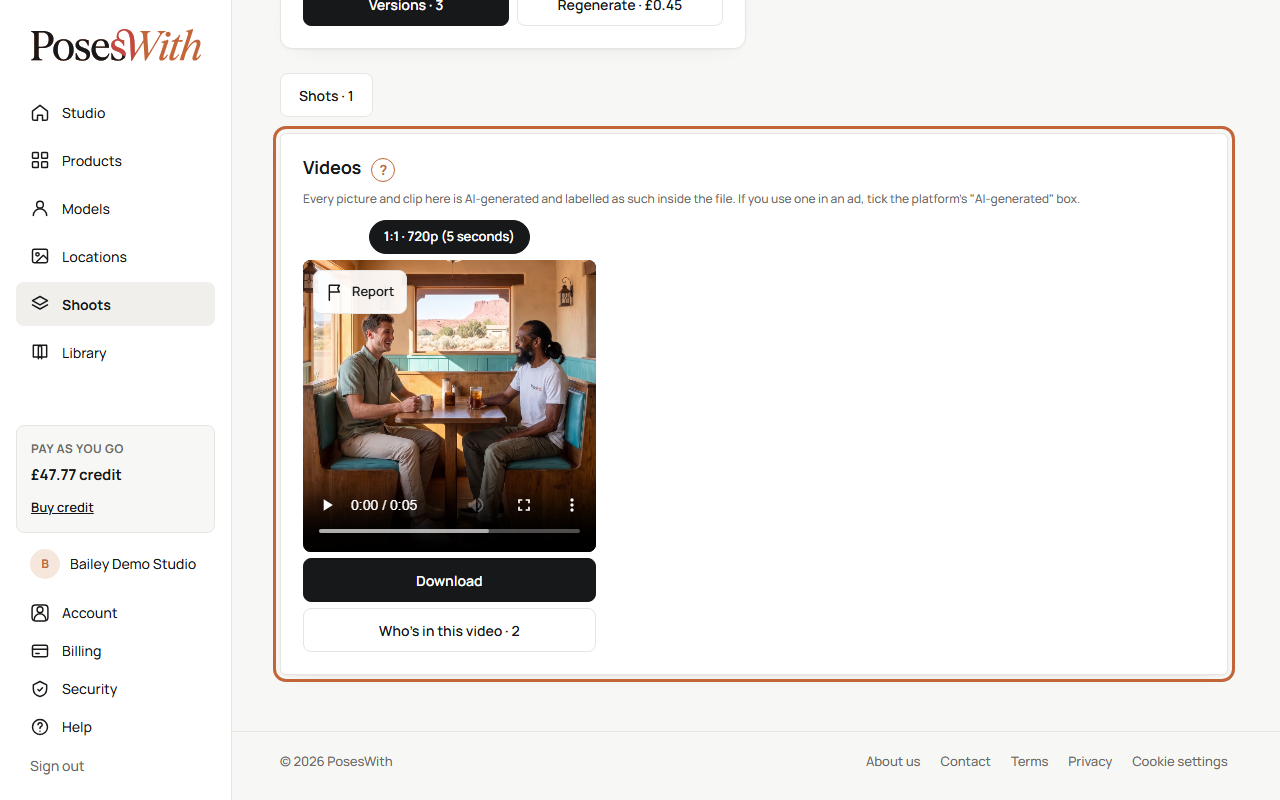
Each clip shows its shape, its quality and its length at the top, for example "9:16 · 720p (5 seconds)". Press play to watch it on the page. Who's in this video lists everyone in the clip and what they wear or hold.
Clips also appear on the shot's Versions page, under the picture each one was made from.
Every picture and clip is AI-generated and labelled as such inside the file. If you use one in an ad, tick the platform's "AI-generated" box.
Download a clip
- In the Videos section, click Download under the clip.
- Or, on the Versions page, click the button under the clip - it says Download video, with the length and quality.
You get an MP4 video file, saved wherever your browser saves downloads.
Watch out: Downloading a clip accepts it, so you can't report a problem with it afterwards. Watch it on the page first.
When a clip isn't made
If a clip doesn't come back, it says Video not made. Please try again. You have not been charged. - and the credit goes straight back on your balance.
To try again, click Video on the picture again and choose your length. The message stays for a day, then disappears.
If you see That picture isn't ready yet., the picture is still being made - wait for it to finish. If a product photo in the shot has been changed and is still being checked, the clip can't start until the check is done.
Report a problem with a clip
You can report a clip within 48 hours of it being made and before you download it.
Click Report at the top left of the clip.
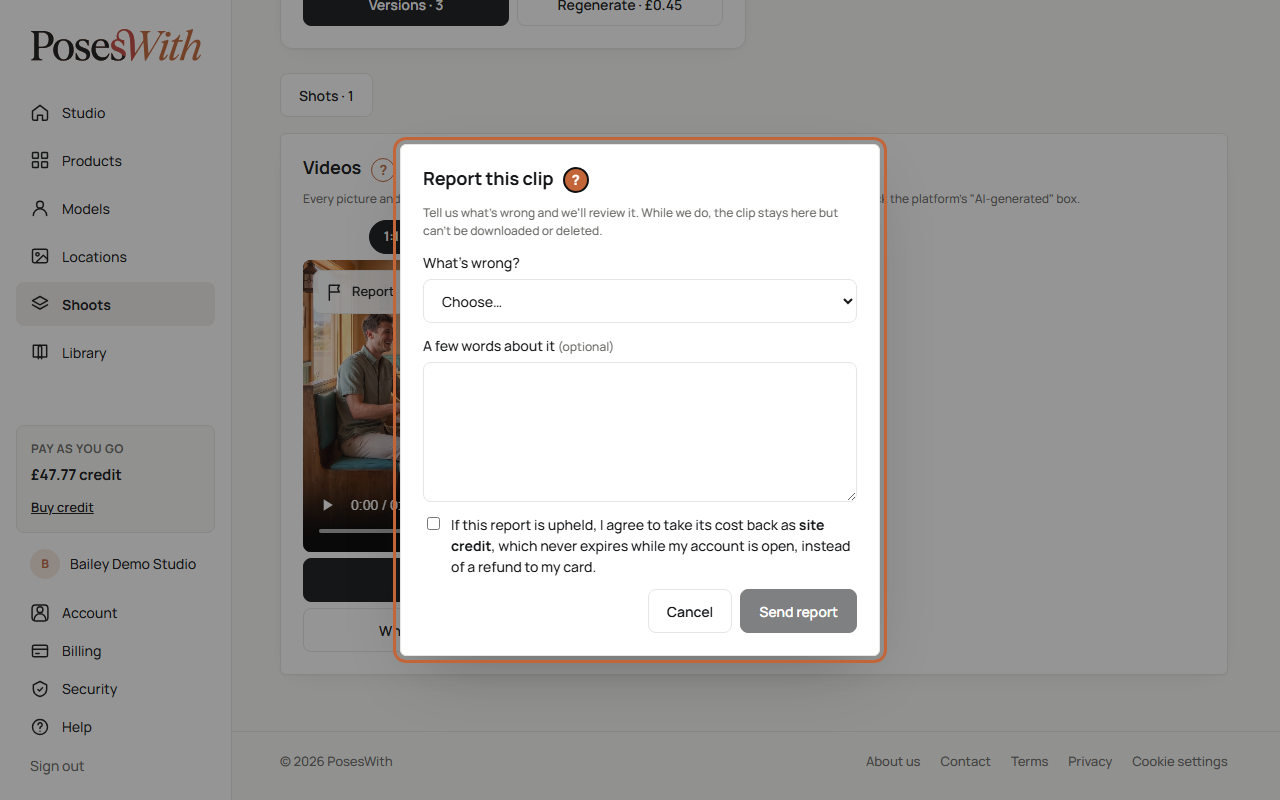
Under What's wrong?, choose one:
- Product wrong or missing
- Wrong person - not the model I picked, or their face or build changes
- Movement wrong - warping, glitches, or something appears or disappears
- Location changed
- Other
Add A few words about it if you like.
Tick the box to agree that, if the report is upheld, you take its cost back as site credit rather than a refund to your card.
Click Send report.
We look at every report within 2 working days and email you what we've done. Until then, the clip stays on the page but can't be downloaded, and it says Reported - under review.
When we've looked at it, either we make you a new clip free of charge (Reported - we've made you a new clip free of charge.), or the clip's cost goes back on your credit, or we reply to say what we found (Reported - reviewed).
Deleting a clip
Clips don't have their own delete button. A clip is deleted when you delete the version of the picture it was made from - see Delete a version - or when you delete the whole shoot.
What next
Find everything you've made - your own locations and models as well as your shoots: Library.