This guide covers everything on your Security page: your password, signing out of other devices, two-step sign-in by email or with an authenticator app, recovery codes, passkeys and your list of recent sign-ins. It also covers what to do if you forget your password or can't get your code.
Find the Security page
Click Security in the menu at the bottom left of your studio, under your studio's name. On a phone, the menu is at the top of the page.
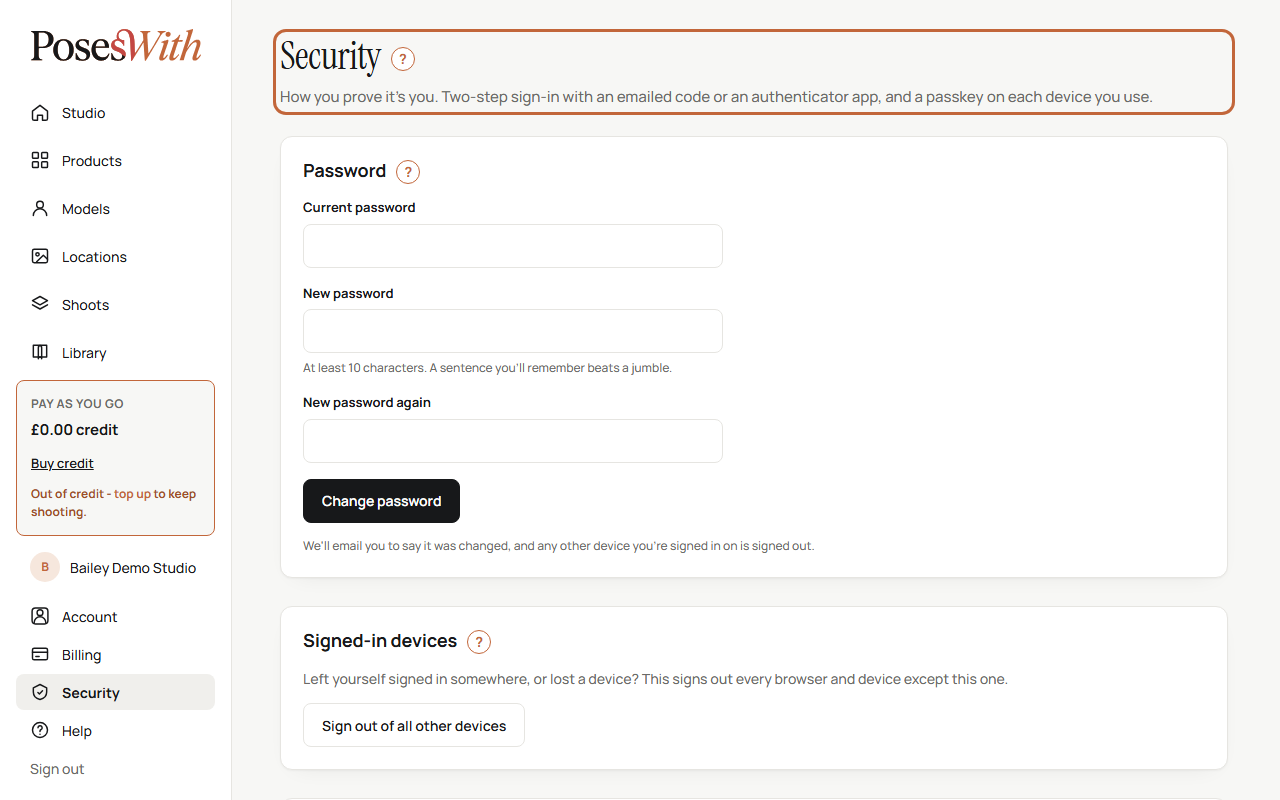
The page is in five parts, from top to bottom:
- Password - change the password you sign in with.
- Signed-in devices - sign out every other computer, phone or tablet.
- Two-step sign-in - the extra code you type after your password, and your recovery codes.
- Passkeys - sign in with your fingerprint, face or device PIN instead.
- Recent sign-ins - a list of the latest sign-ins and changes to your account.
When you make a change, a message at the top of the page tells you what happened.
Change your password
You can change your password whenever you like on your Security page (in the menu at the bottom left of your studio). You need to know your current one. If you've forgotten it, see Forgotten your password.
In the Password box, type your Current password.
Type your New password. It must be at least 10 characters. A short sentence you'll remember is stronger than a jumble of letters, and easier to type.
Type it again in New password again.
Click Change password.
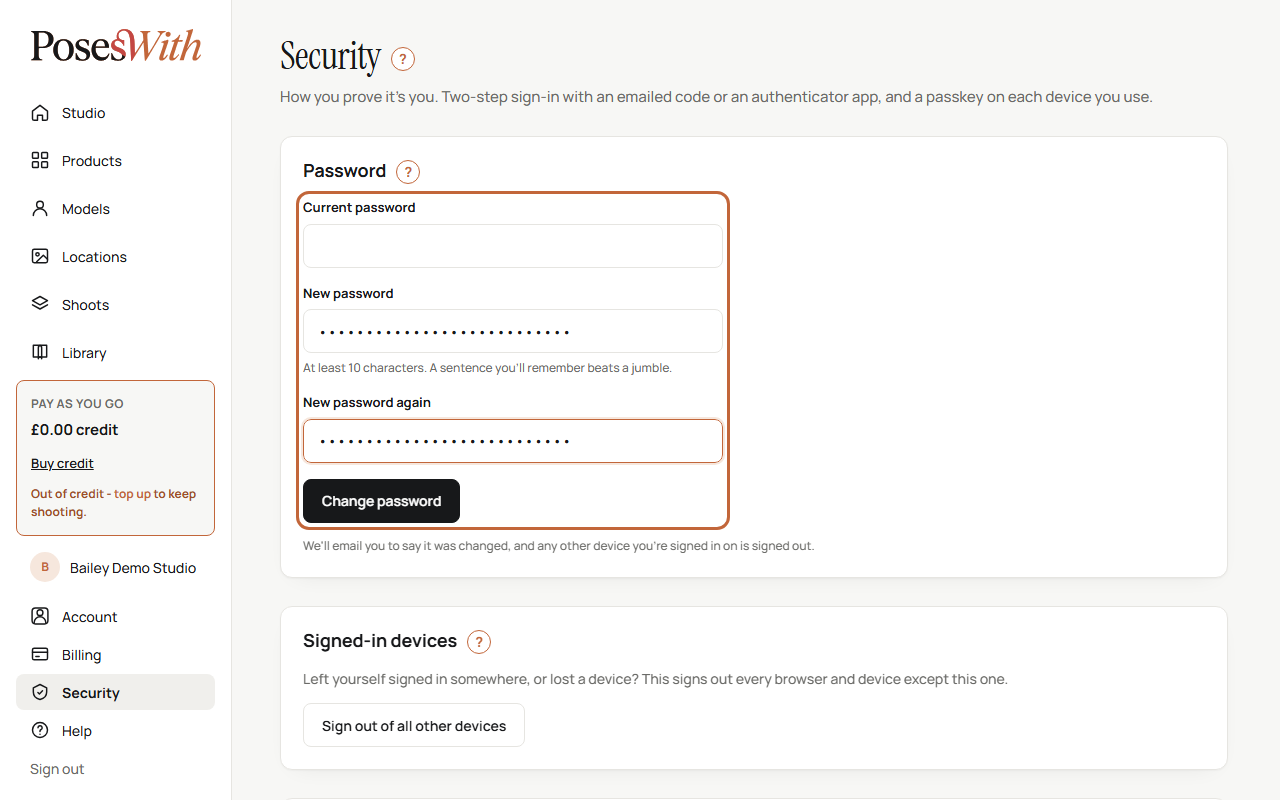
The page says Your password is changed. Any other device you were signed in on has been signed out. You stay signed in on the device you're using. We also send you an email called Your PosesWith password was changed.
If something isn't right, the page tells you under the box:
- That isn't your current password. - check the first box. If you really don't know it, sign out and use Forgot your password? on the sign-in page.
- At least 10 characters. - your new password is too short.
- The passwords don't match. - the two new passwords are different. Type them both again.
Watch out: Got a Your PosesWith password was changed email when you didn't change it? Someone may have got into your account. Use Forgot your password? on the sign-in page to choose a new one straight away, then email support@poseswith.com.
Forgotten your password
If you can't remember your password, you can choose a new one from the sign-in page. You don't need to be signed in.
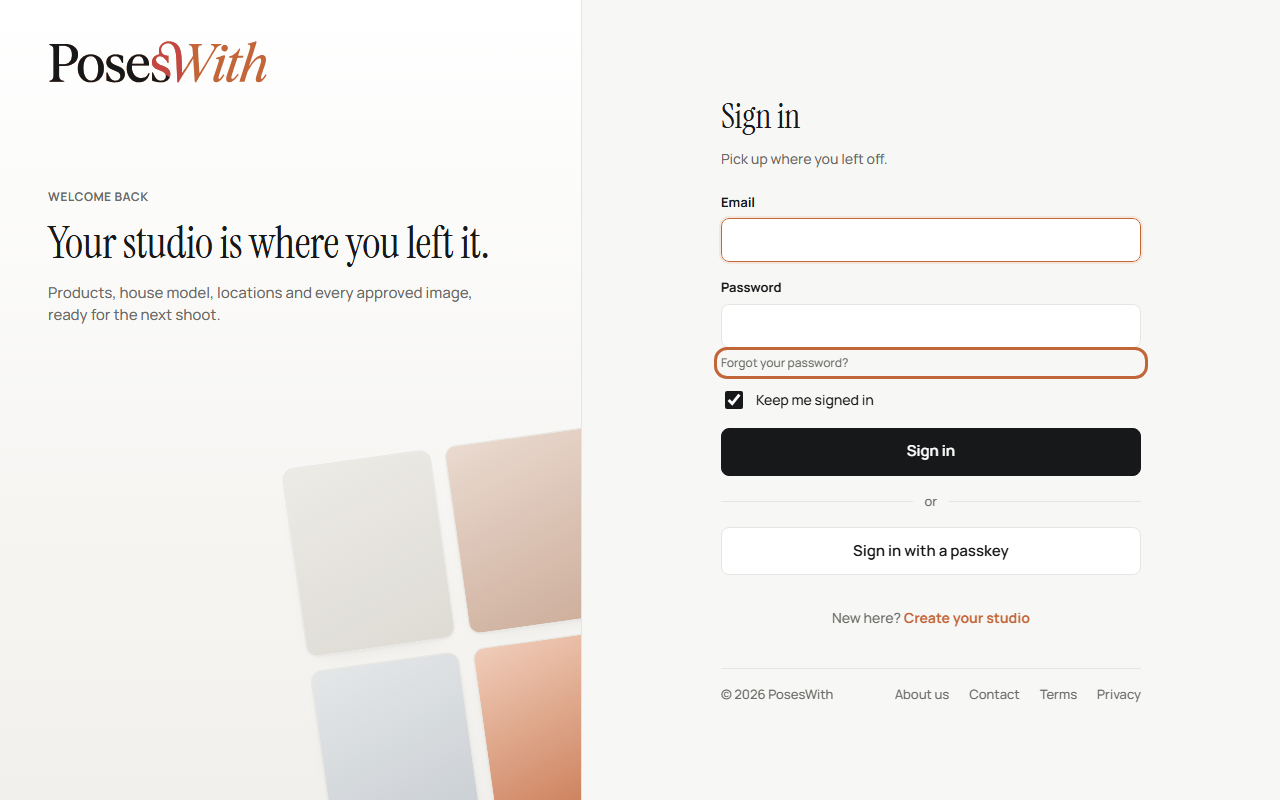
Go to poseswith.com, click Sign in, then click Forgot your password? under the password box.
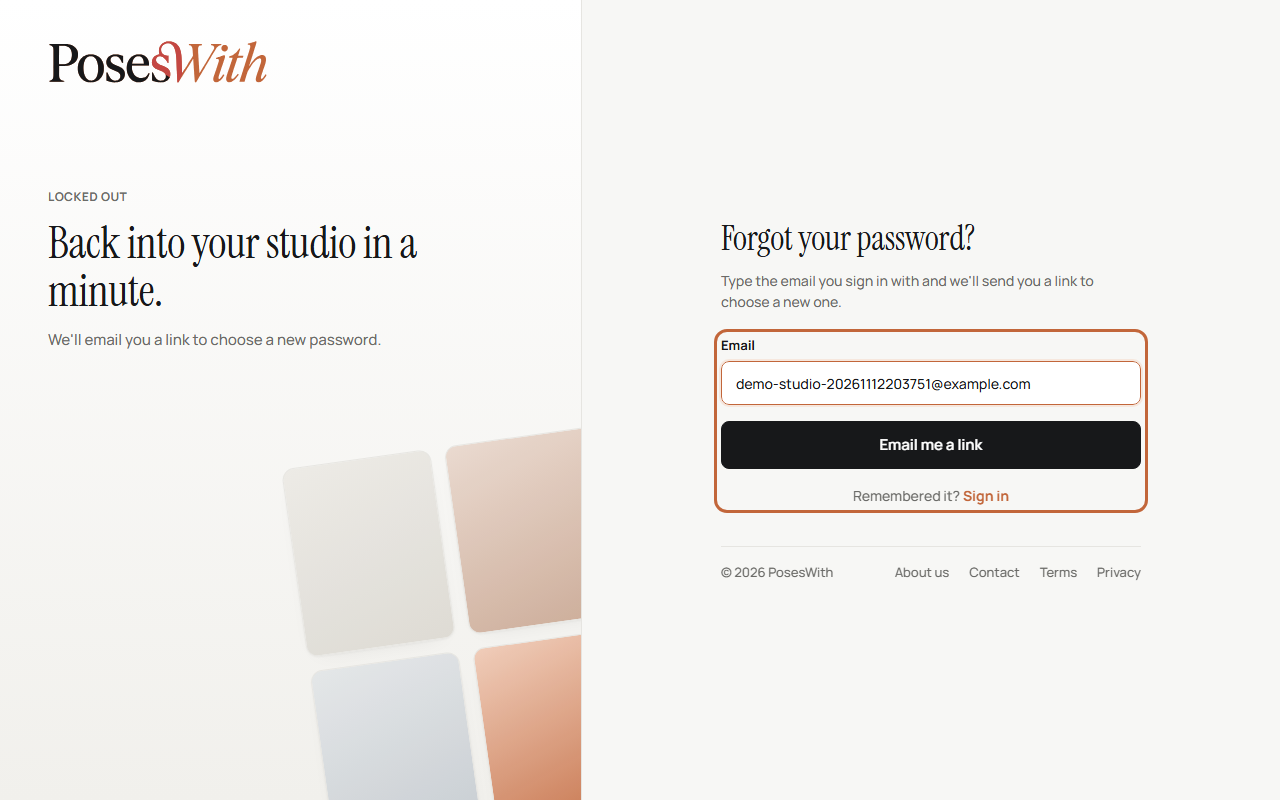
Type the email address you sign in with and click Email me a link.
The page says Check your email. Open the email called Reset your PosesWith password and click Choose a new password. The link works once, for one hour.
Type your New password (at least 10 characters), type it again in New password again, and click Save my new password.
The page says Your password is changed. Click Sign in and sign in with your new password.
Choosing a new password this way signs you out on every device. We also send you an email called Your PosesWith password was changed, so you know it happened.
No email? Look in your junk or spam folder. For your safety, the page always says the same thing, whether or not the address has an account - so check you typed the address you signed up with.
If the page says This link has expired or has already been used. Ask for a new one., click Send a new link and start again.
Tip: Your password is the first step only. If two-step sign-in is on, you still need your code after you choose a new password.
Too many wrong tries
To stop someone guessing your password, signing in pauses after 5 wrong passwords in a row.
- Before that, the sign-in page warns you: That email and password don't match. and how many tries you have left.
- After the last one, it says Locked out. Try again after 5 minutes. We also email you, with the subject Your PosesWith account is locked out.
Wait 5 minutes and try again. If you still can't remember your password, use Forgot your password? on the sign-in page instead of guessing.
Watch out: Got a locked-out email when you weren't signing in? Someone may be trying your password. Once you're back in, change it on your Security page, and make sure two-step sign-in is on.
If the page says This account is locked. Email: support@poseswith.com, we've locked your account to protect it. Nothing is deleted and your credit stays. Email support@poseswith.com from your account's email address and we'll help you get back in.
Sign out of other devices
Left yourself signed in on a shared computer, or lost a phone? You can sign out every other browser and device in one go from your Security page (in the menu at the bottom left of your studio).
In the Signed-in devices box, click Sign out of all other devices.
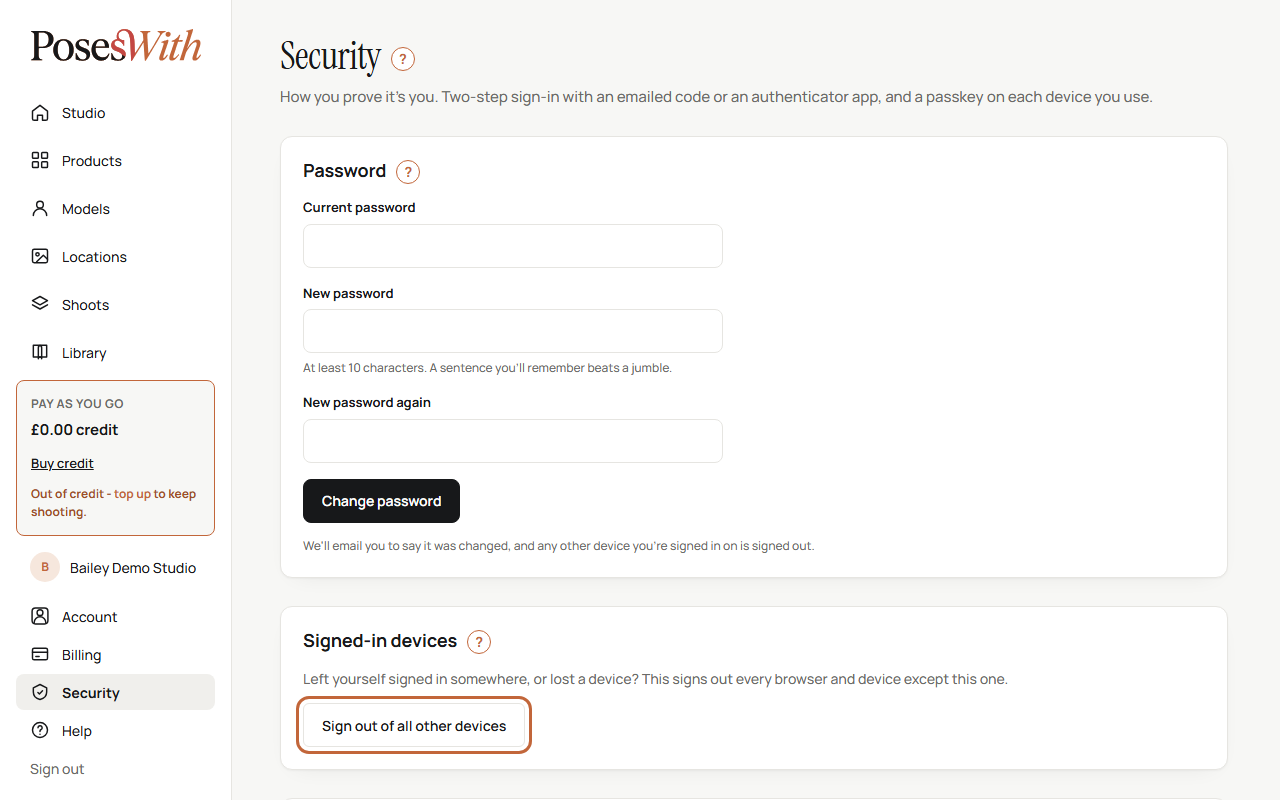
A box asks Sign out of every other device? You'll stay signed in here. Click Sign them out. (Click Cancel if you change your mind.)
The page says Every other device is signed out (within a minute). You're still signed in here. Anyone using one of those devices has to sign in again with your password.
Tip: If you think someone knows your password, change your password as well. Changing it signs out your other devices too. See Change your password.
Two-step sign-in
Two-step sign-in means that signing in takes two things: your password, and a 6-digit code. Someone who finds out your password still can't get into your studio without the code.
There are two ways to get the code:
- By email - we email you a code each time. This switches on by itself when you confirm your email address, so most people already have it. See Codes by email.
- With an authenticator app - a free app on your phone shows the code. It works even when your email doesn't. See Set up an authenticator app.
You use one or the other, not both. Adding an authenticator app stops the emails; removing the app takes you back to email codes.
To see which one you have, open your Security page (in the menu at the bottom left of your studio). Next to Two-step sign-in you'll see a label:
- On · email codes
- On · authenticator app
- Off - only your password protects your account. See Turn two-step sign-in off to switch it back on.
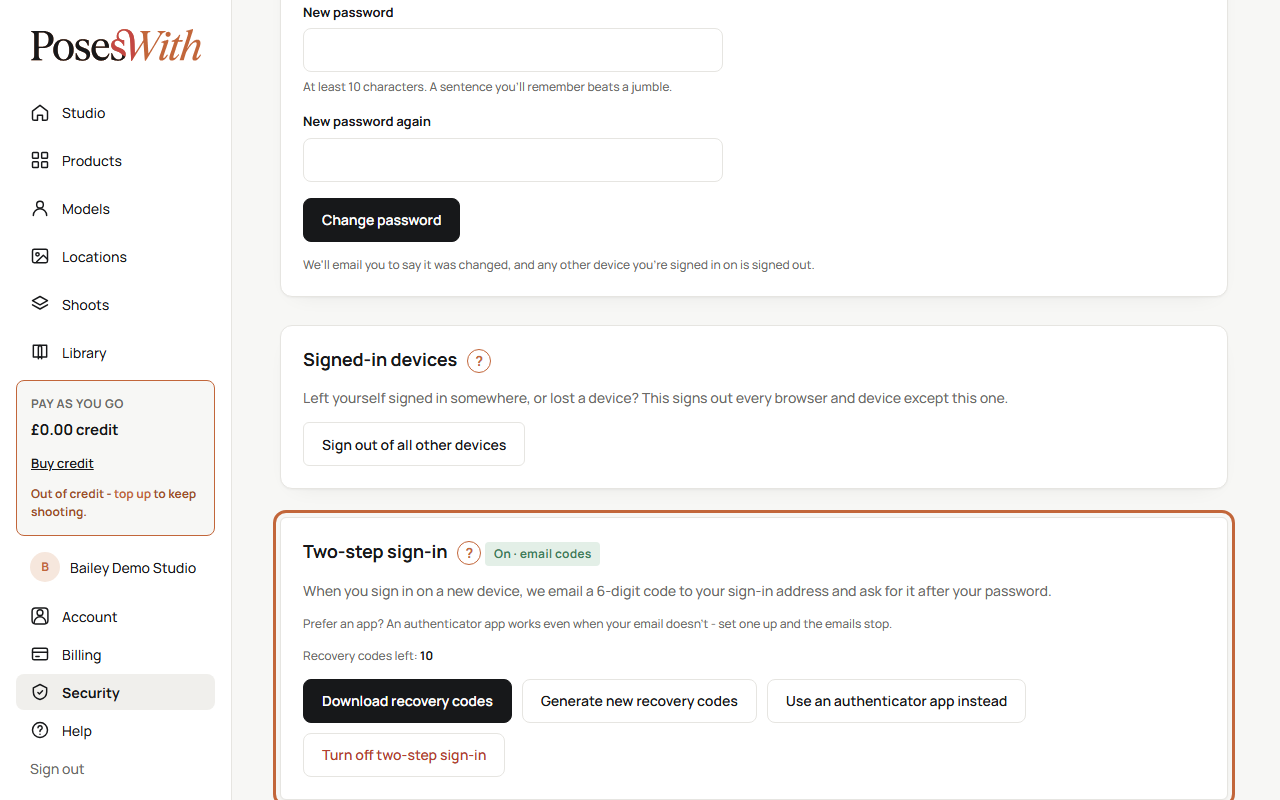
Every time two-step sign-in changes - turned on, turned off, or moved between email and the app - we send you an email called Two-step sign-in changed on your PosesWith account, and it shows in your Recent sign-ins. If you get that email and didn't make the change, change your password straight away and email support@poseswith.com.
Tip: Whichever way you choose, save a set of recovery codes too. They get you in if you ever can't get your code. See Recovery codes.
Codes by email
With email codes, we email you a 6-digit code when you sign in, and you type it after your password. It switches on by itself when you confirm your email address.
Sign in with your email address and password as usual.
The page says Enter your code and shows the start of the email address we sent it to.
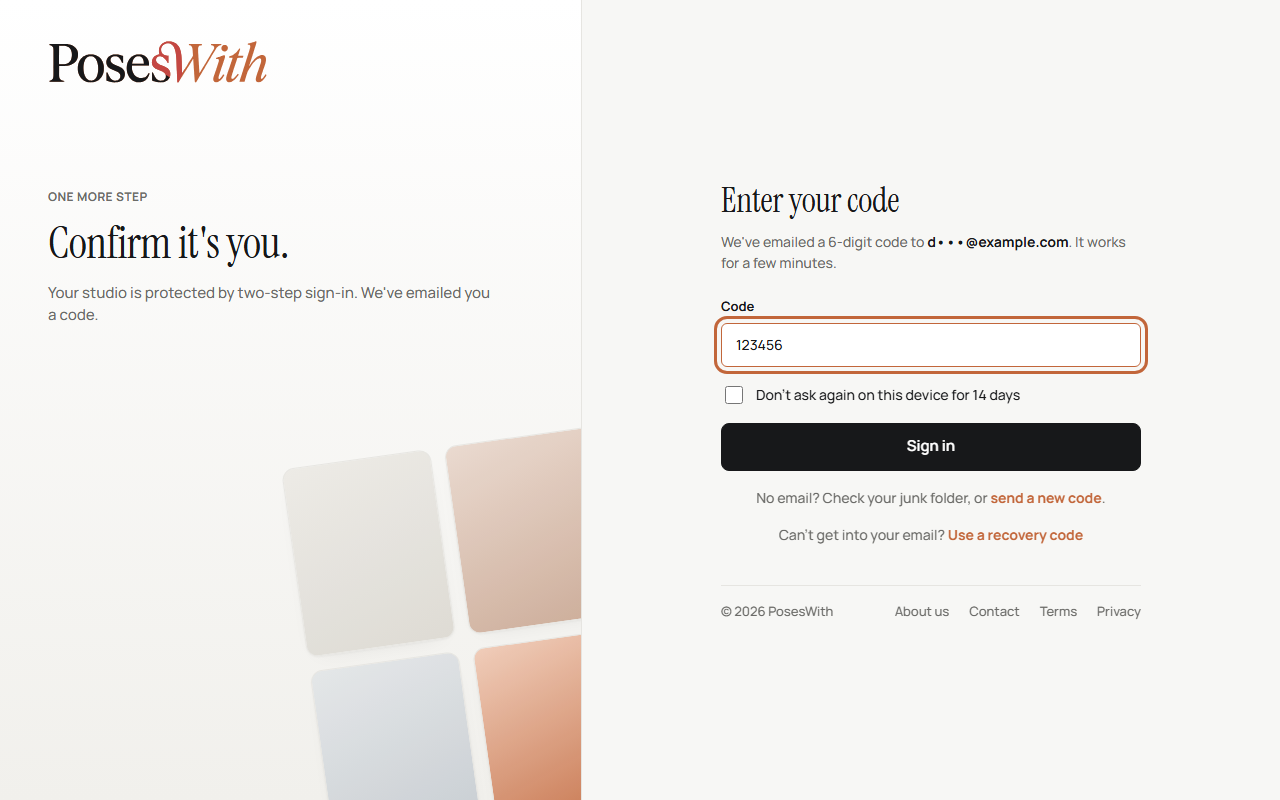
Open the email called Your PosesWith sign-in code and type the 6 digits into the Code box.
On your own computer or phone, tick Don't ask again on this device for 14 days. Don't tick it on a shared or public computer.
Click Sign in.
The code works for a few minutes. If it's run out, or it hasn't come:
- Look in your junk or spam folder.
- Click send a new code. You can ask for one new code a minute. After several in an hour we stop sending for a while - the page tells you, and you can use the latest code you have or a recovery code.
- If the page says That code isn't right, or it has run out., check you're using the code from the latest email, or send a new one.
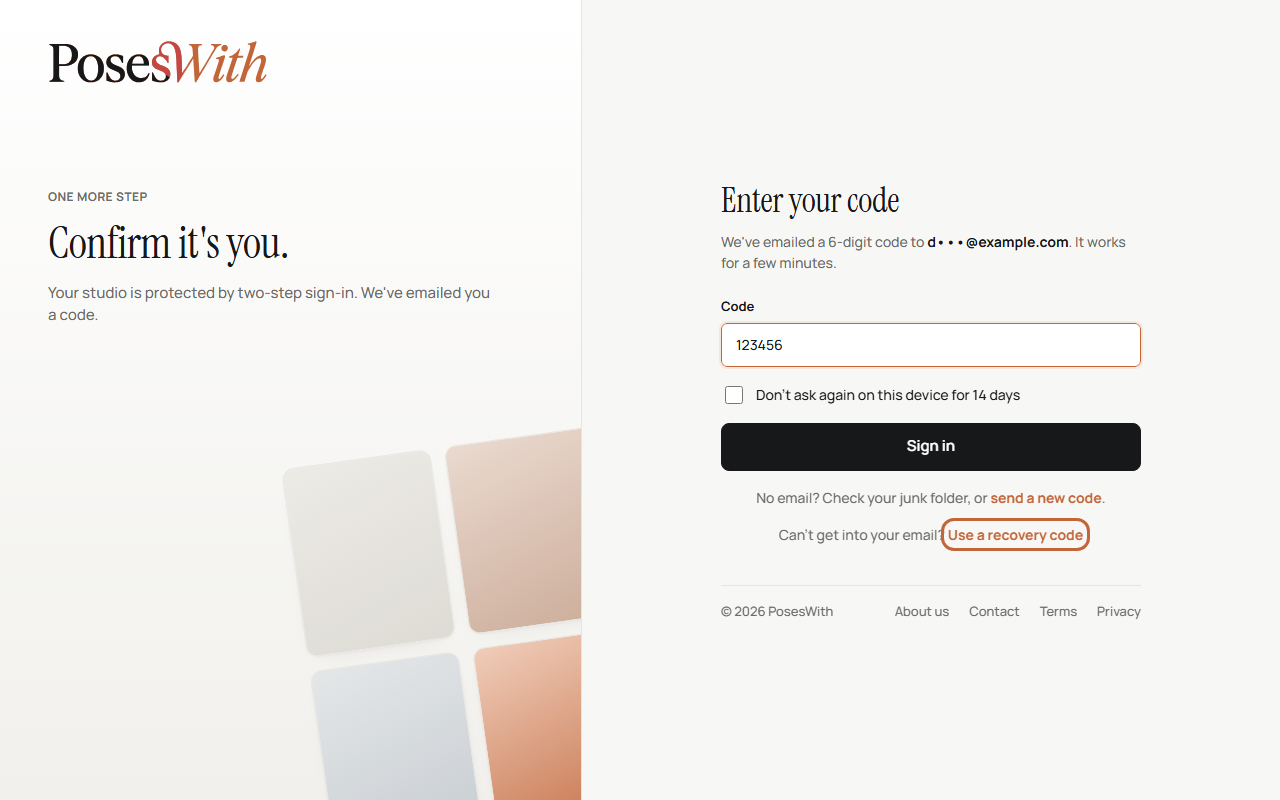
Can't get into your email at all? Click Use a recovery code under the box. See Sign in with a recovery code.
Watch out: We never ask for your code by phone, by text or in an email. Only type it on the PosesWith sign-in page. If you get a code you didn't ask for, someone may know your password - sign in and change it on your Security page.
If you'd rather not depend on your email, use an authenticator app instead. See Set up an authenticator app.
Set up an authenticator app
An authenticator app is a free app for your phone that makes sign-in codes. Every 30 seconds it shows a new 6-digit code for PosesWith, and you type the current one when you sign in. It works without signal or Wi-Fi, so it's handy if your email is slow or you can't always get into it.
Popular free ones are Google Authenticator and Microsoft Authenticator. Any authenticator app works. Once the app is on, we stop emailing you codes.
You'll need your phone and a computer (or you can do it all on your phone - see the tip below).
On your phone, open the App Store (iPhone) or Google Play (Android), search for Google Authenticator or Microsoft Authenticator, and install it.
On your computer, open your Security page (in the menu at the bottom left of your studio).
In the Two-step sign-in box, click Use an authenticator app instead. (If two-step sign-in is off, the button is called Set up authenticator app.)
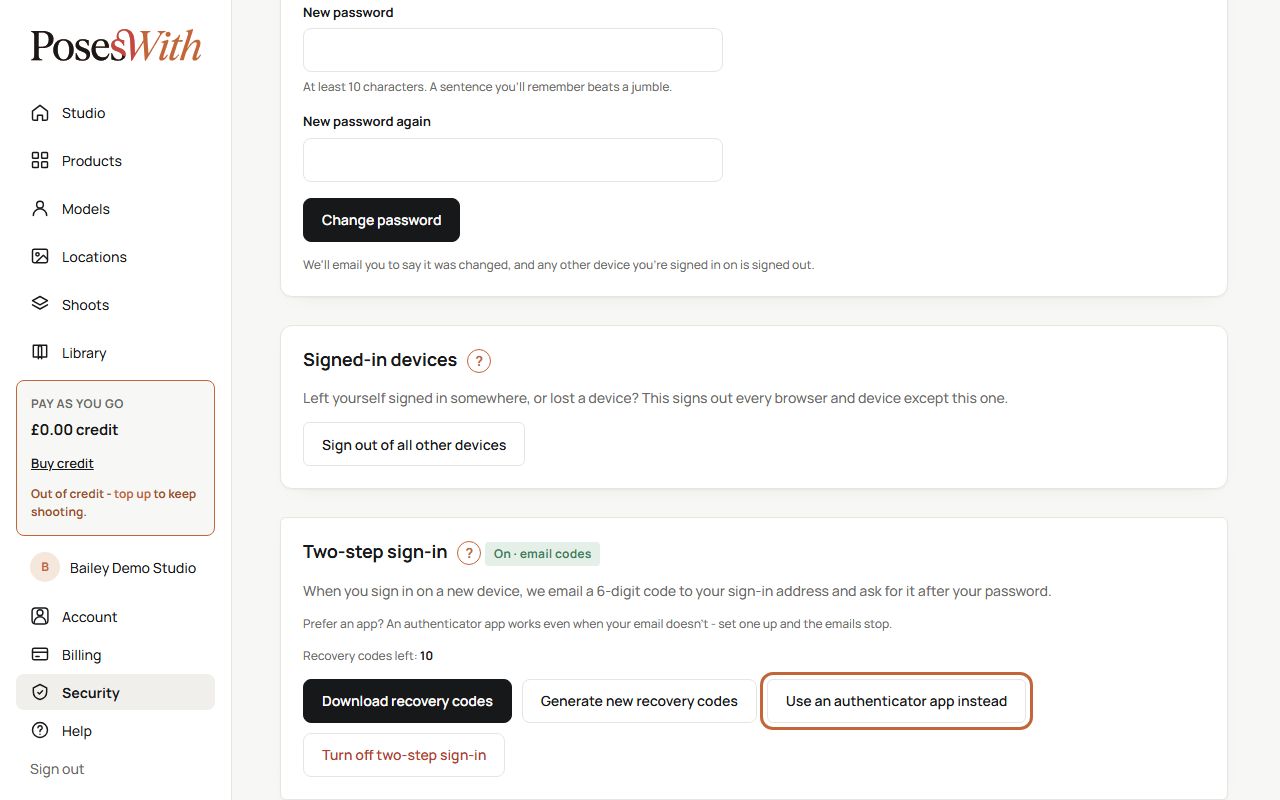
A square black-and-white pattern appears. This is a QR code - a picture your phone's camera can read.
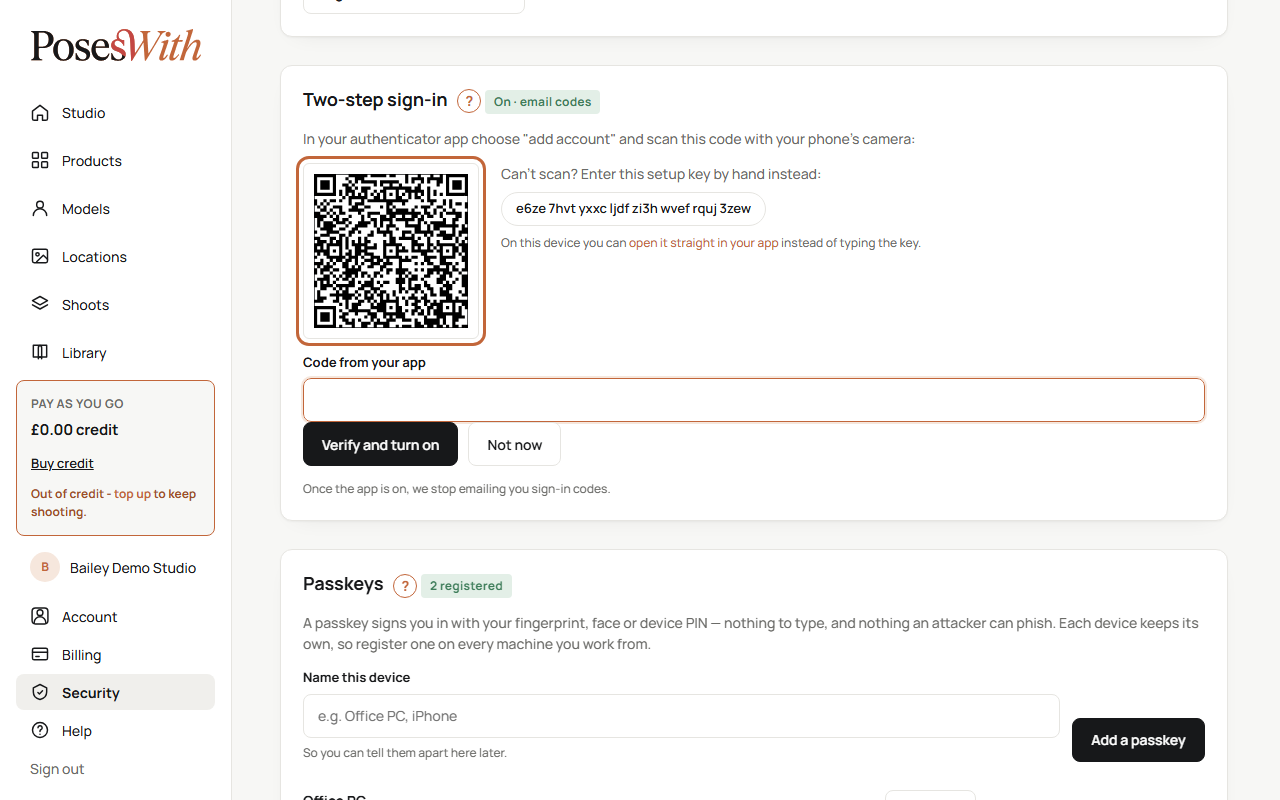
On your phone, open the authenticator app and choose to add an account. In most apps this is a + button. Choose to scan a QR code. If the app asks to use your camera, allow it.
Point your phone's camera at the QR code on your computer screen. Hold it steady until the app beeps or moves on. You'll see PosesWith in the app, with a 6-digit code under it.
Back on your computer, type the code the app is showing into Code from your app.
Click Verify and turn on.
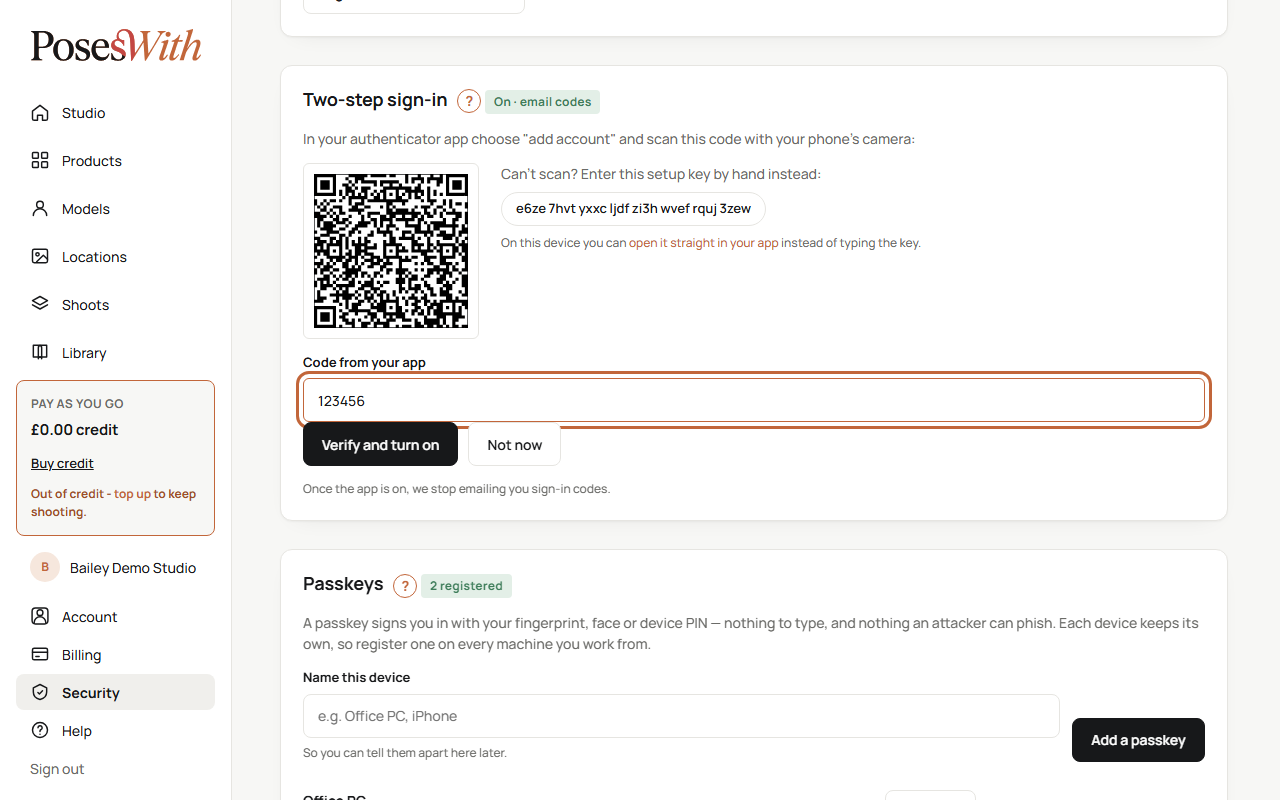
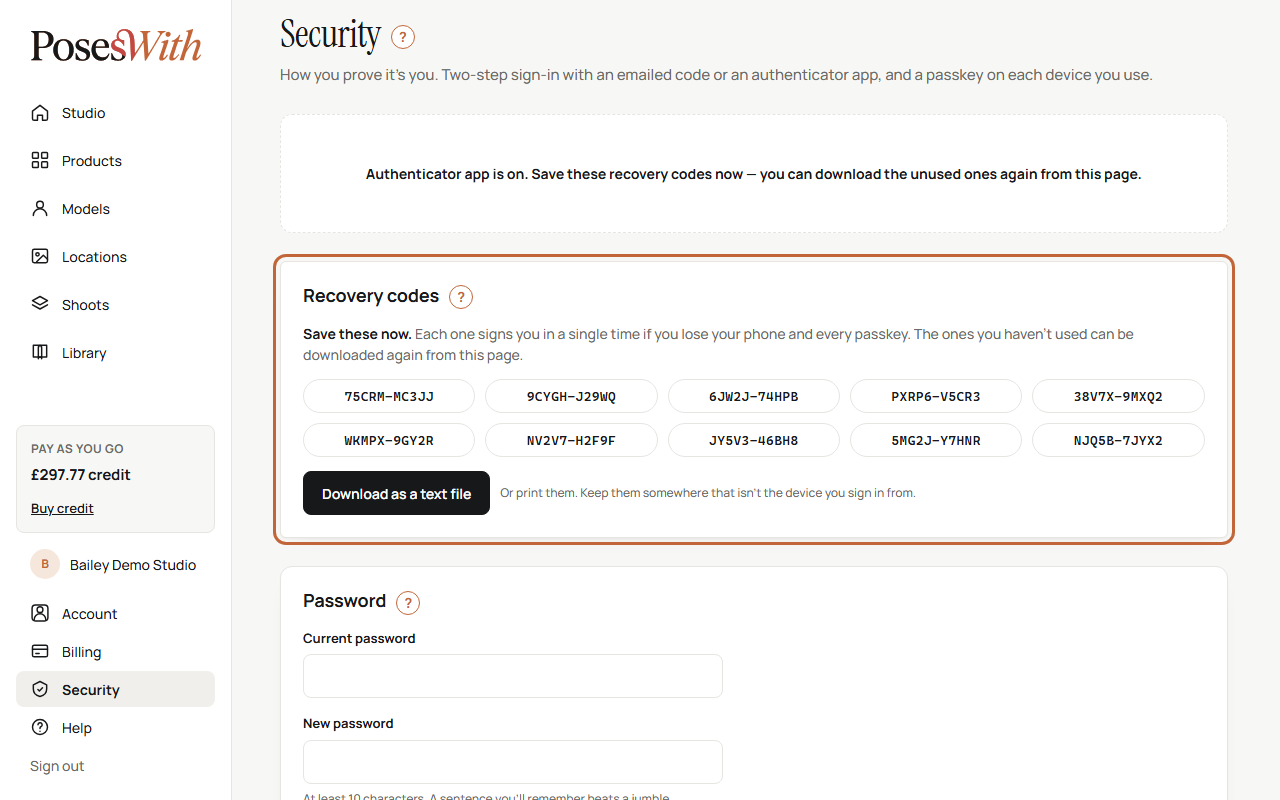
The page says the authenticator app is on. If you don't have recovery codes yet, a box of them appears at the top. Save them now - see Recovery codes.
The label next to Two-step sign-in now says On · authenticator app. We email you to say two-step sign-in has changed.
Can't scan the QR code? Under it is a setup key - a row of letters and numbers. In the app, choose to enter a setup key instead of scanning, and type it in exactly as shown.
If the page says That code isn't right. Codes change every 30 seconds — try the current one., wait for a fresh code in the app and type that one. If it still fails, check your phone's date and time are set automatically - the codes depend on the phone's clock.
Changed your mind? Click Not now. Nothing changes and your email codes carry on.
Tip: Setting it up on your phone alone? Open your Security page on your phone, click Use an authenticator app instead, then tap open it straight in your app under the QR code. Your app opens with PosesWith added. Copy the code it shows back into Code from your app.
Watch out: If you lose your phone, the app goes with it. Save your recovery codes somewhere safe that isn't your phone, so you can still get in.
Sign in with the app
Once your authenticator app is on, you type a code from the app each time you sign in.
Sign in with your email address and password as usual.
The page says Enter your code and asks for Six digits from your authenticator app.
Open the app on your phone and find PosesWith. Type the 6 digits it's showing into the Code box. If the code is about to change, wait for the new one.
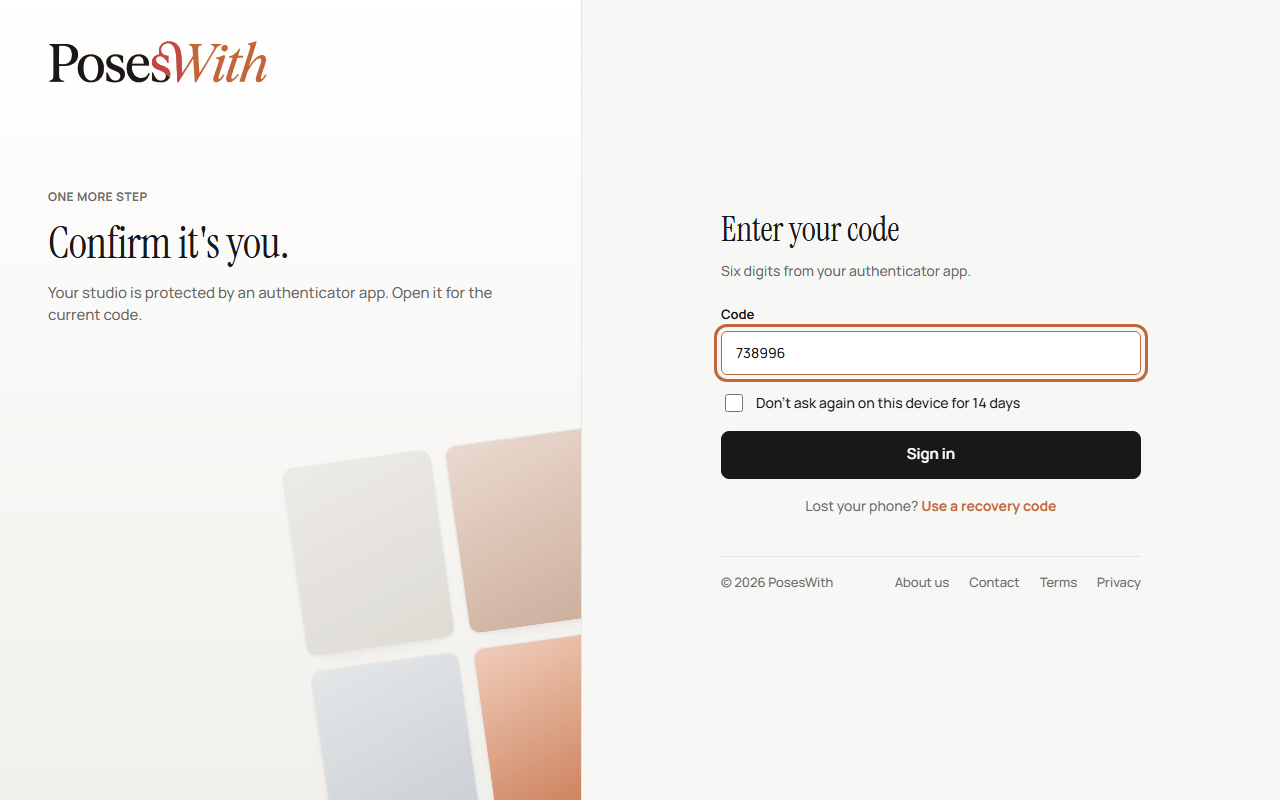
On your own computer or phone, tick Don't ask again on this device for 14 days. Don't tick it on a shared or public computer.
Click Sign in.
If the page says That code isn't right., type the current code - each one only lasts 30 seconds.
Lost your phone? Click Use a recovery code under the box. See Sign in with a recovery code.
Change phone or stop using the app
If you get a new phone, or don't want to use an authenticator app any more, you can go back to email codes from your Security page (in the menu at the bottom left of your studio). Do this while you can still sign in.
In the Two-step sign-in box, click Use email codes instead.
A box asks if you want to remove the authenticator app. Click Remove.
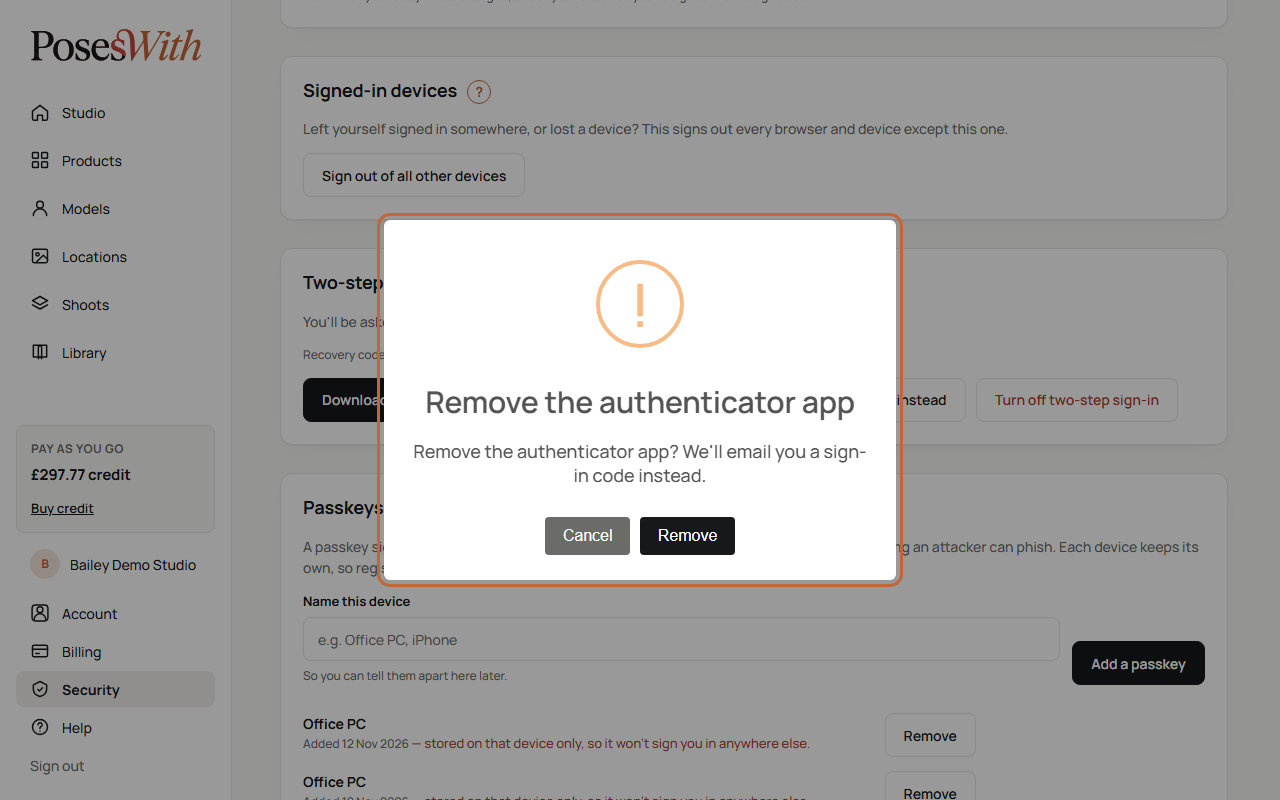
The page says Authenticator app removed. We'll email you a code when you sign in on a new device instead. Your recovery codes still work. We email you to say two-step sign-in has changed.
On a new phone, you can now set the app up again: install it on the new phone and follow Set up an authenticator app. You can delete PosesWith from the app on your old phone - its codes no longer work.
If your email address isn't confirmed yet, the button says Remove the app instead, and removing it turns two-step sign-in off. Confirm your email address first so you keep the protection - see Confirm your email address.
Tip: Already lost the old phone? Sign in with a recovery code, then remove the app as above. No recovery codes? Email support@poseswith.com from your account's email address.
Turn two-step sign-in off
You can turn two-step sign-in off, but we don't recommend it. With it off, anyone who has your password can get into your studio.
On your Security page (in the menu at the bottom left of your studio), in the Two-step sign-in box, click Turn off two-step sign-in.
A box warns you that only your password will protect your account, and that your recovery codes stop working too. Click Turn it off to go ahead, or Cancel to keep it on.
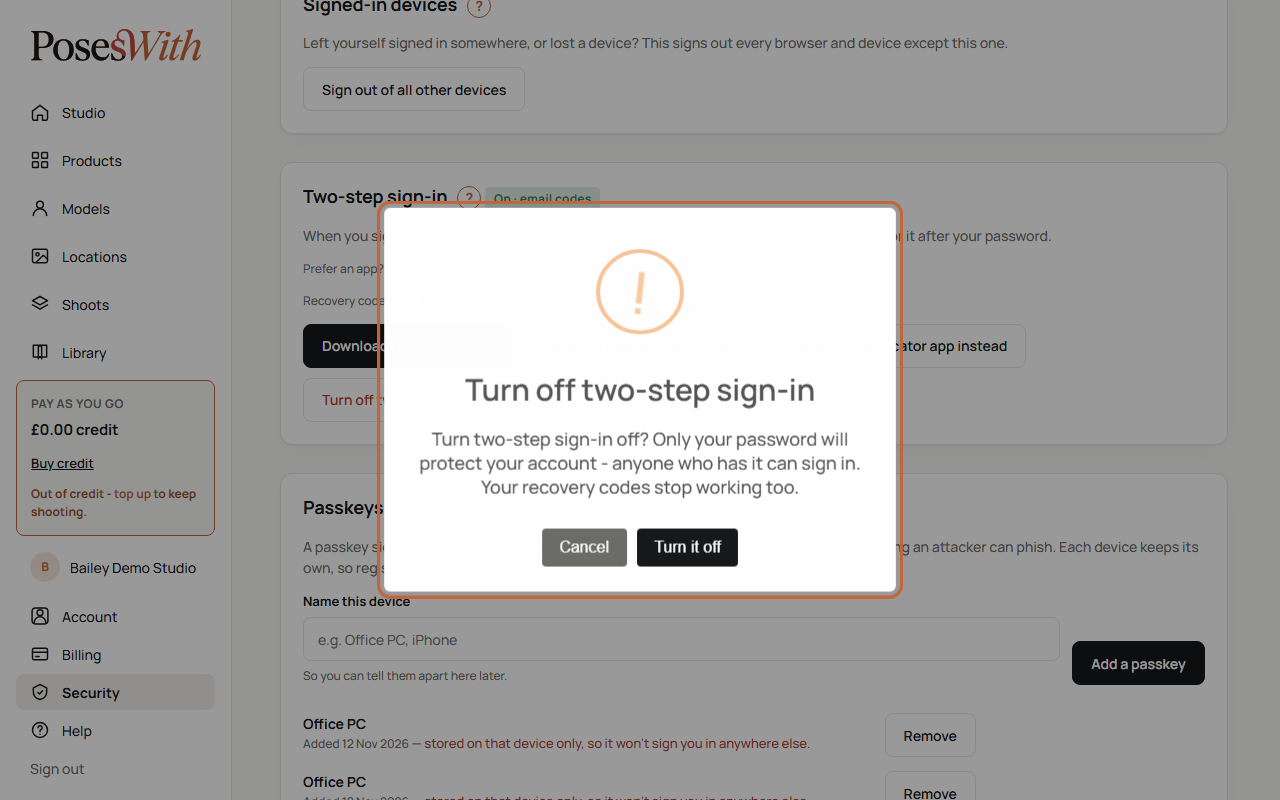
The page says Two-step sign-in is off. Only your password protects your account now. The label says Off. Your recovery codes and any authenticator app stop working. We email you to say two-step sign-in has changed.
Turn it back on
When two-step sign-in is off, the Two-step sign-in box shows two buttons:
- Turn on email codes - click it and email codes are on again straight away.
- Set up authenticator app - see Set up an authenticator app.
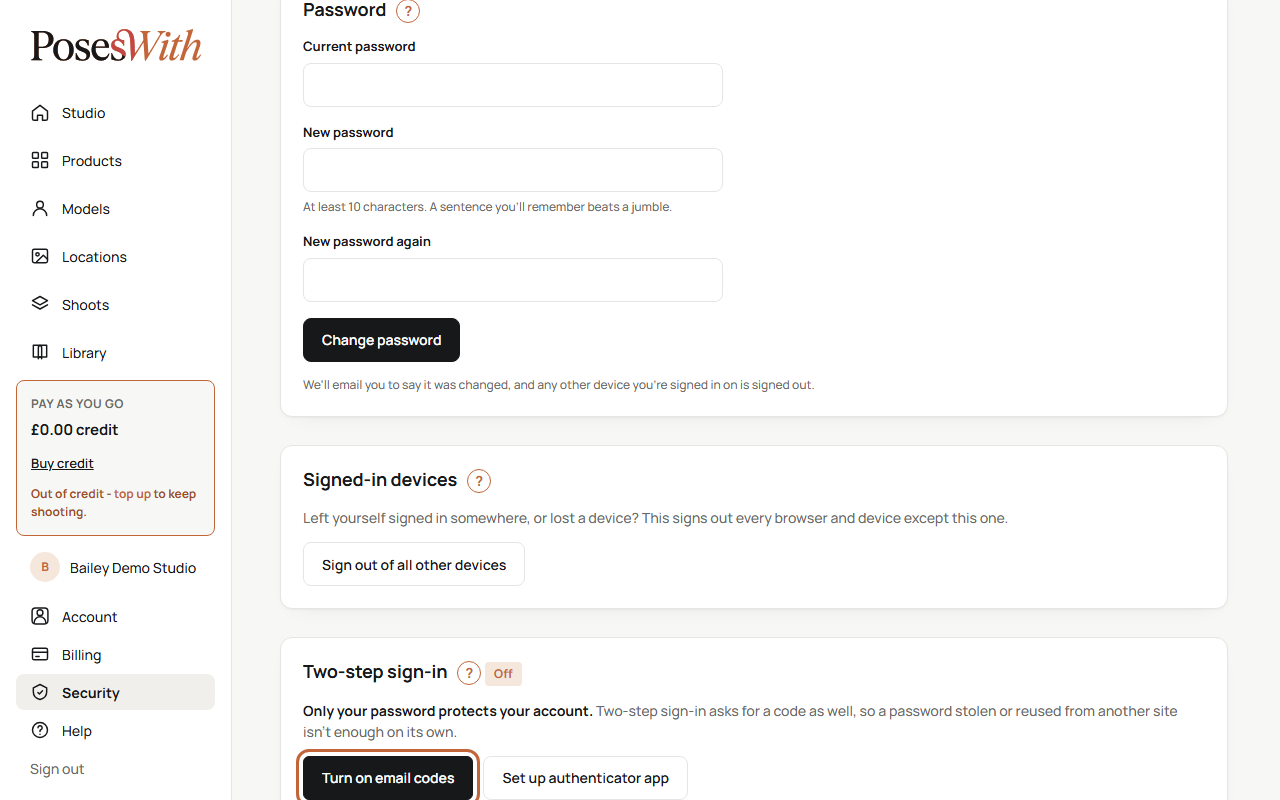
Turn on email codes only shows once your email address is confirmed. If it isn't, the box says so - use the link in the email we sent when you signed up. See Confirm your email address.
You'll need new recovery codes after turning it back on. See Recovery codes.
Recovery codes
Recovery codes are a set of 10 spare codes. If you ever can't get your sign-in code - your email isn't working, or you've lost your phone - you type one of these instead. Each code works once.
Think of them like a spare key: you hope never to need them, but you'll be glad you have them. Get them on your first day.
They're on your Security page (in the menu at the bottom left of your studio), in the Two-step sign-in box. You can only have them while two-step sign-in is on. The box shows Recovery codes left: and how many you have.
Get your codes
In the Two-step sign-in box, click Get recovery codes. (If you already have some, the button is called Generate new recovery codes.)
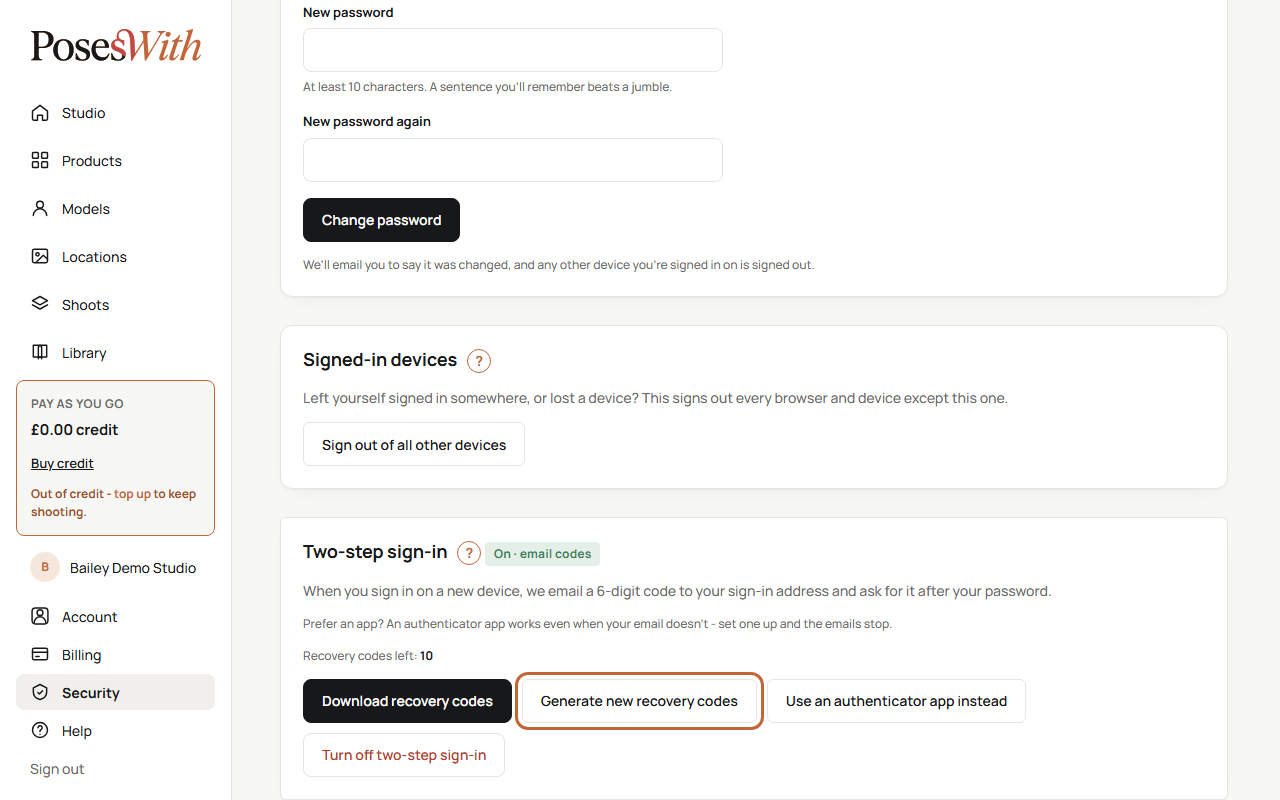
A Recovery codes box appears at the top of the page with your 10 codes.
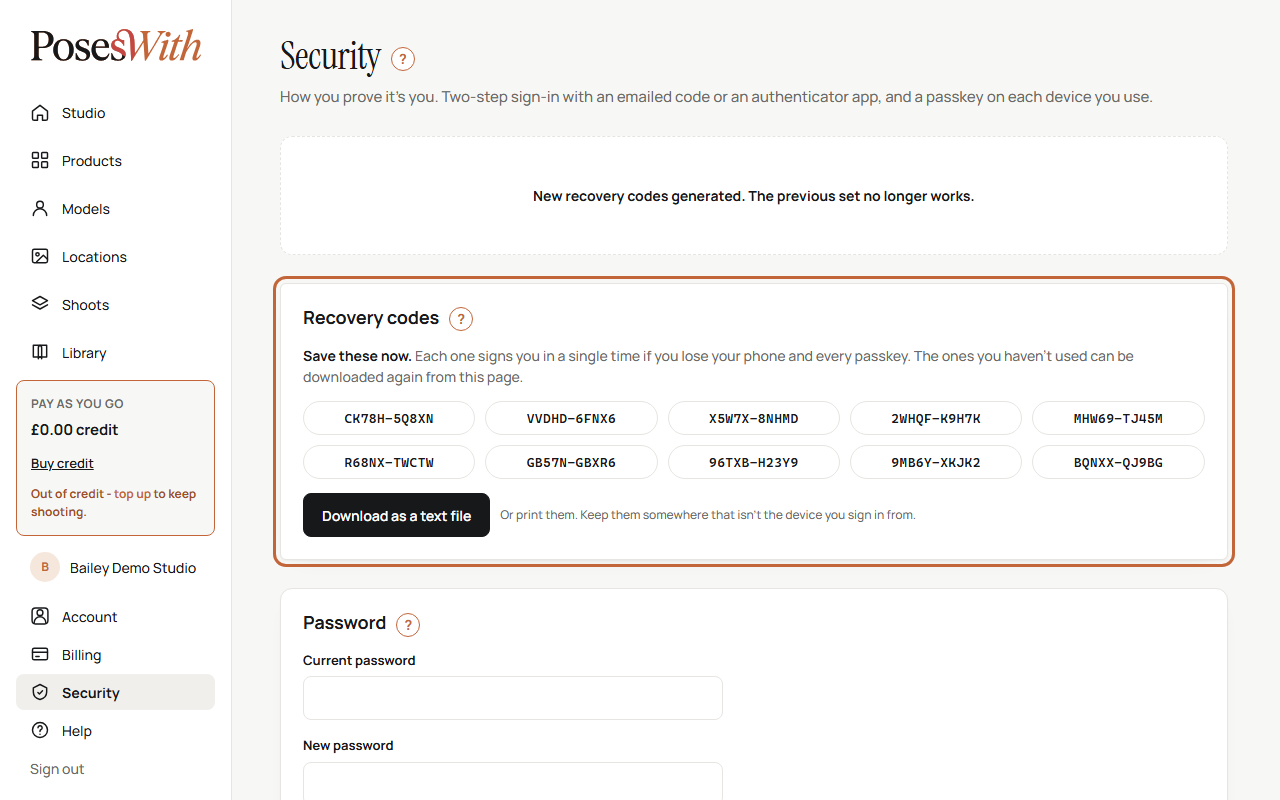
Click Download as a text file to save them to your computer. The file is called poseswith-recovery-codes.txt.
Keep them somewhere safe that isn't the device you sign in from. You could print the file and keep it with your important papers, write the codes down, or save the file somewhere secure such as a password manager.
If you set up an authenticator app and don't have any codes yet, you get your first set straight away, in the same box.
Download them again
You can download the codes you haven't used yet at any time: click Download recovery codes in the Two-step sign-in box.
Make a new set
Click Generate new recovery codes. You get 10 new codes, and the page says New recovery codes generated. The previous set no longer works. Throw away or delete your old ones. We email you to say new codes were made, and it shows in your Recent sign-ins.
Make a new set when you're running low - the box warns you when you have 3 or fewer left - or if you think someone else has seen your codes.
Watch out: Turning two-step sign-in off deletes your recovery codes. If you turn it back on, get a new set.
Sign in with a recovery code
If you can't get your sign-in code - your email isn't arriving, or you've lost the phone with your authenticator app - you can use one of your saved recovery codes instead.
Sign in with your email address and password as usual.
On the page that asks for your code, click Use a recovery code.
Type one of your saved codes into the Recovery code box and click Sign in.
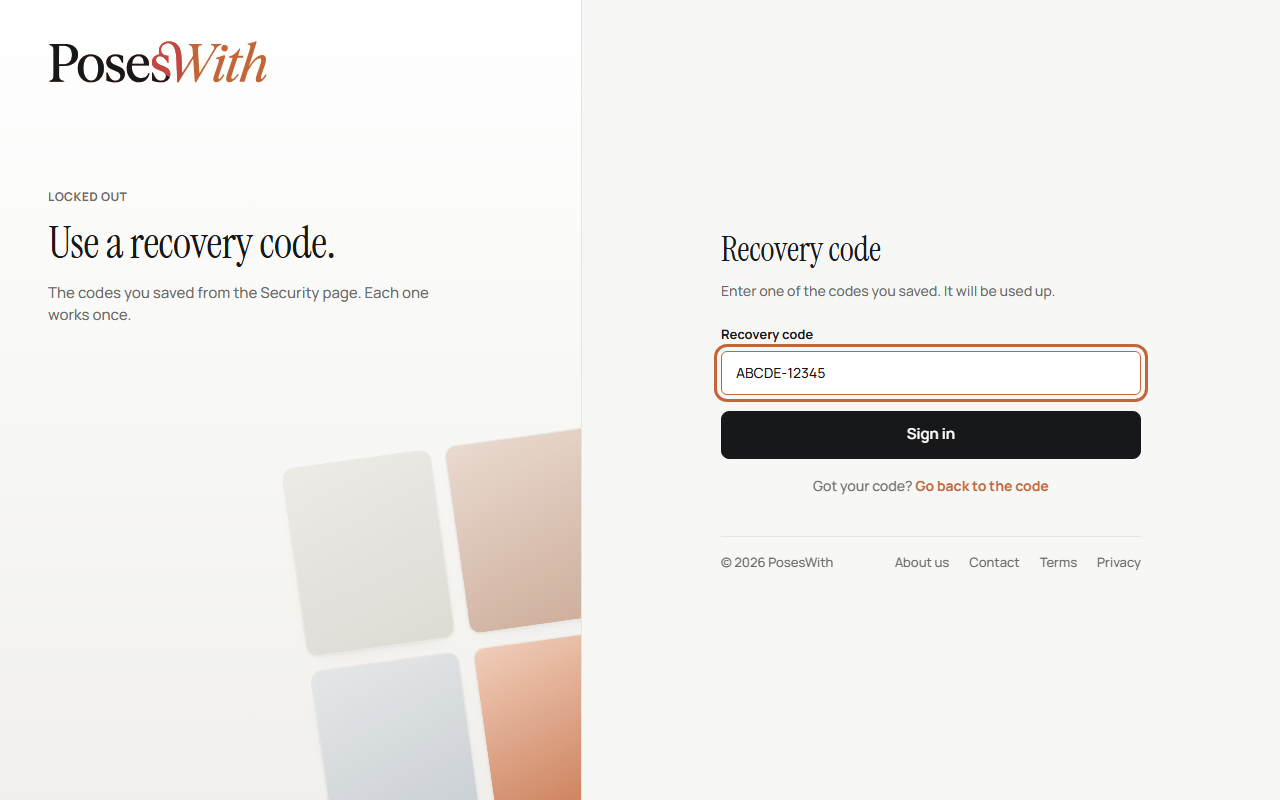
That code is now used up and won't work again. Cross it off your list. If you have 3 codes or fewer left, a message tells you how many, so you can make a new set.
If the page says That recovery code isn't recognised. Each one works only once., check you typed it correctly and haven't used it before, and try another.
Found your code after all? Click Go back to the code.
Once you're in, sort out the problem so you don't run out:
- Lost your phone? Remove the authenticator app - see Change phone or stop using the app.
- Running low on codes? Make a new set - see Recovery codes.
No recovery codes and can't get your code? Email support@poseswith.com from your account's email address and tell us what's happened.
Passkeys
A passkey lets you sign in with your fingerprint, your face, or the PIN you use to unlock your computer or phone - the same way you unlock the device itself. There's no password to type and no code to wait for.
Passkeys are very safe: they only work on the real PosesWith site, so a fake website can't trick you into giving one away.
Each device keeps its own passkey, so add one on every computer, phone or tablet you work from. Some devices back passkeys up to your account with the device's maker, so one passkey can work on your other devices too.
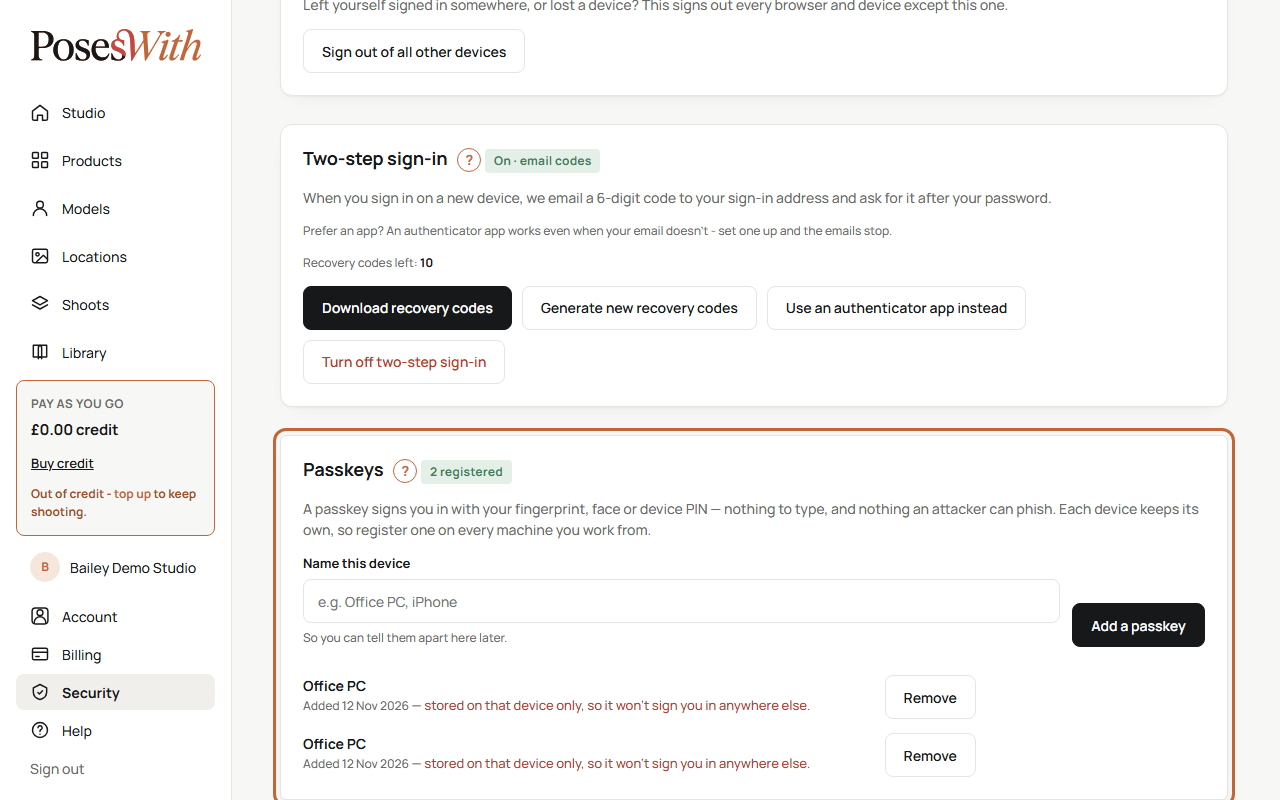
Your passkeys are on your Security page (in the menu at the bottom left of your studio), in the Passkeys box. Next to the heading it says how many you have, for example 2 registered. If you have none, it says No passkeys yet.
You can still sign in with your password whenever you like. See Add a passkey and Sign in with a passkey.
Add a passkey
Add a passkey on each device you sign in from. Do it on the device itself - a passkey is saved on the computer or phone you're using.
On the device, sign in and open your Security page (in the menu at the bottom left of your studio).
In the Passkeys box, type a name in Name this device, such as "Office PC" or "iPhone", so you can tell them apart later.
Click Add a passkey.
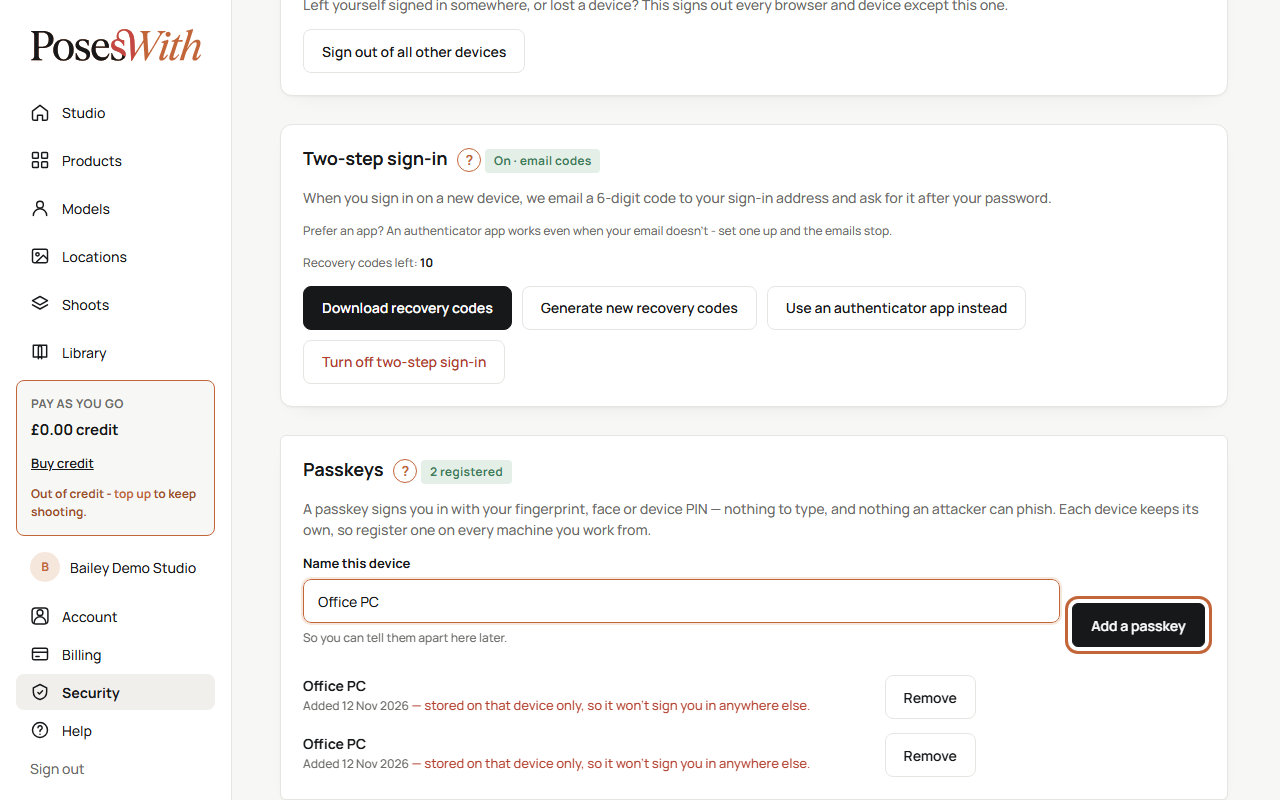
The page says Follow the prompt from your browser or device…. Your computer or phone asks you to confirm it's you - with your fingerprint, your face or your PIN. Do what it asks.
The page says your passkey is added and it signs you in on this device from now on. It appears in the list with the name you gave it and the date you added it. We email you to say a passkey was added, and it shows in your Recent sign-ins.
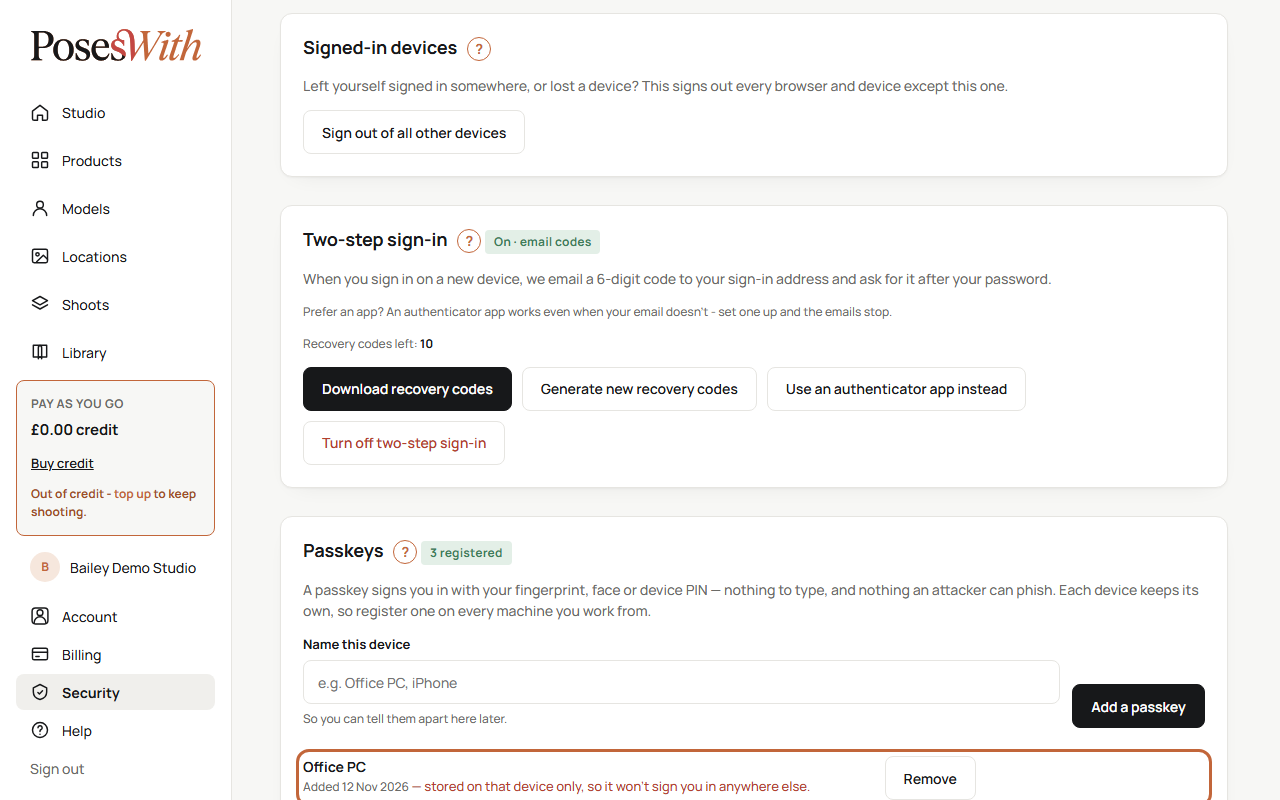
If a passkey in the list says stored on that device only, so it won't sign you in anywhere else, it works on that one device. Add another passkey on each of your other devices.
If something goes wrong, the page tells you:
- Cancelled, or it timed out. Nothing was saved. - you closed the prompt or took too long. Click Add a passkey again.
- This device already has a passkey for this account. - you've already added one here. You don't need another.
- This browser cannot create passkeys. Use a current Edge, Chrome, Safari or Firefox. - your browser is too old. Update it, or use a different one.
Sign in with a passkey
Once you've added a passkey on a device, you can sign in there without your password or a code.
Go to poseswith.com and click Sign in.
Click Sign in with a passkey. You can type your email address first, but you don't have to.
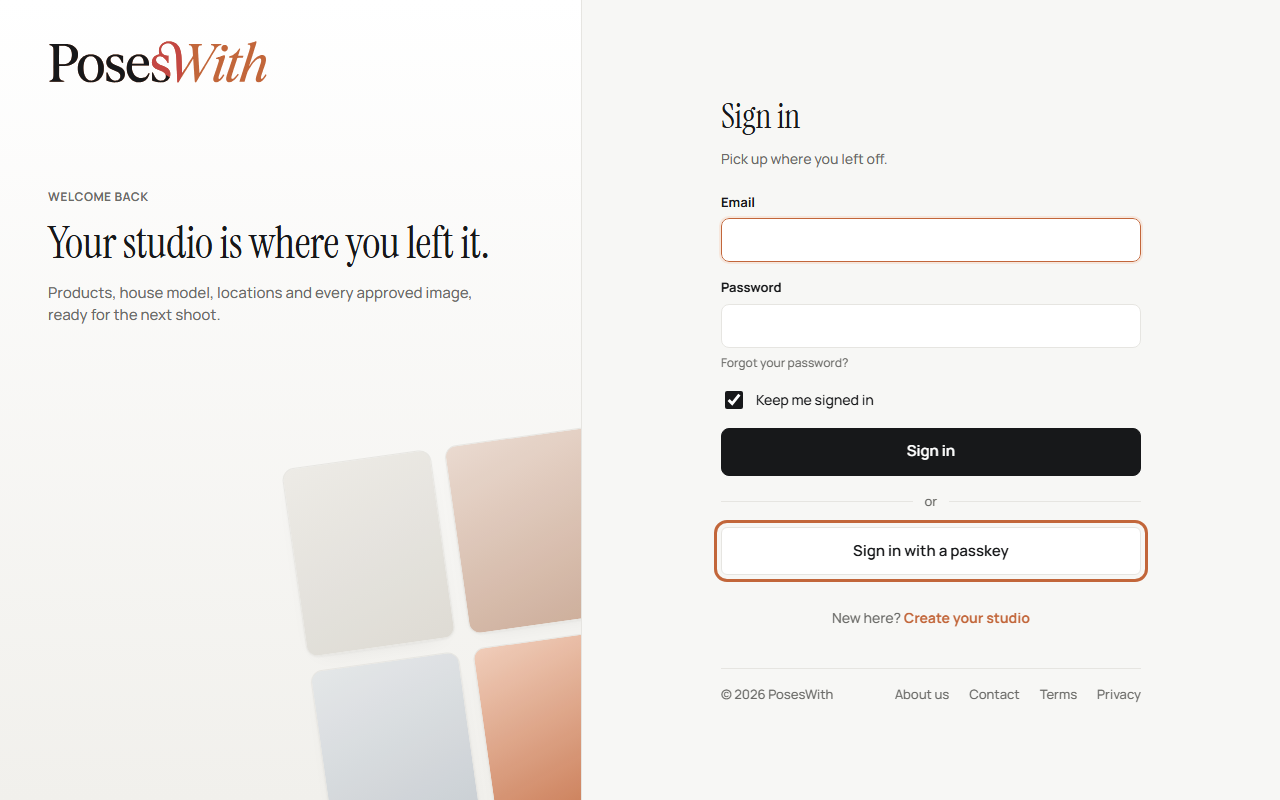
Your computer or phone asks you to confirm it's you - with your fingerprint, your face or your PIN. Do what it asks.
Your studio opens.
If the page says That passkey wasn't accepted. Try again, or sign in with your password., the passkey may have been removed from your account. Sign in with your password and code instead, then add a new passkey.
If you don't see the Sign in with a passkey button, your browser can't use passkeys. Sign in with your password, or update your browser.
Remove a passkey
Remove a passkey when you stop using a device, sell it or lose it. Removing it means that device can no longer sign in with a passkey.
On your Security page (in the menu at the bottom left of your studio), find the device in the Passkeys box.
Click Remove next to it.
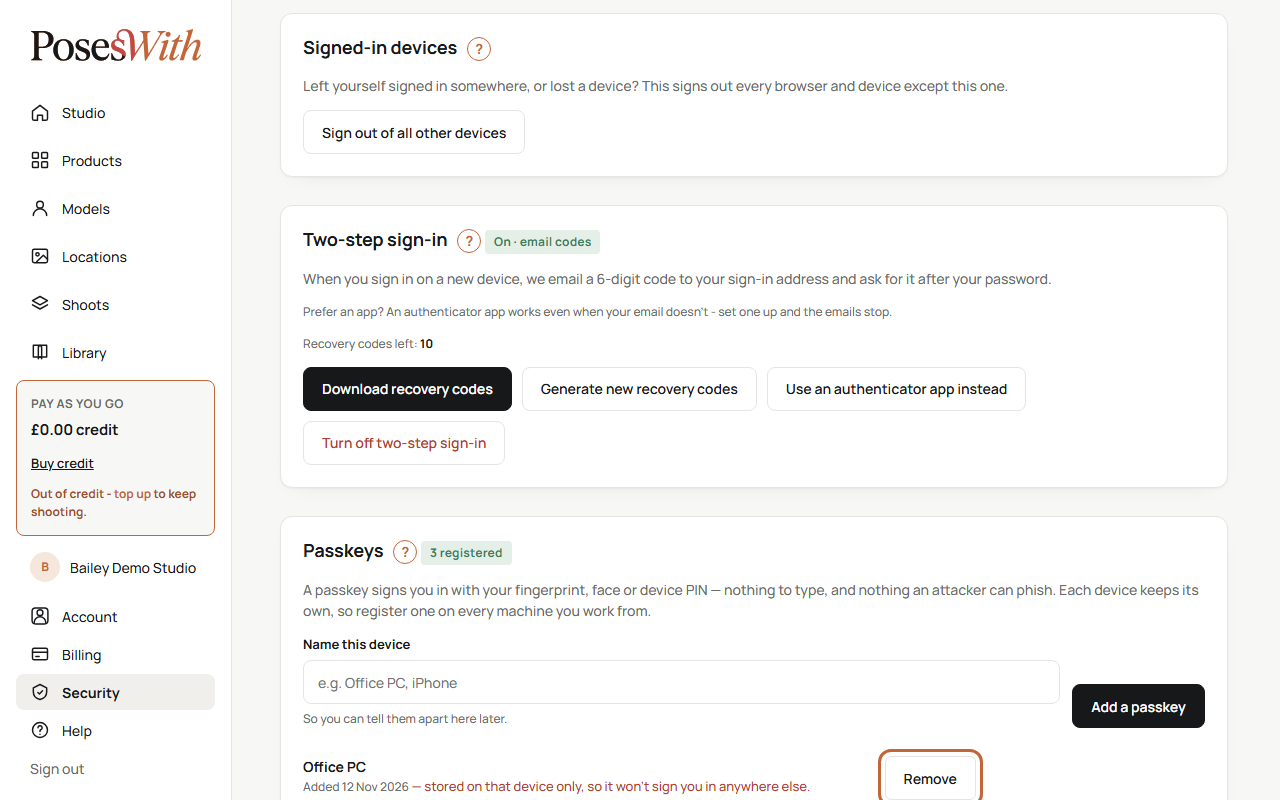
A window asks you to confirm. Click Remove.
The page says That device can no longer sign in with a passkey. We email you to say a passkey was removed, and it shows in your Recent sign-ins. If you removed the wrong one, add it again on that device.
The device itself may still offer the old passkey when you sign in, but it won't be accepted. You can delete it in the device's own settings.
Tip: Lost a device? Remove its passkey, then click Sign out of all other devices in the Signed-in devices box, in case it was still signed in.
Recent sign-ins
At the bottom of your Security page (in the menu at the bottom left of your studio), Recent sign-ins shows the last 10 sign-ins and changes to your account, newest first. Each one is kept for 90 days.
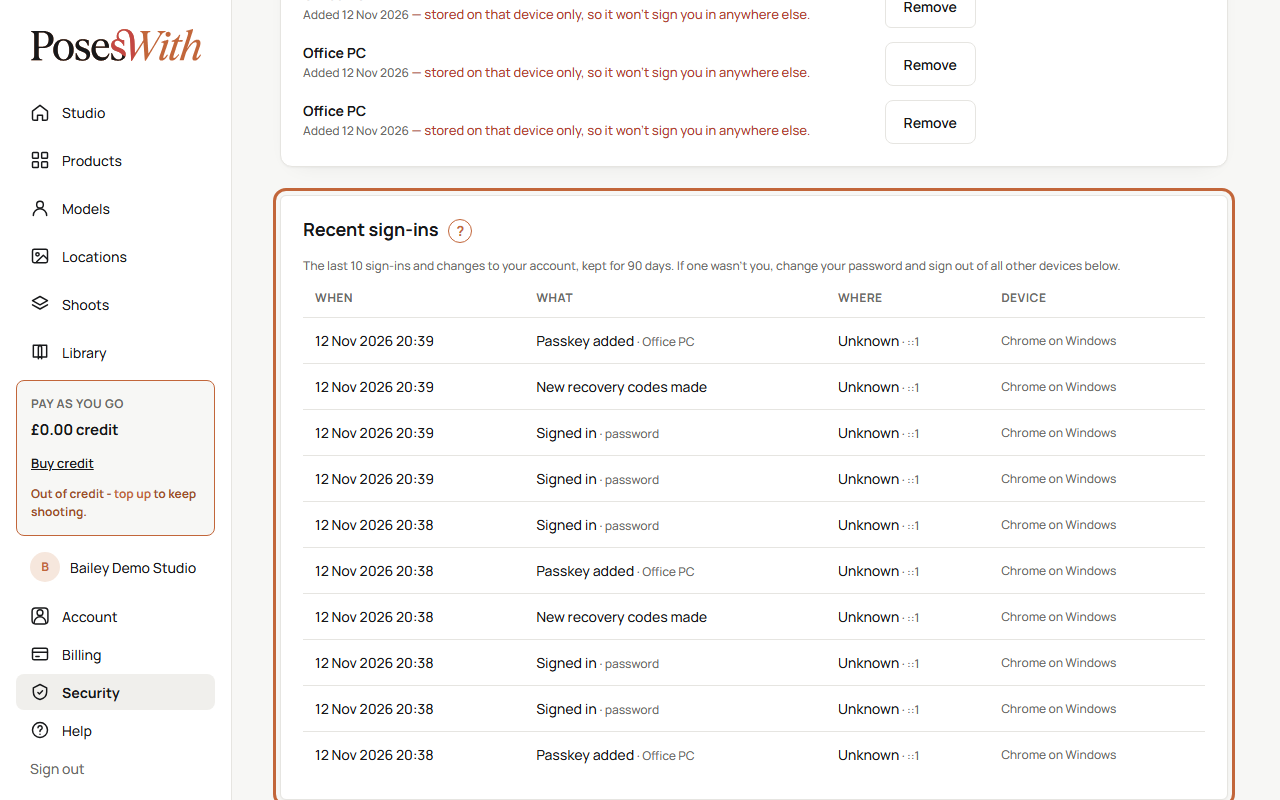
Each line shows:
- When - the date and time.
- What - what happened, for example Signed in, Failed sign-in, Password changed, Two-step sign-in changed, Passkey added, Passkey removed, New recovery codes made or Signed out of all other devices. Next to it, in grey, more detail such as how you signed in (for example "password + emailed code" or "passkey").
- Where - the country, worked out from the internet connection, and the connection's internet address (a string of numbers). The country is a best guess, so it can show a nearby country, and it says Unknown if we couldn't tell.
- Device - the browser and the kind of device, for example "Chrome on Windows" or "Safari on iPhone".
A brand-new account says Nothing yet - your next sign-in will show here.
A Failed sign-in on its own is usually just a mistyped password. Lots of them, or a Locked out - too many attempts you didn't cause, means someone may be trying to get in. See Something looks wrong.
Something looks wrong
If you see a sign-in you don't recognise in Recent sign-ins, or an email about a change you didn't make, act straight away. Do these on your Security page (in the menu at the bottom left of your studio):
- Change your password in the Password box. This also signs out every other device. See Change your password.
- Click Sign out of all other devices in the Signed-in devices box, to be sure.
- Check the label next to Two-step sign-in says On. If it says Off, turn it on. See Two-step sign-in.
- If you think someone has seen your recovery codes, click Generate new recovery codes.
- Look at your Passkeys list and remove any device you don't recognise.
- Email support@poseswith.com and tell us what you saw. We can lock the account while we look into it - nothing is deleted and your credit stays.
Can't sign in at all because someone has changed your password? Use Forgot your password? on the sign-in page. If that doesn't work, email support@poseswith.com from your account's email address.
Tip: Not sure it wasn't you? Check the Device and Where columns. A sign-in from your own phone, or on a different Wi-Fi such as at work or on holiday, can look unfamiliar at first.
What next
Your account details, the emails we send you and closing your account are in Your account. Got a question this guide didn't answer? See Questions and problems.