Your Library keeps the locations and models you've made yourself - the drafts you're still working on, and the ones that are live. This guide shows you round it, and also where to find and download all your pictures and video clips, which live with their shoots.
What's in your library
Click Library in the menu. The page is called Your library, and it has three tabs across the top:
- Drafts - locations and models you've made that aren't live yet.
- Locations - your own locations that are live and ready to shoot in.
- Models - your own models that are live and ready to use.
The number beside each tab shows how many are in it.
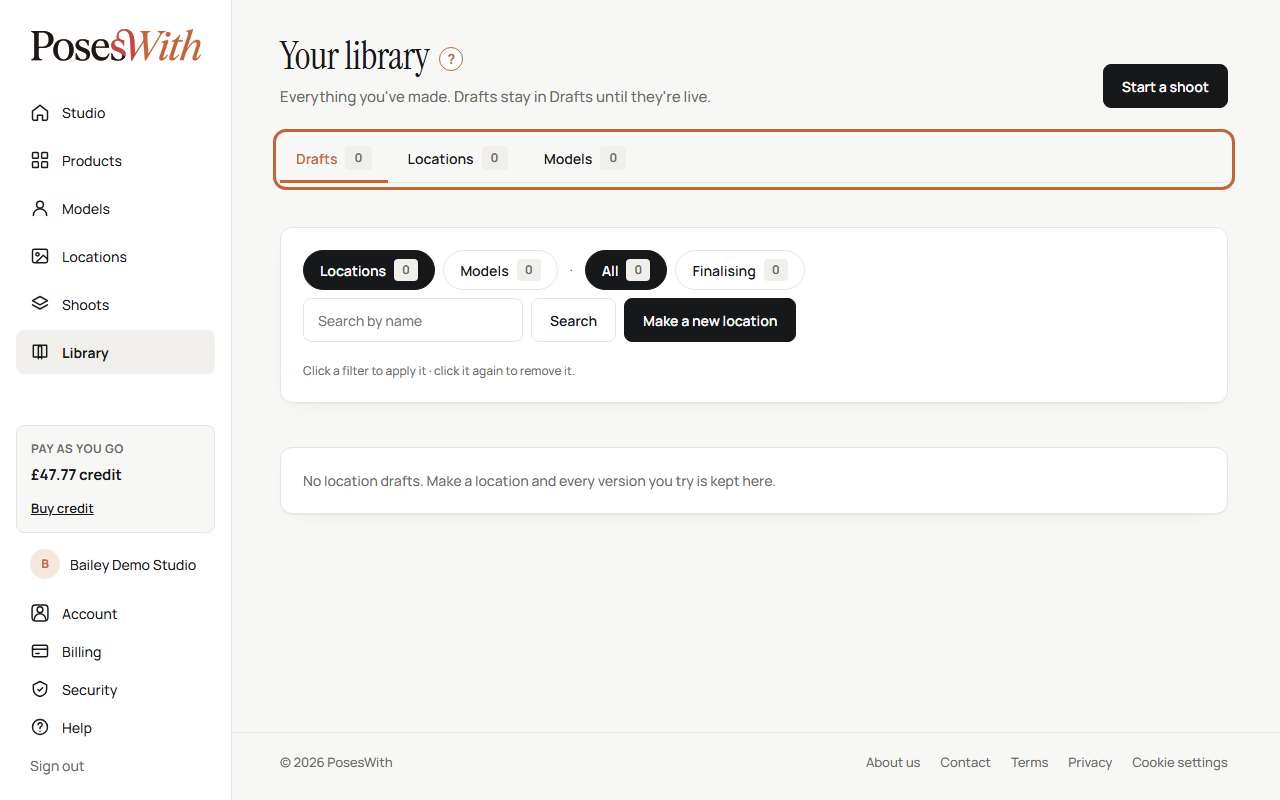
Your products aren't here - they're on the Products page. Your pictures and video clips aren't here either - they're kept with the shoot they were made in. See Find your pictures and clips.
Search and filter
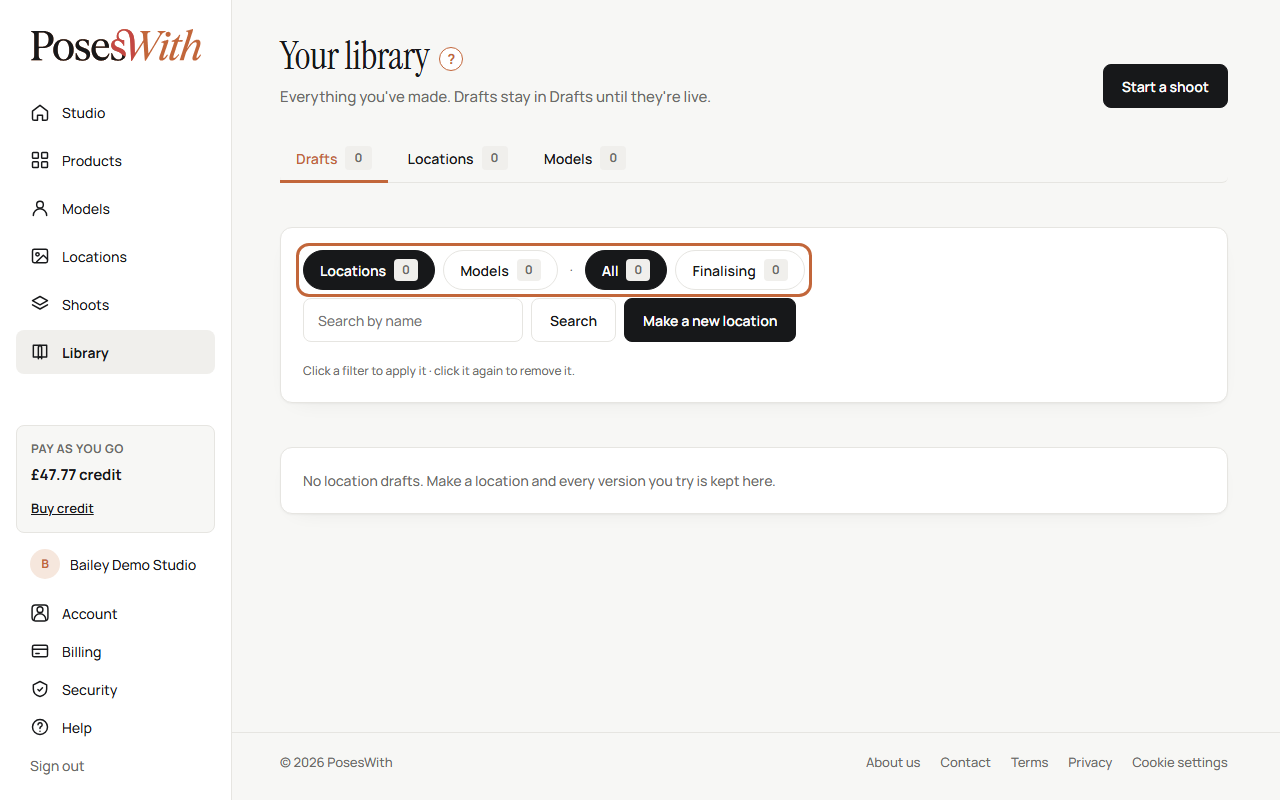
Under the tabs is a row of filters, and a search box.
- Search by name - type part of a name and click Search. Clear shows everything again.
- On Drafts, click Locations or Models to switch between your location drafts and your model drafts. Finalising shows only the ones you've approved that are still being got ready.
- On Locations and Models, click Shared or Exclusive to see only those. All shows everything again.
- On model lists, click People, Dogs or Cats. Click the same one again to turn it off.
If there are lots, they're split into pages - use the page numbers at the bottom.
On the right, Make a new location (or Make a new model, on the model lists) starts a new one. See Locations and Models.
Location drafts
On Drafts, click Locations to see the locations you're making. The label on each picture says where it's up to:
- Being made - the picture is on its way. Click Being made - watch it to see it arrive.
- Draft - ready for you to look at and decide.
- Taking a little longer - it hasn't come back yet.
What you can do with a draft:
- Click the eye on the picture to See every size of it. Or click See it full size under the name to open the draft's own page.
- Approve - shared or Approve - exclusive, each with its price. Shared goes into the locations for everyone; exclusive is yours alone. A box asks you to confirm, because this can't be changed after. See Locations.
- Try again, with its price, on a draft that's taking a little longer - it makes a fresh picture from the same settings.
- Change settings - opens the form with this draft's settings, so you can change something and make another. This draft stays as it is.
- Delete - removes the draft from your Library. A box asks you to confirm. It can't be brought back.
After you approve, the button says Finalising for shared use or Finalising for exclusivity while it's got ready. Once it's live, it moves to the Locations tab.
Model drafts
On Drafts, click Models to see the models you're making. The label on each picture says where it's up to:
- Being made - it appears in a minute or so.
- Draft - ready for you to look at and decide.
- Building identity set - you've approved it and we're making the rest of their pictures. Underneath, it counts down how many are left. It takes about 5 minutes, and you can carry on meanwhile.
- Taking a little longer - it hasn't come back yet. On a model you've already approved, a Retry button appears (see below). On one you haven't approved yet, use Try again or Delete.
- Not made yet - there's no picture yet.
What you can do with a draft:
- Click the i on the picture to see their details.
- Approve - shared or Approve - exclusive, each with its price. Shared joins the roster for everyone; exclusive means only you can see or use them. A box asks you to confirm, because this can't be changed after.
- A pet has one Approve button. Pets are always shared - a pet is its breed, colour and age, so it can't be yours alone.
- Try again, with its price, makes a new likeness. A box lets you choose how much to keep the same. This draft stays in your Library.
- Delete removes the draft. A box asks you to confirm. It can't be brought back.
- Retry shows if building their pictures is taking a little longer than expected. It carries on from where it stopped, keeps the pictures already made, and costs nothing extra.
For more on making your own models, see Models.
Your live locations and models
The Locations and Models tabs show the ones you've made that are now live. Each says Shared or Exclusive.
- On a location, On your Locations page takes you to it on the Locations page, ready to choose for a shoot. Use these settings opens the make form with its settings, to make another version - this one stays as it is.
- On a model, click the i to see their pictures and details. On your Models page takes you to them on the Models page, ready to choose for a shoot.
If a tab is empty, it tells you how to fill it - for example None live yet. Make a location and approve it - once it's live it moves here from Drafts.
Find your pictures and clips
Your pictures and video clips are kept with the shoot they were made in. To find and download them:
Click Shoots in the menu.
Under Show:, click Has pictures to see only the shoots with pictures in them. You can also search by the shoot's name or its location.
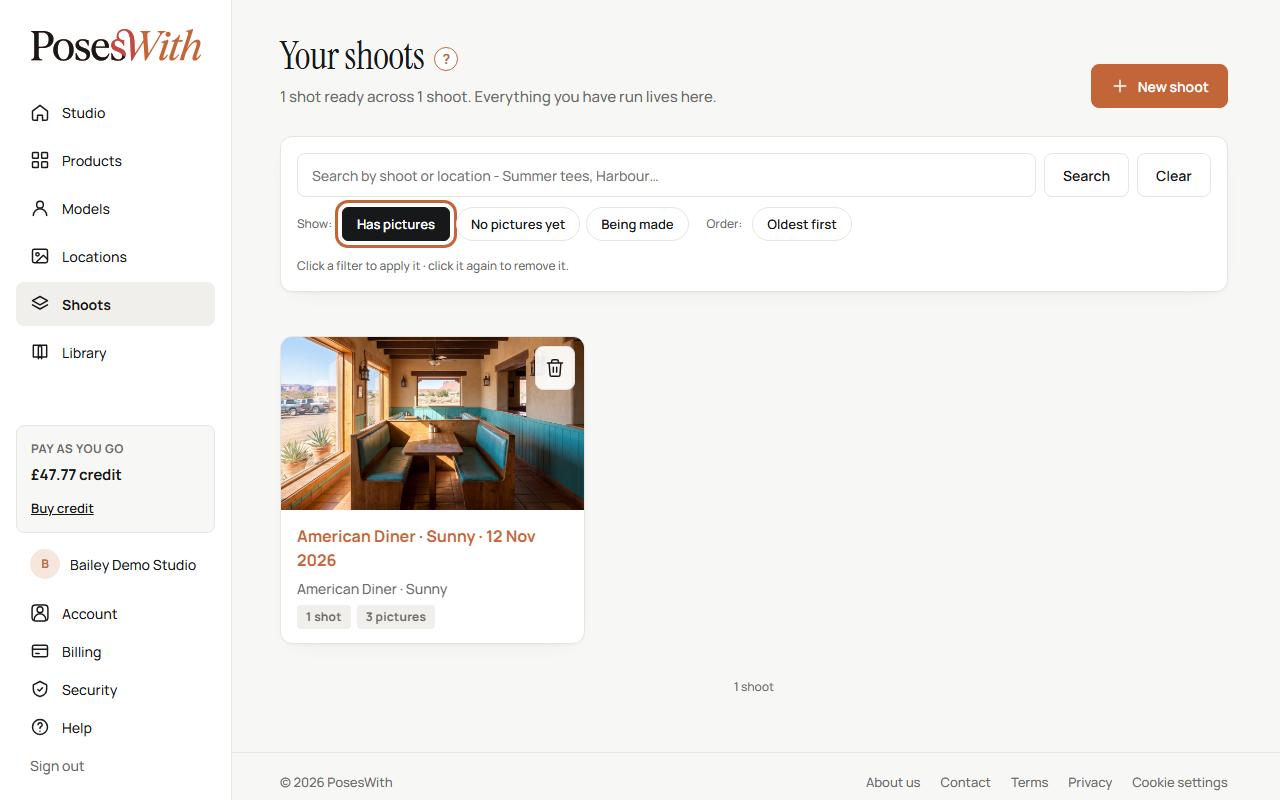
Click a shoot to open it. Every shot is under Shots, newest first.
To download pictures, click Versions on a shot, then Download under each version you want. See Download a picture.
To download clips, click Videos under the shoot's title, then Download under each clip. See Download a clip.
Watch out: If you delete a shoot, its pictures and clips go with it and can't be recovered. Download everything you want to keep first.
The page updates by itself
While something in your Library is being made or built, you don't need to keep reloading. The page checks every few seconds and updates when it's done, and a model's "left" count goes down as you watch.
What next
Keep an eye on your credit and see what everything costs: Credit and billing.