This guide takes you from no account to your own studio, ready to work. You don't need any technical knowledge - every step says where to click, and the pictures show you what you'll see. The part to click is outlined in orange.
Your first steps
Tick each one off as you go. Your ticks are saved in this browser only.
- Open your account (below)
- Confirm your email address (below)
- Sign in with your password and code (below)
- Add your first product - see Your products
- Choose a model - see Models
- Buy some credit - see Credit and billing
- Set up your first shoot - see Shoots
- Check and download your first picture - see Pictures
Open your account
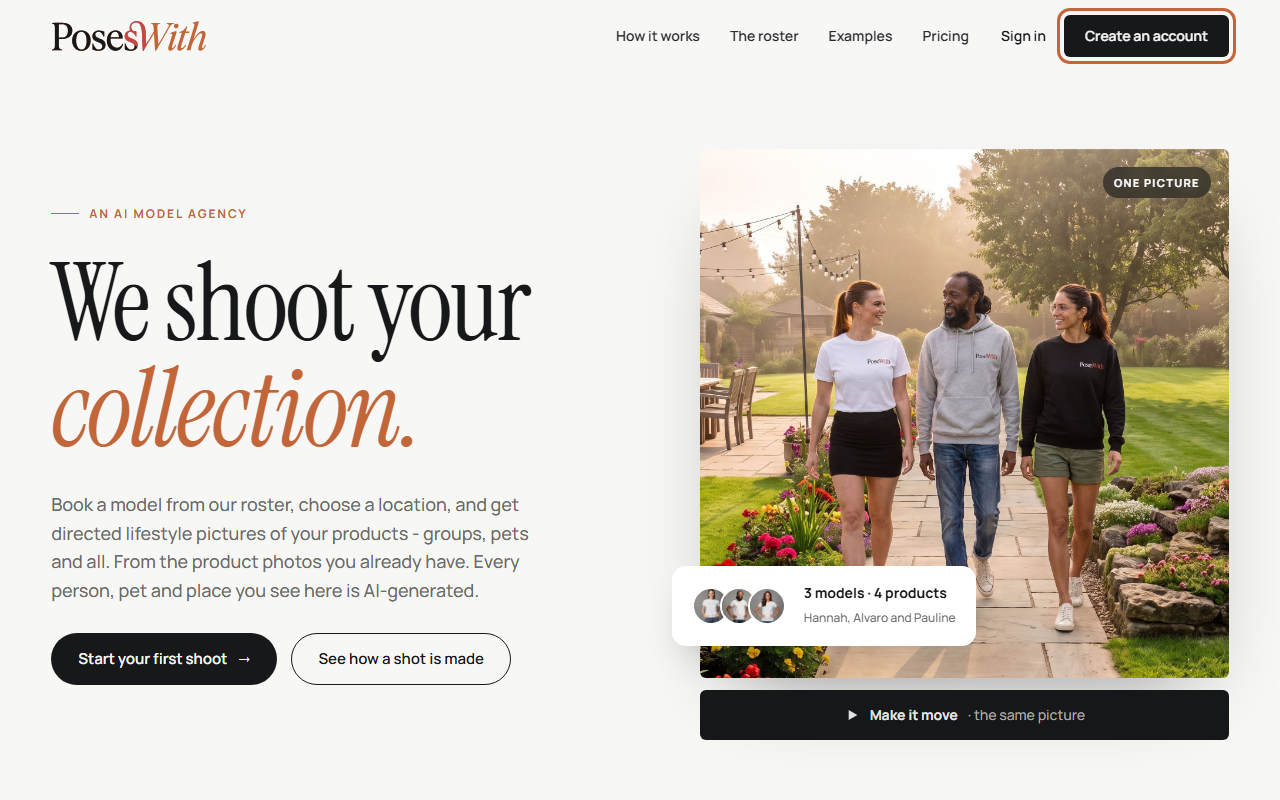
Go to poseswith.com and click Create an account at the top right of the page.
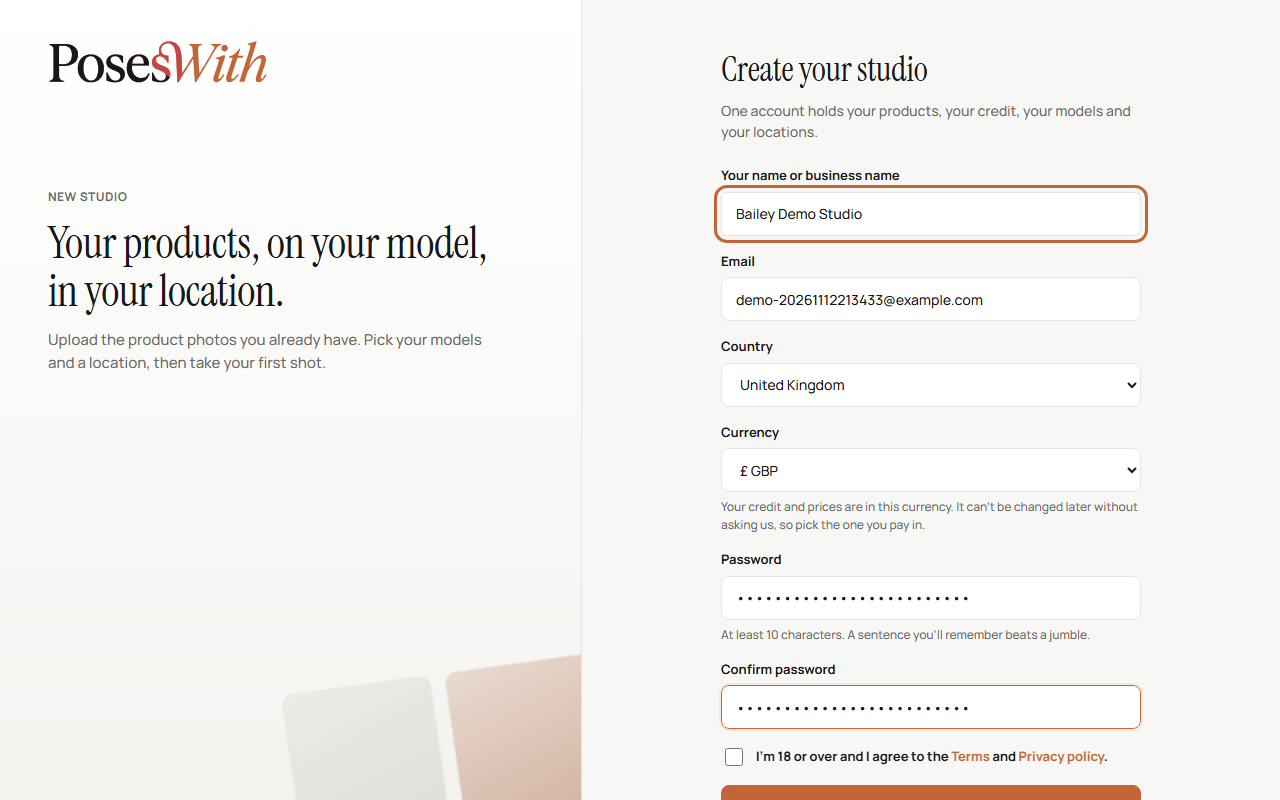
Fill in the form:
- Your name or business name - this is the name your studio shows. Your shop's name is best, but your own name is fine.
- Email - the address you'll sign in with. We also send your sign-in codes, invoices and important account emails here, so use one you check.
- Country - where you or your business are. If we can't take payments from your country yet, the form tells you straight away. You can still sign up and set up your products, and you can tick a box to get one email when payments open there.
- Currency - the currency you'll pay in. Your credit and prices are shown in it. Choose carefully: you can't change it yourself later.
- Password - at least 10 characters. A short sentence you'll remember is stronger than a jumble of letters, and easier to type.
- Confirm password - type the same password again.
Tick I'm 18 or over and I agree to the Terms and Privacy policy. You can click the words Terms or Privacy policy to read them in a window over the form - closing it keeps everything you've typed.
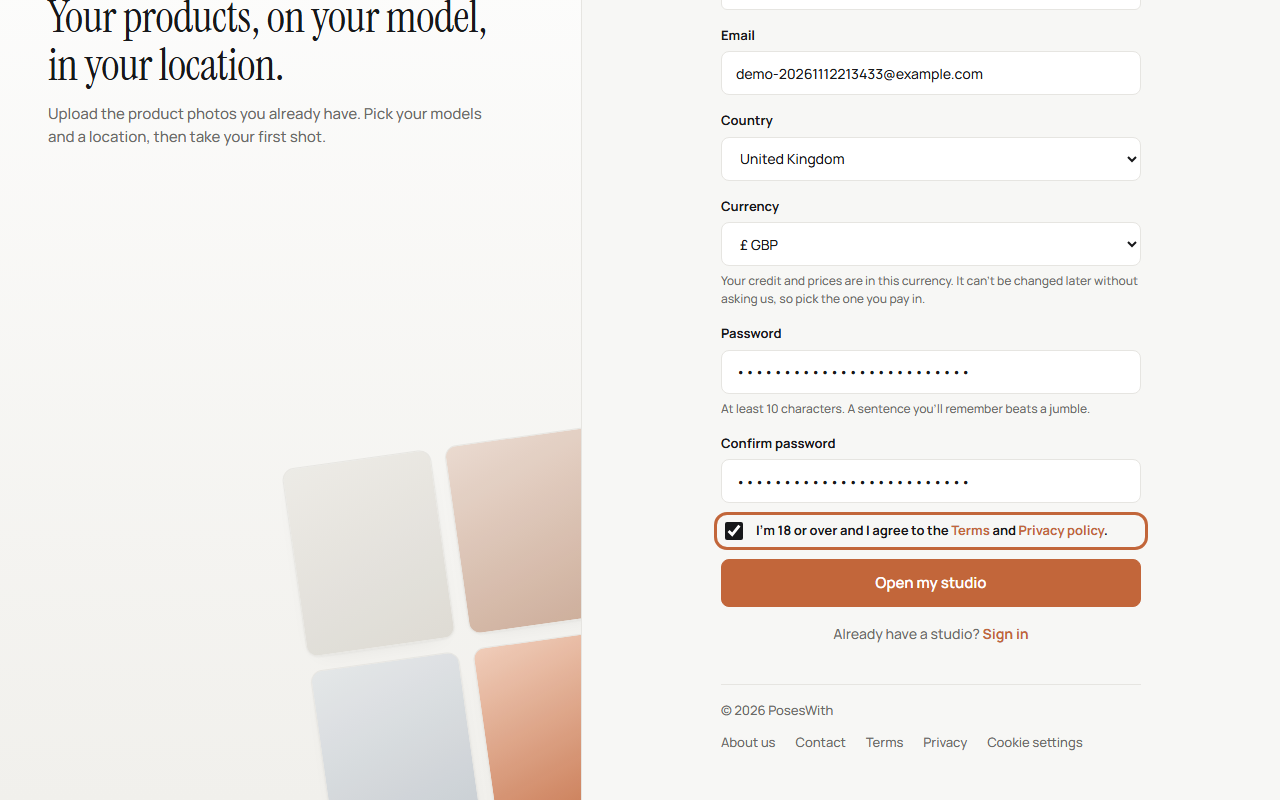
Click Open my studio. Your studio opens straight away.
Tip: PosesWith is only for people aged 18 or over. If we find an account belongs to someone younger, we close it.
Confirm your email address
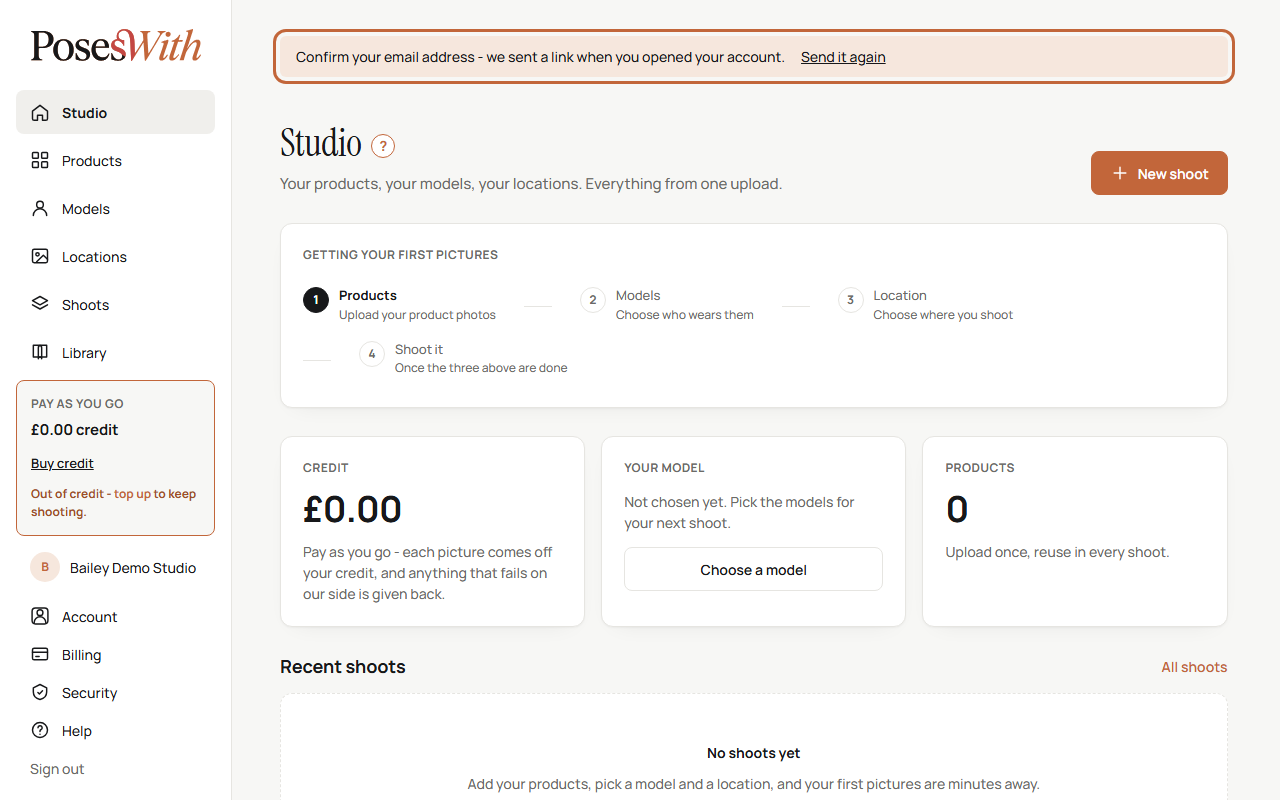
When your studio opens, a bar across the top asks you to confirm your email address. We've sent you an email called Confirm your PosesWith email address.
Open the email and click Confirm my email address. The link works once, for one hour.
A page opens to say your email address is confirmed.
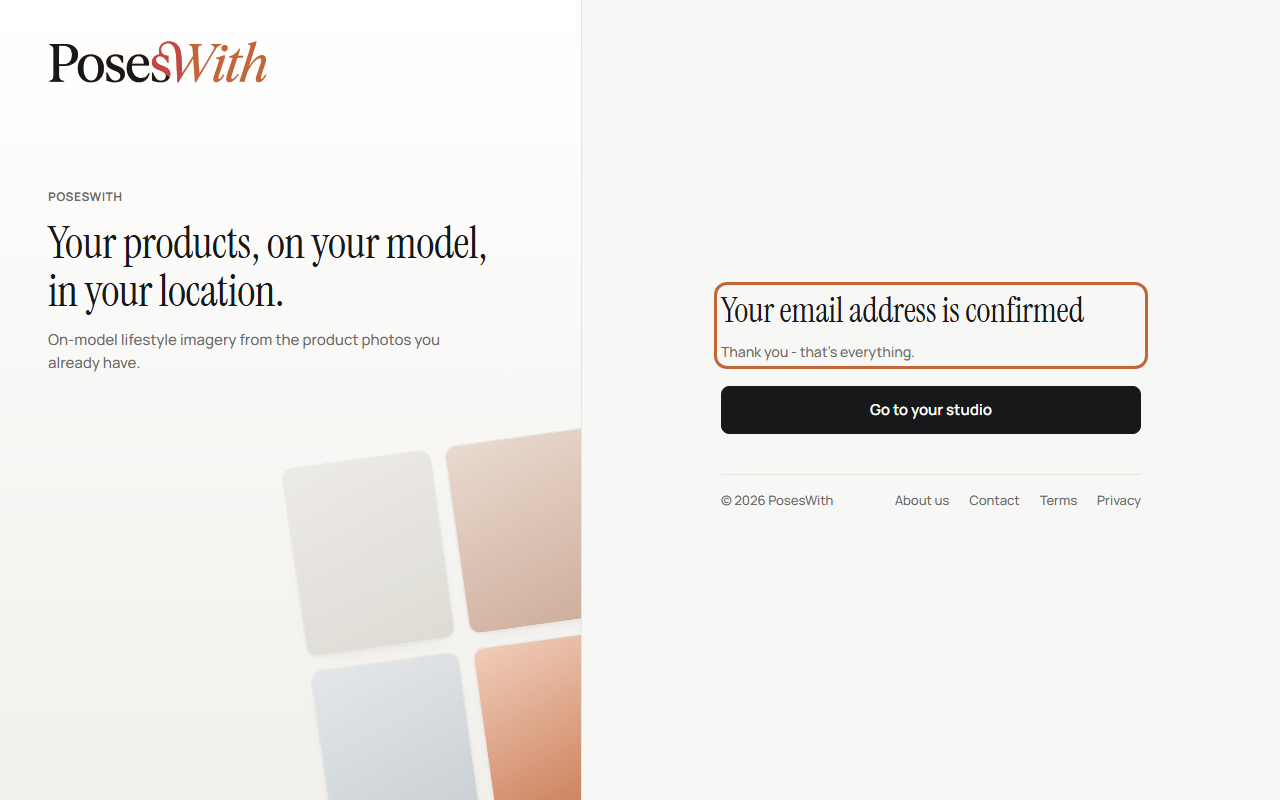
No email? Look in your junk or spam folder. Still nothing, or the link has run out? Click Send it again in the bar at the top of any page in your studio.
Tip: Confirming your email also switches on two-step sign-in. From now on, when you sign in on a new computer, phone or tablet, we email you a 6-digit code to type after your password. Someone who finds out your password still can't get into your studio without that code.
Sign in
Go to poseswith.com and click Sign in at the top right.
Type your email address and password, and click Sign in.
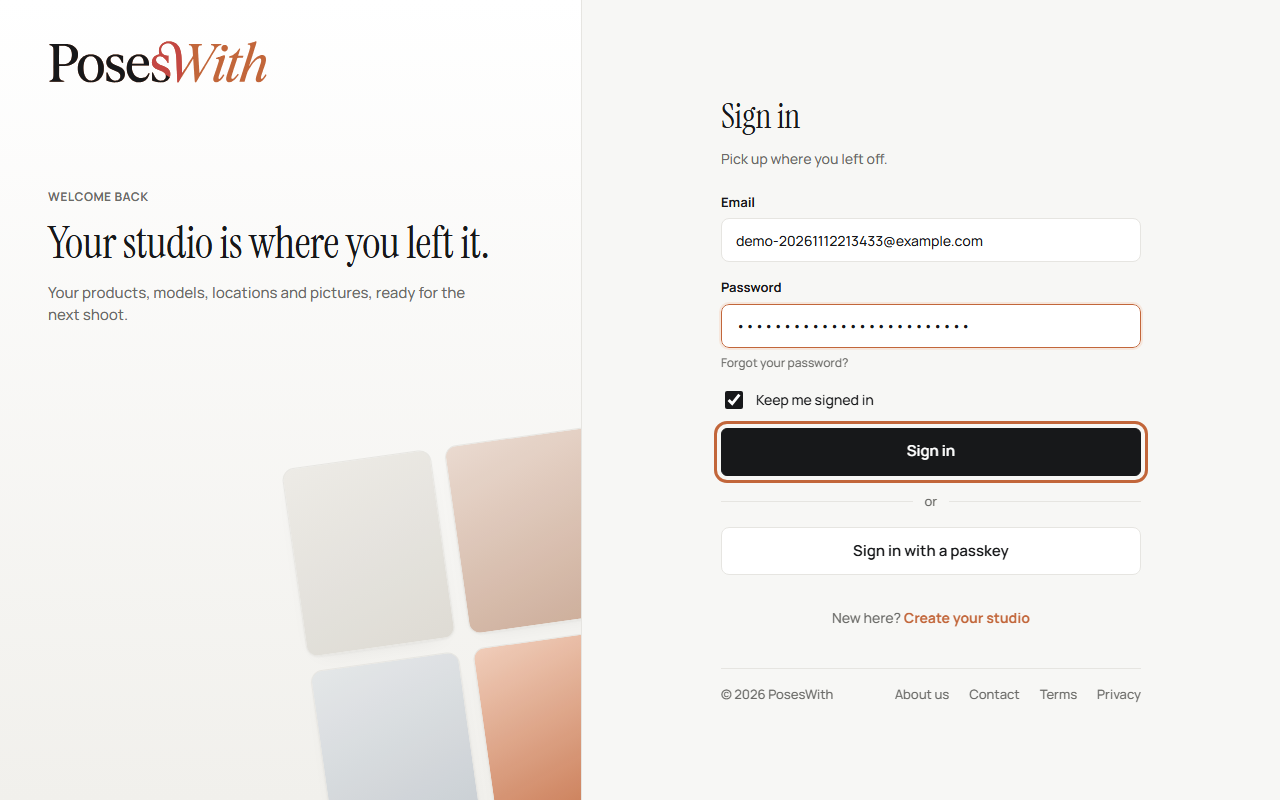
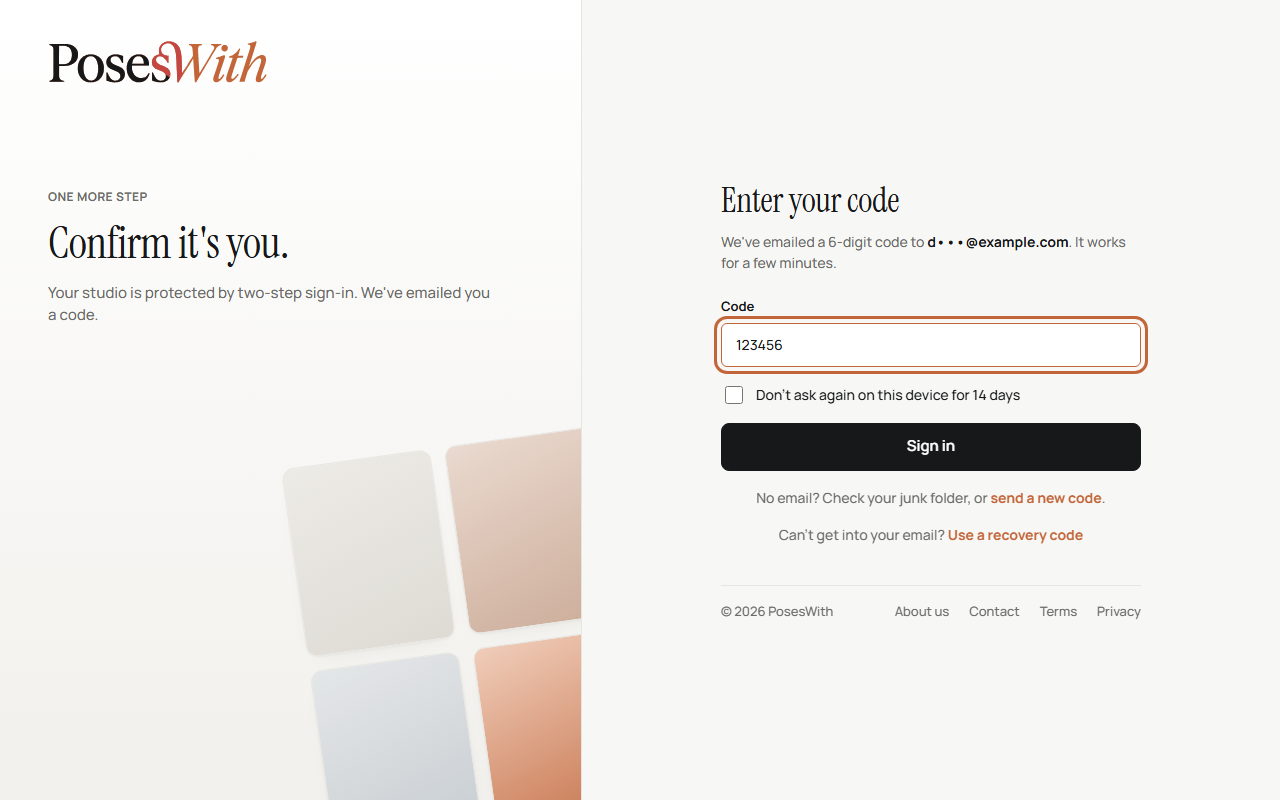
If you're on a device you haven't used before, we email you a sign-in code. Open the email called Your PosesWith sign-in code and type the 6 digits into the box.
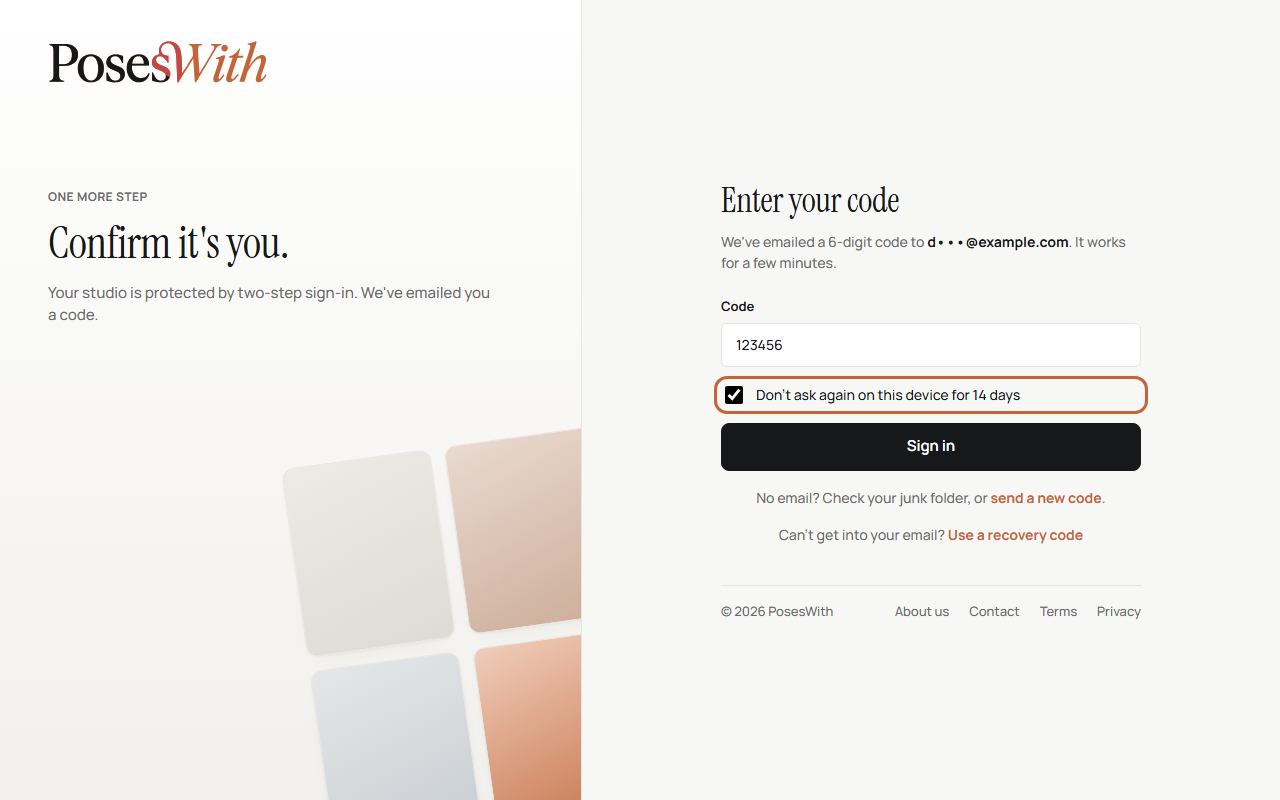
On your own computer or phone, tick Don't ask again on this device for 14 days so you only need a code once a fortnight there. Don't tick it on a shared or public computer.
Click Sign in.
The code works for a few minutes. If it runs out, or the email doesn't come, check your junk folder, then click send a new code on the same page. You can ask for one new code a minute.
Watch out: We never ask for your code by phone, by text or in an email. Only type it on the PosesWith sign-in page. If you get a code you didn't ask for, someone may know your password - sign in and change it on your Security page.
Can't get into your email? You can sign in with a recovery code instead. Recovery codes are a set of one-time codes you can save in advance from your Security page - see Security. It's worth doing this on your first day.
Find your way round the studio
Everything lives in the menu down the left-hand side. On a phone, the menu is at the top of the page.
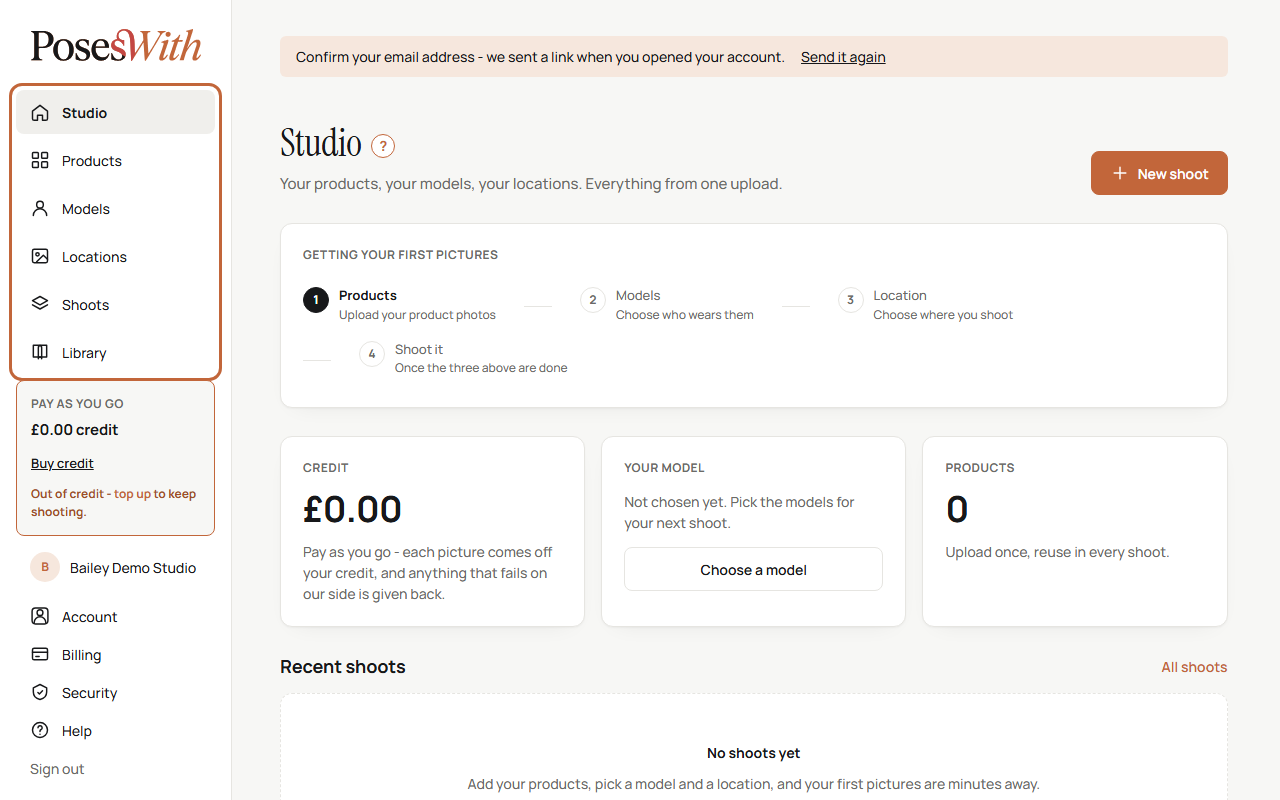
- Studio - your home page. It shows your latest shoots and the quickest way to start a new one.
- Products - the things you sell. You upload a photo of each one here. See Your products.
- Models - the people (and pets) who wear, hold and use your products in your pictures. See Models.
- Locations - the places your pictures are set in, from a kitchen to a beach. See Locations.
- Shoots - where you put a model, your products and a location together and make pictures. Every picture and clip you make is kept with its shoot, ready to download. See Shoots.
- Library - the models and locations you've made yourself. Your pictures and video clips stay with their shoot. See Library.
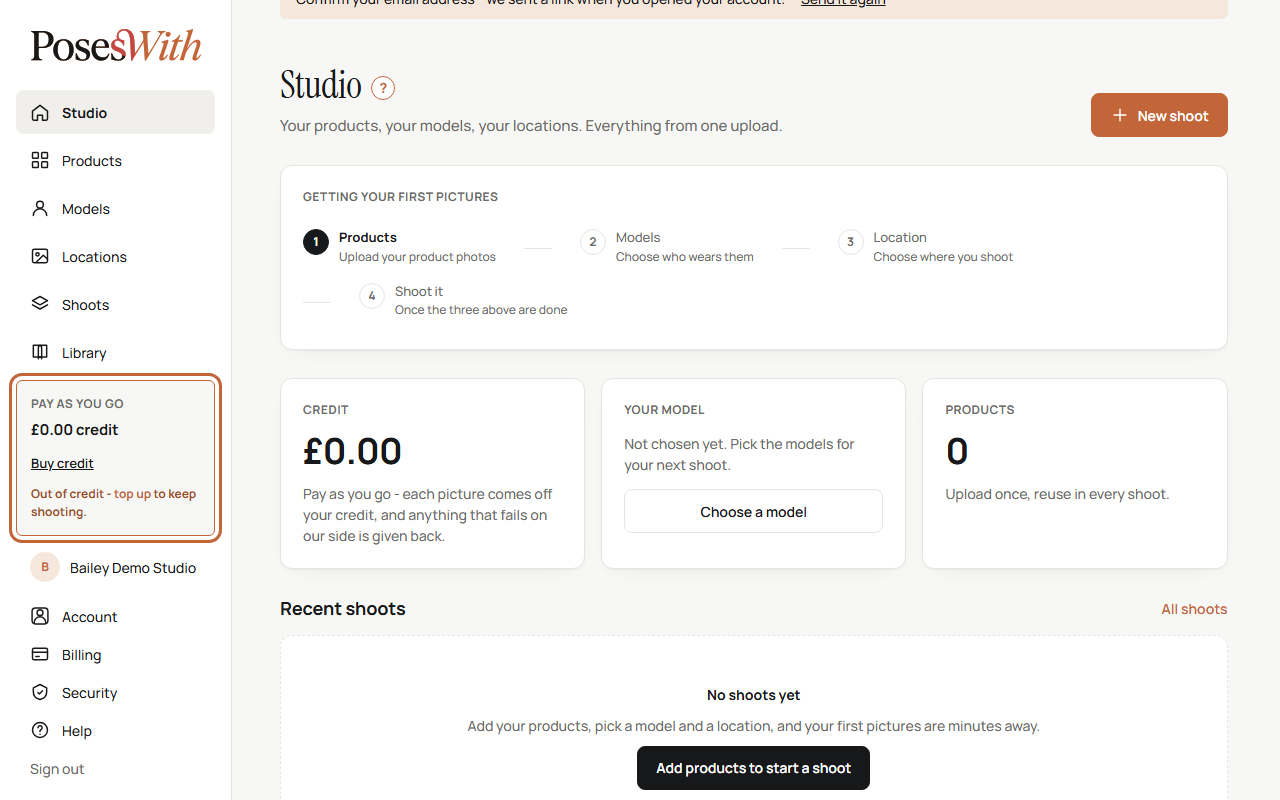
Below the menu is your credit. PosesWith is pay as you go: you buy credit, and each picture or video you make uses some of it. The box warns you when you're running low, and Buy credit takes you to the top-up page. New accounts start with no credit. See Credit and billing.
At the bottom, under your studio's name, are the pages for your account:
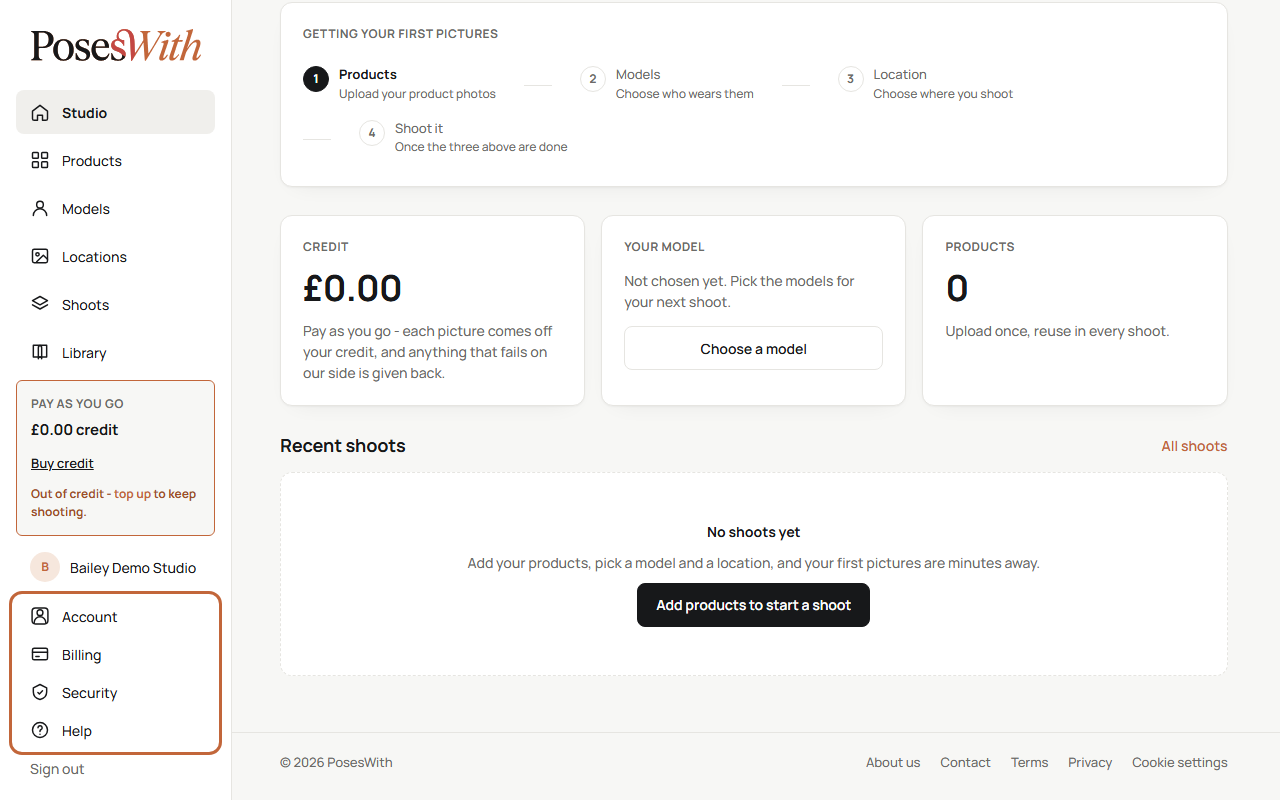
- Account - your details, your logo, which emails we send you, a copy of your data, and closing your account. See Your account.
- Billing - your credit history and your invoices. See Credit and billing.
- Security - your password, two-step sign-in, recovery codes and passkeys. See Security.
- Help - these guides.
- Sign out - always sign out on a shared computer.
What next
Add your first product: Your products. Once you have a product, a model and some credit, you're ready for your first shoot.