This guide shows you how to choose the people and pets who wear, hold and use your products in your pictures. You can pick from the roster, or make a model of your own - shared with everyone, or exclusive to you.
The roster
The roster is every model you can shoot with. Click Models in the menu on the left. The page is called Choose your model.
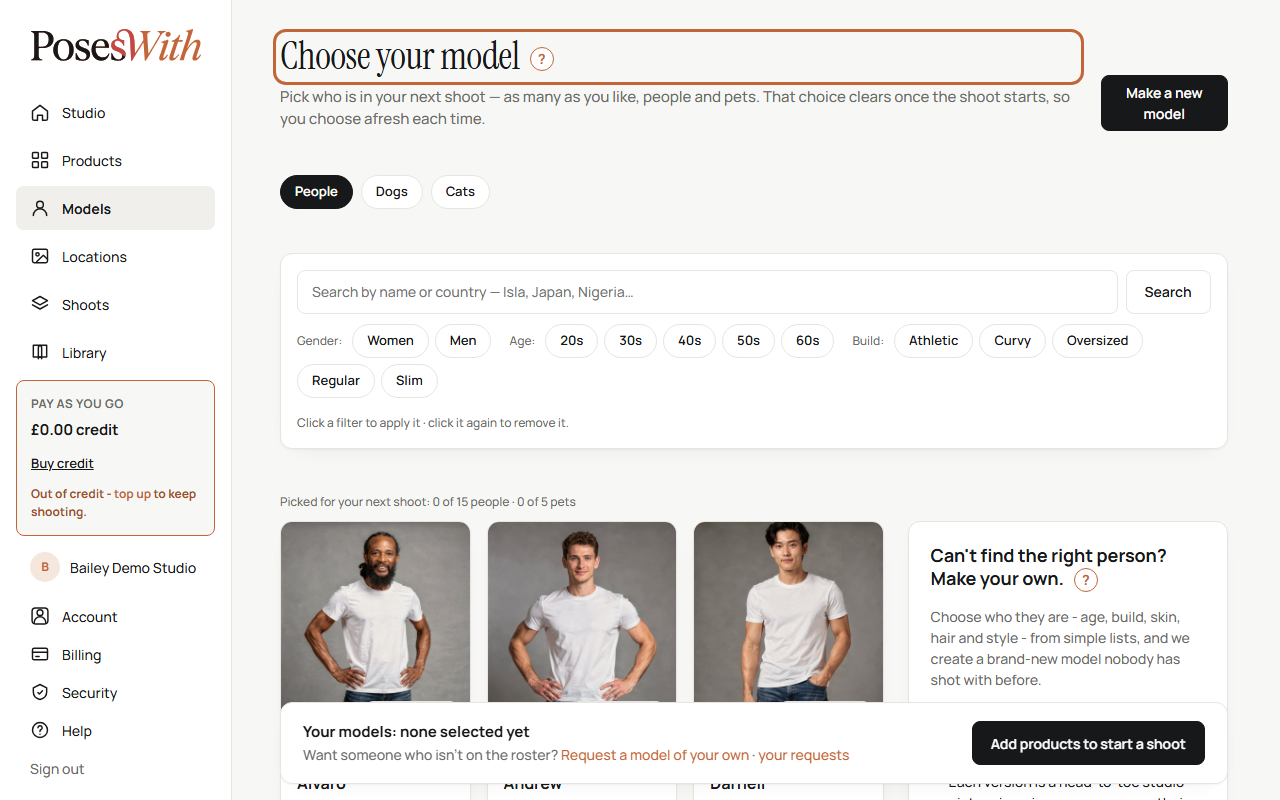
Use People, Dogs and Cats at the top to switch between people and pets.
Each model has a tile with their picture, their name and a short line about them, such as their age and build.
Click Quick view on a tile to see more pictures of them in different settings, with their details underneath. Click Close to go back.
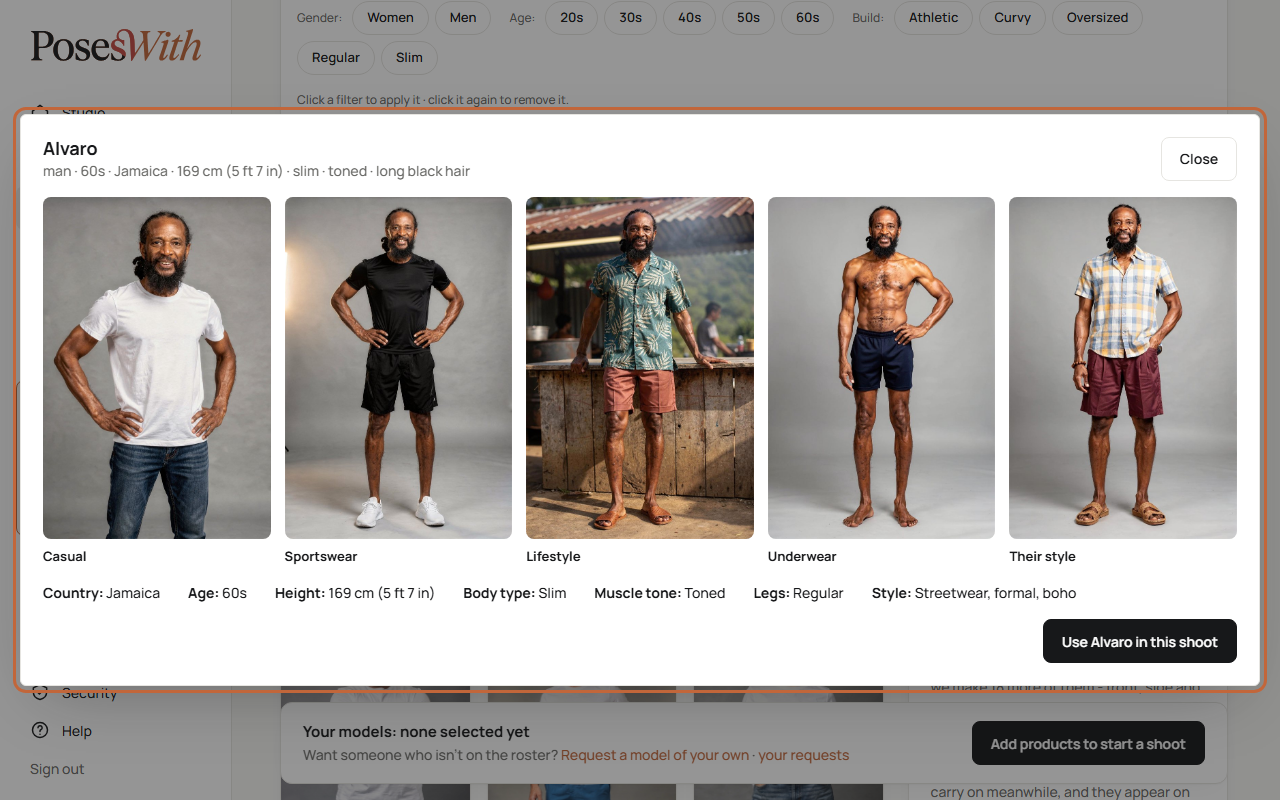
Every model on PosesWith is generated - adults only, and never based on a real person.
Find a model
The box under the tabs helps you find the right person.
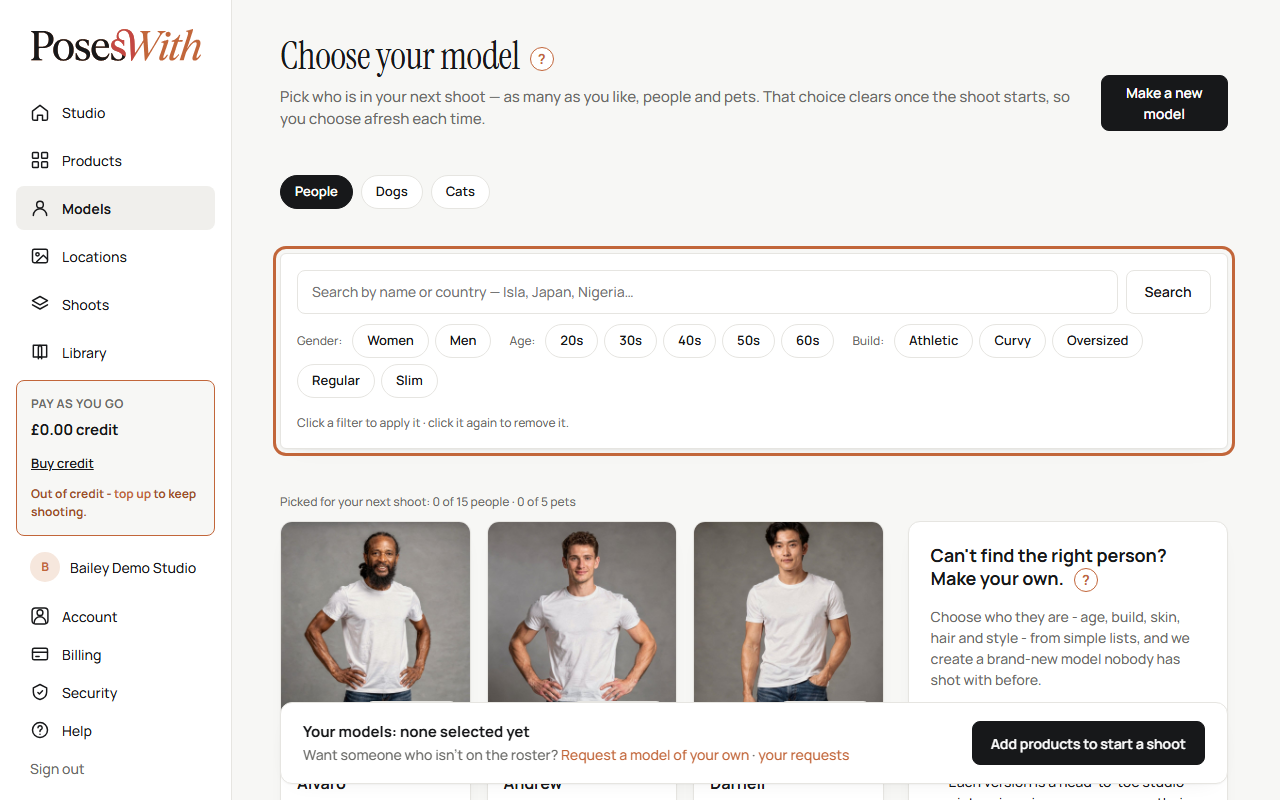
- Type a name or a country in the search box (for example Japan) and click Search. For dogs and cats, search by name or breed, such as labrador.
- For people, use the Gender:, Age: and Build: filters. Only the choices the roster has are shown.
- Click a filter to apply it, and click it again to remove it. Clear shows everyone again.
- Once you've made models of your own, Yours: filters appear: Made by you and Exclusive.
If nobody matches, the page says so - click Clear the filters to start again. Models show 24 to a page; use the page numbers under the tiles to move between pages.
Pick models for a shoot
You can pick as many models as you like for your next shoot, people and pets together - up to 15 people and 5 pets.
Click Use in this shoot on a model's tile. It changes to In this shoot ✓ · click to remove, and the tile is marked In this shoot.
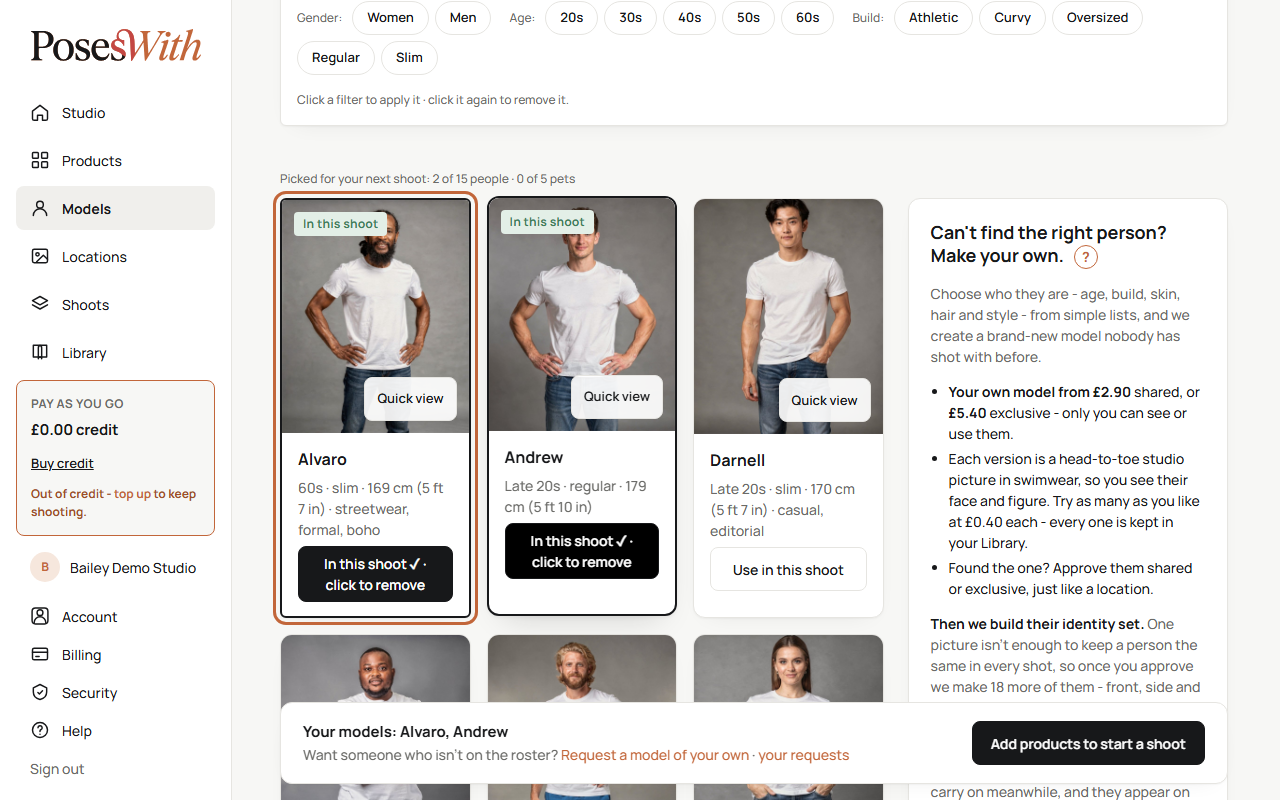
To take someone out, click the button again. You can also pick or remove a model from their Quick view.
The line above the tiles counts your picks, for example Picked for your next shoot: 2 of 15 people · 0 of 5 pets. The bar at the bottom lists them by name.
When you're ready, click the button in the bar at the bottom - for example Select a location to start a shoot, or Start a shoot once you have products, models and a location.
Your picks clear once the shoot starts, so you choose afresh each time.
If you've already picked the most people or pets, a message says so - take one off to add another.
Watch out: Not every location has room for a pet. If you pick a pet while your location doesn't allow pets, a message tells you. Choose another location, or take the pet off, before you take a shot. See Locations.
Your model on the Studio page
The first person you pick is shown on your Studio home page under Your model, with your garment size.
A pet is never shown there - it's always the first person you pick. When your shoot starts, your picks clear and you choose again for the next one.
Set the garment size
Under the models is a box called Fit. Tell us the size of the sample garments in your product photos, and your model wears them as that size.
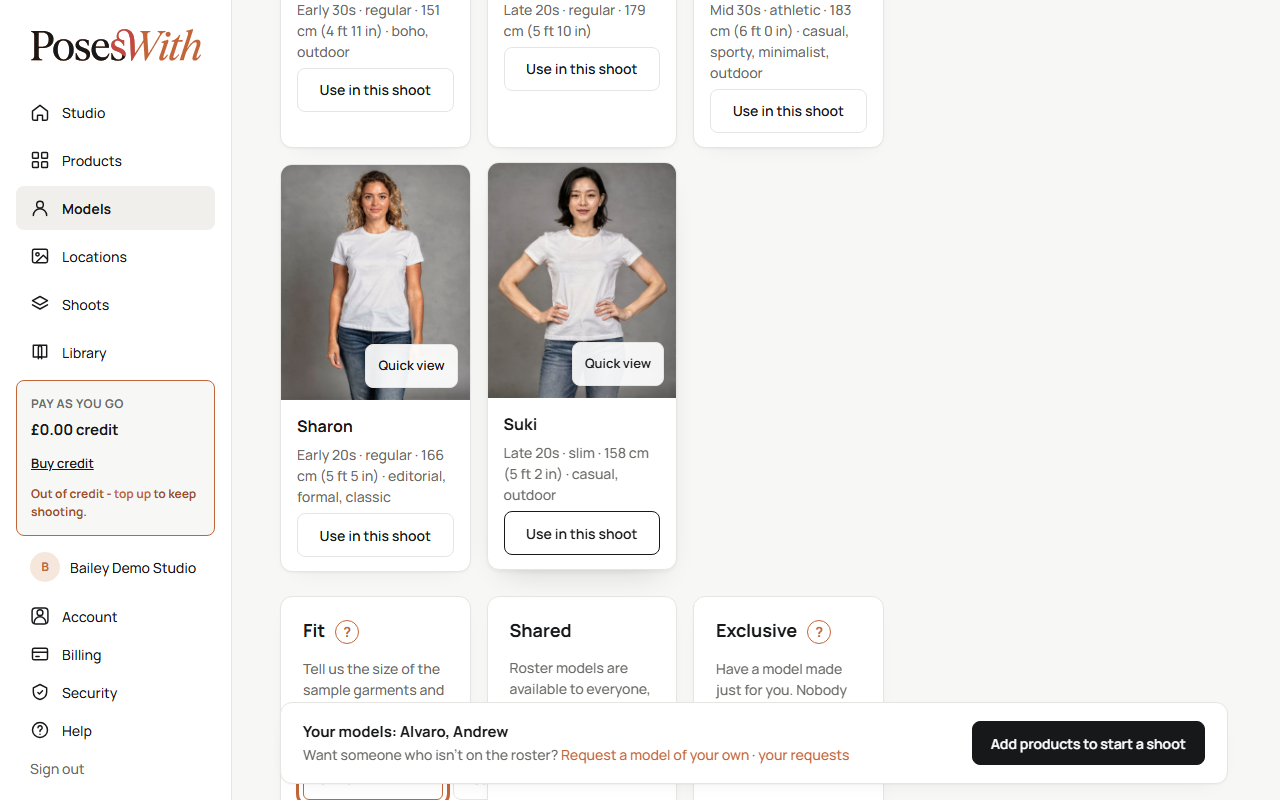
- Type the size in the box, for example UK 10.
- Click Save.
To stop using a size, empty the box and click Save.
The size applies to clothing only.
Shared and exclusive models
There are two kinds of model:
- Shared - roster models are available to everyone, at no extra cost.
- Exclusive - a model made just for you. Nobody else can see them or start a shoot with them. Their tile is marked Exclusive.
You can make either kind yourself - see Make your own model.
Pets
Click Dogs or Cats at the top of the Models page to see the pets. Each pet is one breed, colour and age, so pick the one that fits your product. You pick a pet just as you pick a person, with Use in this shoot.
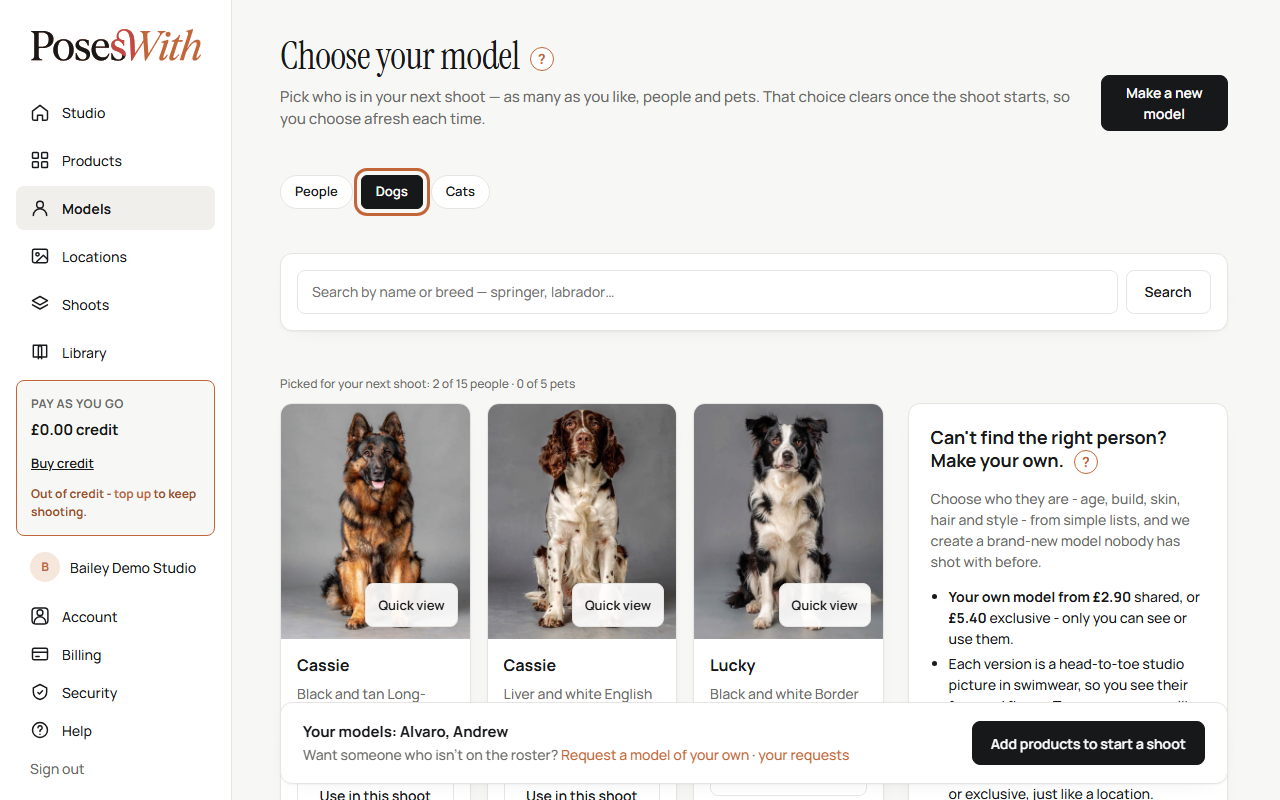
Breeds are shown at their real size next to the people they're photographed with.
Pets are always shared. A pet is its breed, colour and age, so two fawn pug puppies look alike in a way two people never do - which means a pet can't be made yours alone. To make a new pet, see Make your own pet.
Make your own model
Can't find the right person? Make your own. You choose who they are from simple lists, and we create a brand-new model nobody has shot with before.
On the Models page, click Make a new model at the top right, or in the box on the right.
Under What type of model do you want to make?, click Person.
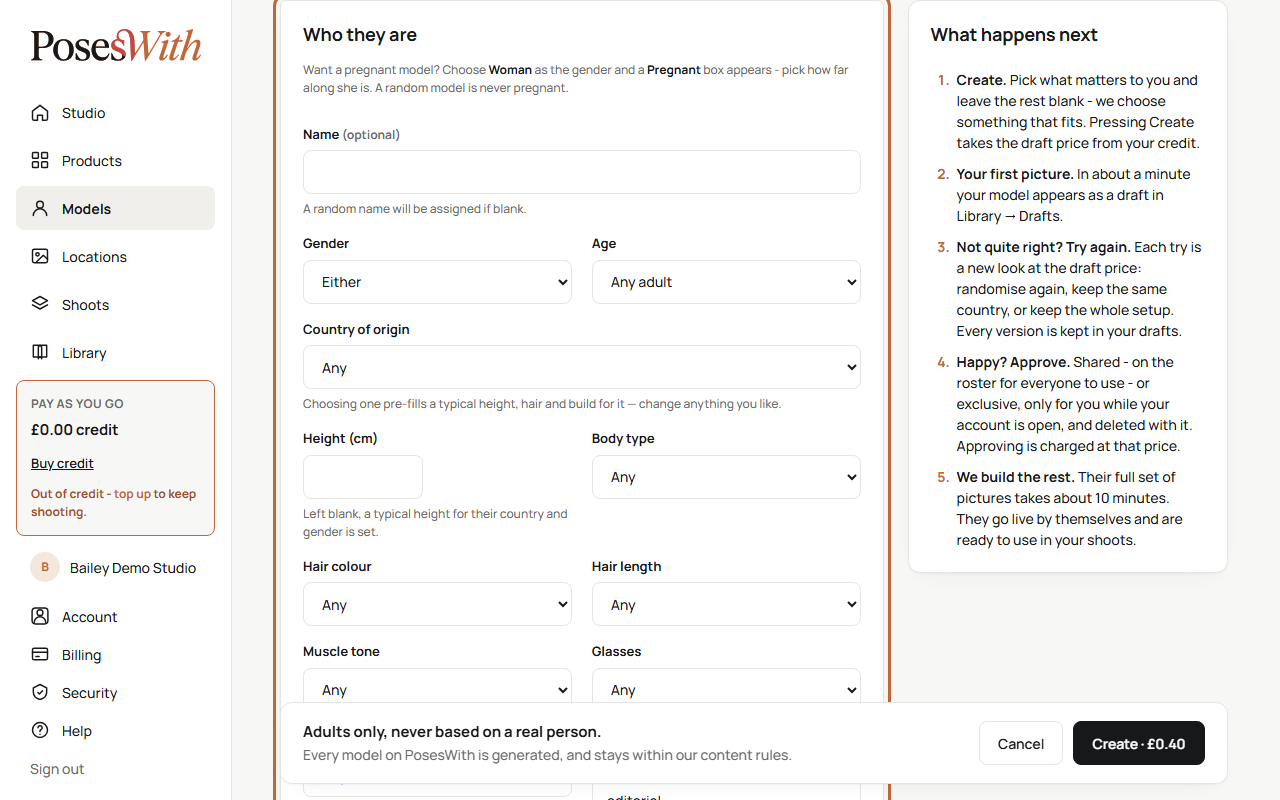
Fill in the boxes under Who they are. Every one is optional - leave a box blank and we choose something that fits:
- Name - a random name is given if you leave it blank.
- Gender - Woman, Man or Either.
- Age - from early 20s to 60+, or Any adult.
- Country of origin - choosing one fills in a typical height, hair and build for it. You can change any of them.
- Height (cm) - left blank, a typical height for their country and gender is set.
- Body type, Hair colour, Hair length, Muscle tone, Glasses and Leg length.
- Facial hair and Body hair - these appear when you choose Man.
- Their style - hold Ctrl and click to pick more than one. Random styles are given if you pick none.
Click Create (the button shows the price). The price of a draft comes off your credit.
Your model is made as a draft. In about a minute it appears in your Library, under Drafts - see Your model drafts.
Tip: Want a pregnant model? Choose Woman as the gender and a Pregnant box appears - pick how far along she is: Early (4-5 months), Mid (6-7 months) or Full term (8-9 months). A random model is never pregnant. The bump is part of her in every picture, so another stage is another model.
If you don't have enough credit, a message tells you the price - top up and try again. See Credit and billing.
Make your own pet
On the Models page, click Make a new model.
Under What type of model do you want to make?, click Dog or Cat.
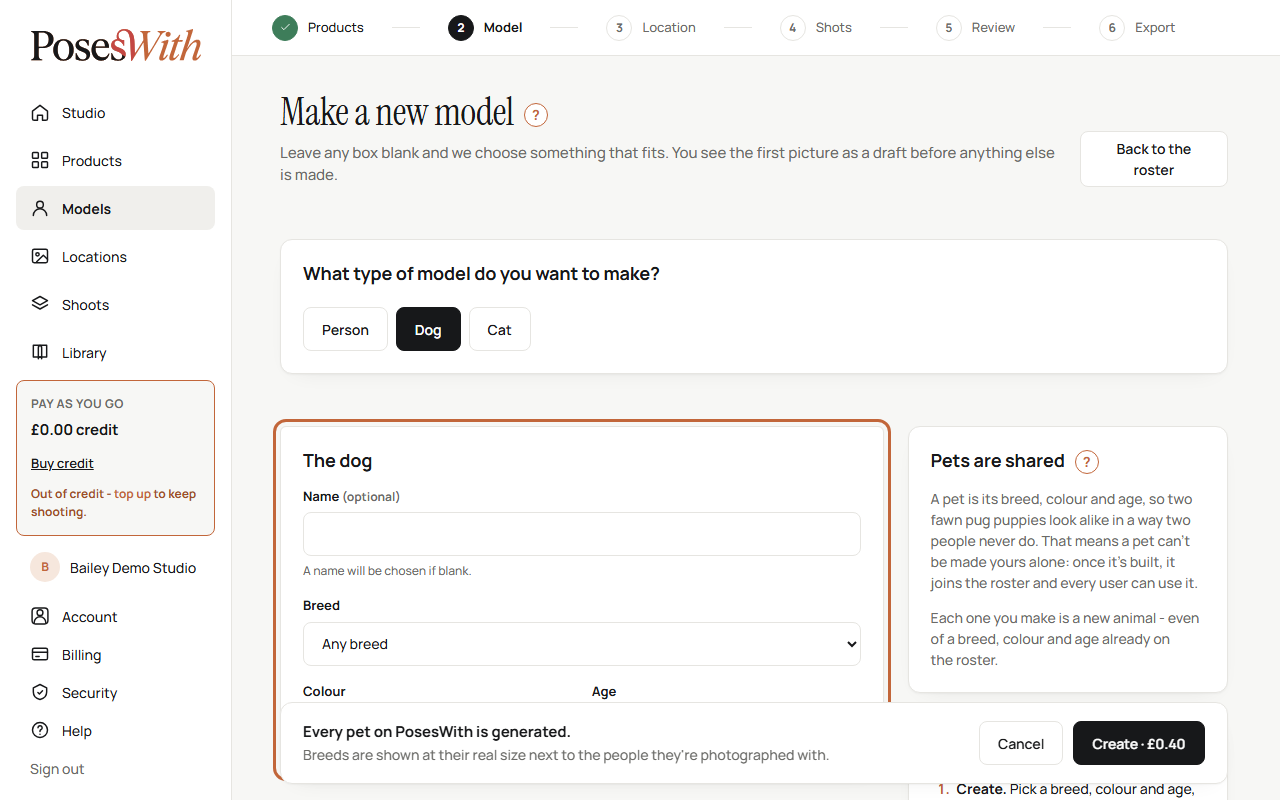
Choose a Breed, then a Colour (the colours that breed comes in) and an Age. Leave any of them on Any breed, Any colour or Any age and we choose. Add a Name if you like - a name is chosen if you leave it blank.
Click Create (the button shows the price).
Your pet appears as a draft in your Library, under Drafts, in about a minute.
Pets are always shared: once it's built, your pet joins the roster and every user can use it. Each one you make is a new animal - even of a breed, colour and age already on the roster.
Your model drafts
Every model you make starts as a draft - one head-to-toe studio picture in swimwear, so you can see their face and figure. Drafts are kept in your Library: click Library in the menu, then Drafts, then Models.
The tag on each draft tells you where it is:
- Being made - it appears in a minute or so. The page updates by itself.
- Draft - ready for you to look at.
- Taking a little longer - see below.
Click the i button on a draft to see its details.
On each draft:
Approve - shared or Approve - exclusive (for a pet, Approve) - you've found the one. See Approve a model.
Try again - make a new version, at the draft price. This draft stays in your Library. For a person you choose how:
- Randomise again - anything you left on Random may change
- Same country, new look - keep the country and gender
- Use the same setup - keep the country, age, build and hair
For a pet, choose Randomise again or Use the same setup.
Delete - removes the draft from your Library. It can't be brought back.
Try as many versions as you like - every one is kept in your drafts.
Approve a model
When you're happy with a draft, approve it. Approving is charged at the price on the button, on top of the drafts you've made.
- In your Library, under Drafts, click Approve - shared or Approve - exclusive on the draft.
- Shared - on the roster for everyone to use.
- Exclusive - only you can see or use them, while your account is open. They are deleted with your account.
- A window asks you to confirm. Click Approve.
Watch out: You can't change shared to exclusive, or the other way round, after you approve.
Pets have one button, Approve - they are always shared.
We build their identity set
One picture isn't enough to keep a person the same in every shot. So once you approve, we make a full set of pictures of them - front, side and back, close-ups, swimwear, sportswear and everyday clothes - plus the display pictures you see in their Quick view.
The draft's tag says Building identity set, and counts down how many pictures are left. It takes a few minutes, and you can carry on with other things meanwhile. When it's done, your model goes live by themselves and is ready to use in your shoots.
If a build says Taking a little longer, click Retry. It carries on from where it stopped, keeps the pictures already made, and costs nothing extra.
Find the models you made
Your live models are in two places:
- On the Models page, click Made by you or Exclusive next to Yours:.
- In your Library, under the Models tab. Each one is marked Shared or Exclusive. Click On your Models page to go to them.
Your model requests
The bar at the bottom of the Models page has a link to your requests. The page, Your model requests, lists every model you've asked for, newest first, with the date you asked and a tag showing where it is: Draft - in your Library while it waits for you to approve it, then On your roster once it's approved.
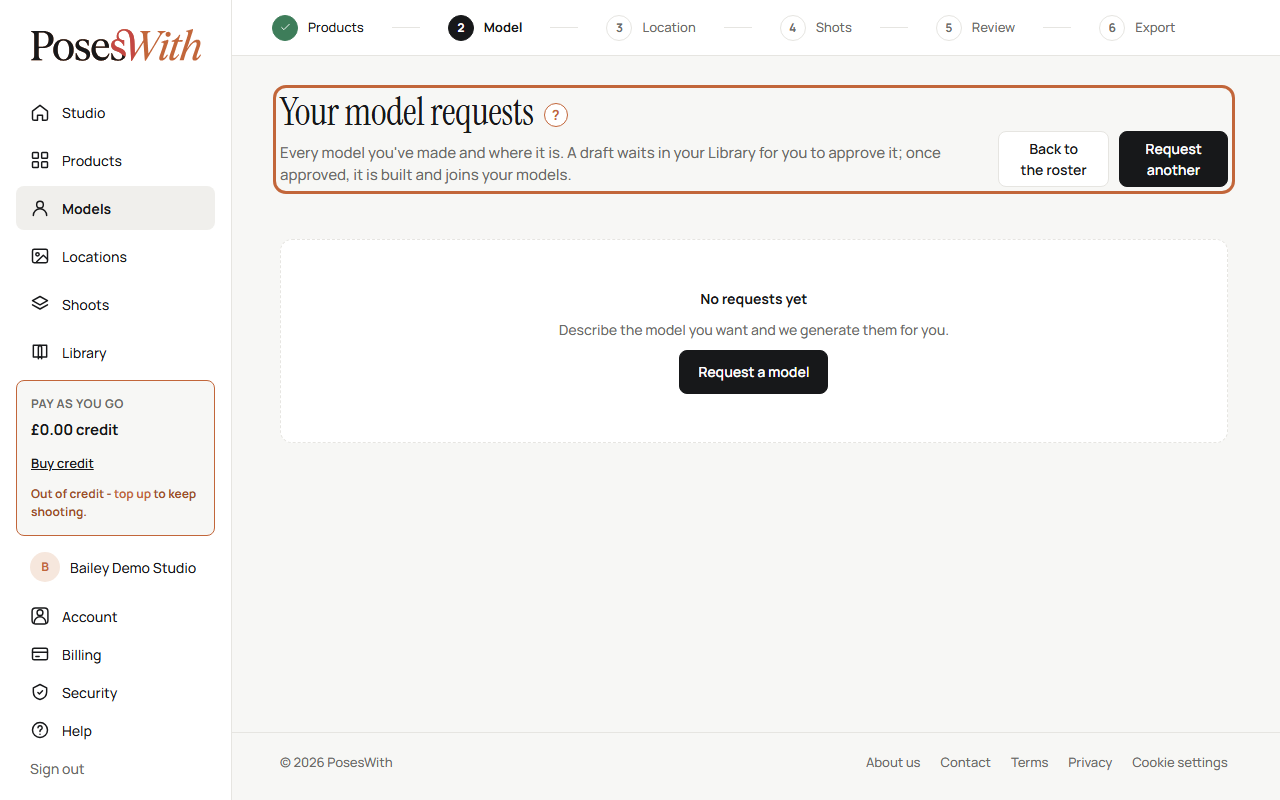
Click Request another to make a new one, or Back to the roster to return to the Models page. To try again, approve or delete a model you've made, use your drafts in the Library - see Your model drafts.
What next
Choose where your pictures are set: Locations.